Frequently Asked Questions
Common hotel system issues and their solutions:
Accounts
If I cannot log in to PMS - FO, Finance, or POS
If you cannot log in, try clearing your Chrome browser cache as a first troubleshooting step. This often resolves login issues including Magic Link authentication: 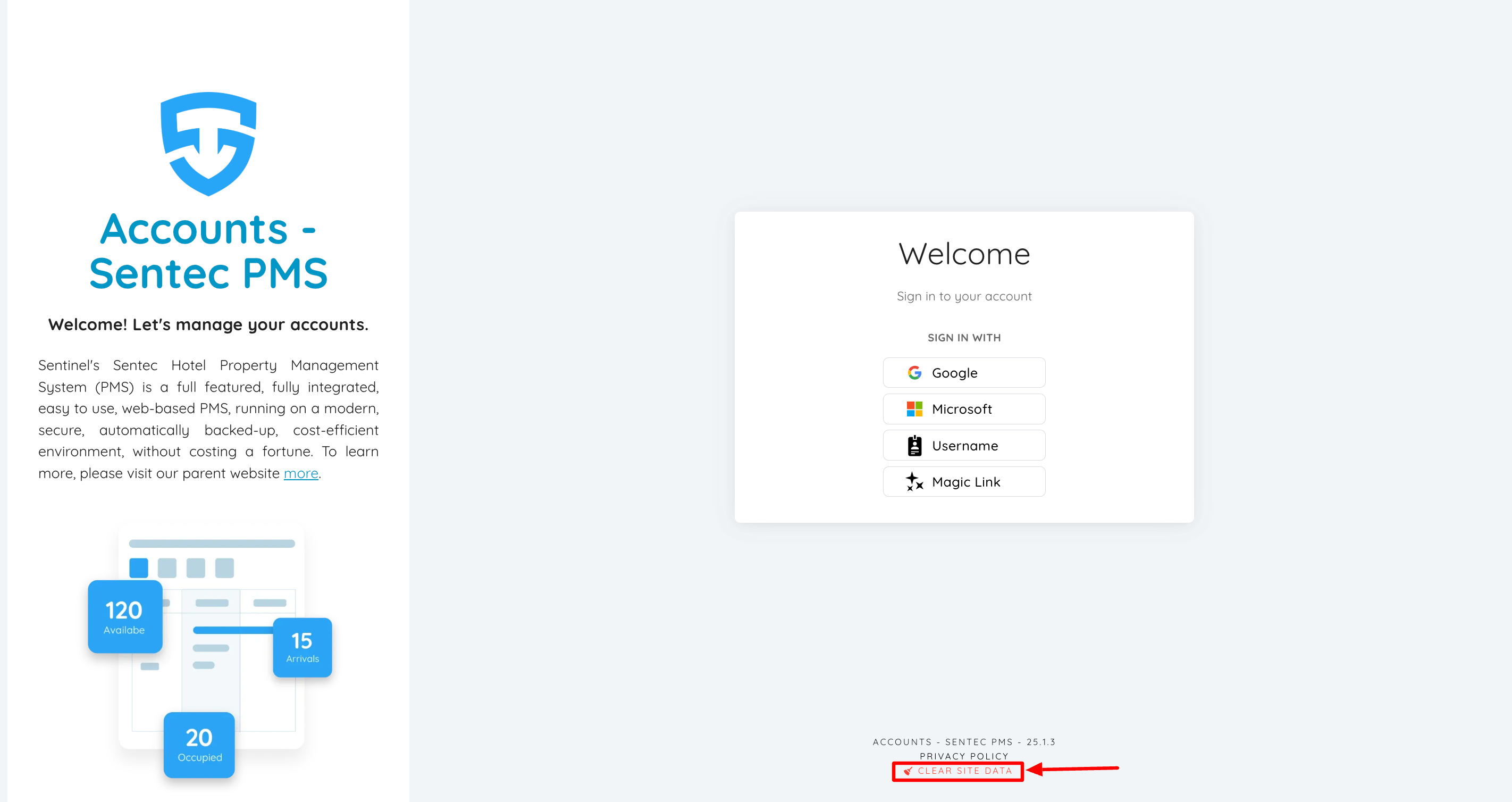 For the first method, you can directly click Clear Site Data on the login page, located at the very bottom.
For the second method, go to Chrome's settings by clicking the three dots at the top-right corner. Then click the Settings menu below. 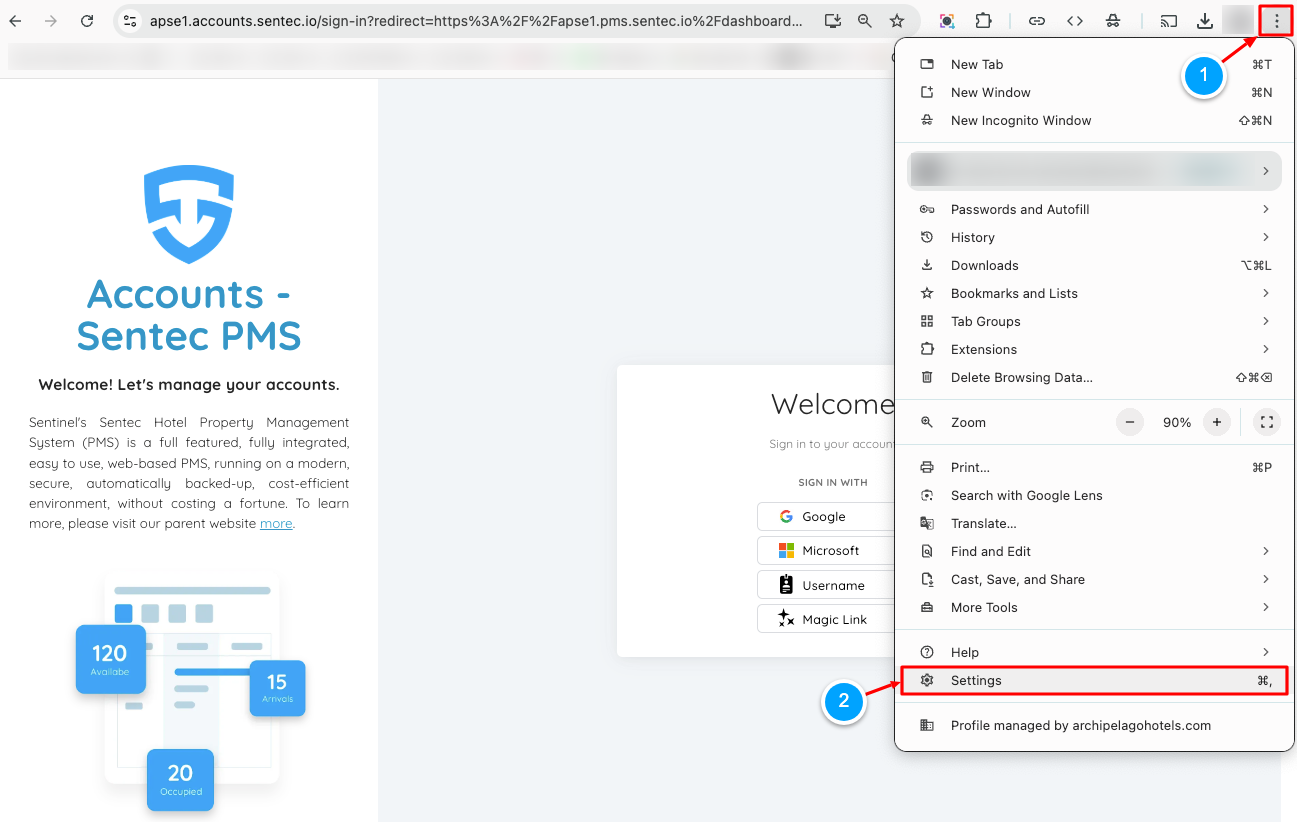
Next, go to the Privacy and Security menu, then Delete browsing data. 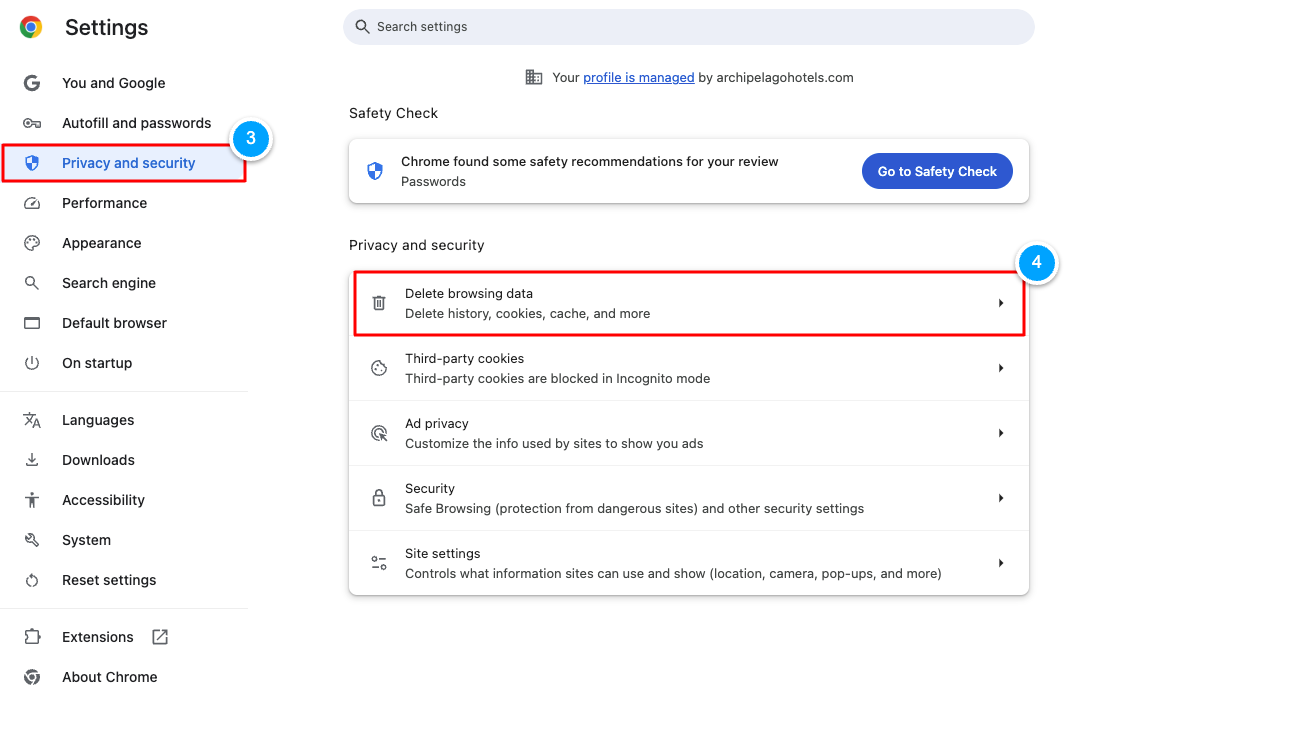
Set the Time Range to "All Time," check the "Cached images and files" option, and click Delete Data. Once done, please hard refresh ( ctrl + shift + R ) on the login page. 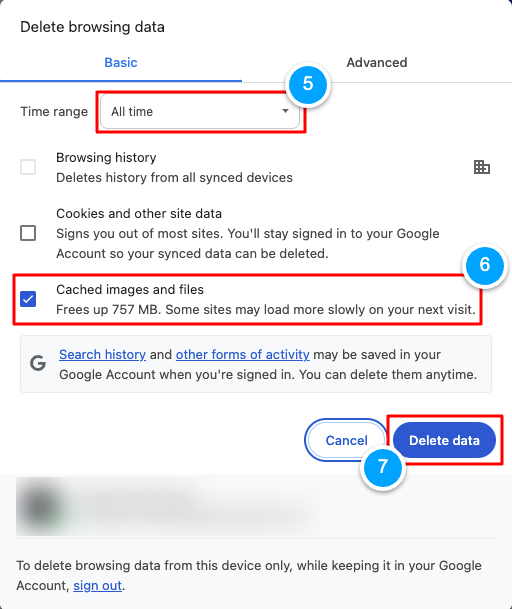
Finance
What if I cannot post with the notification '... User not allowed to post'?
If you can't post with an error notification like the one below:  Add the posting period in User Posting Setup (accessible to Finance Controllers and IT staff). Follow the steps below:
 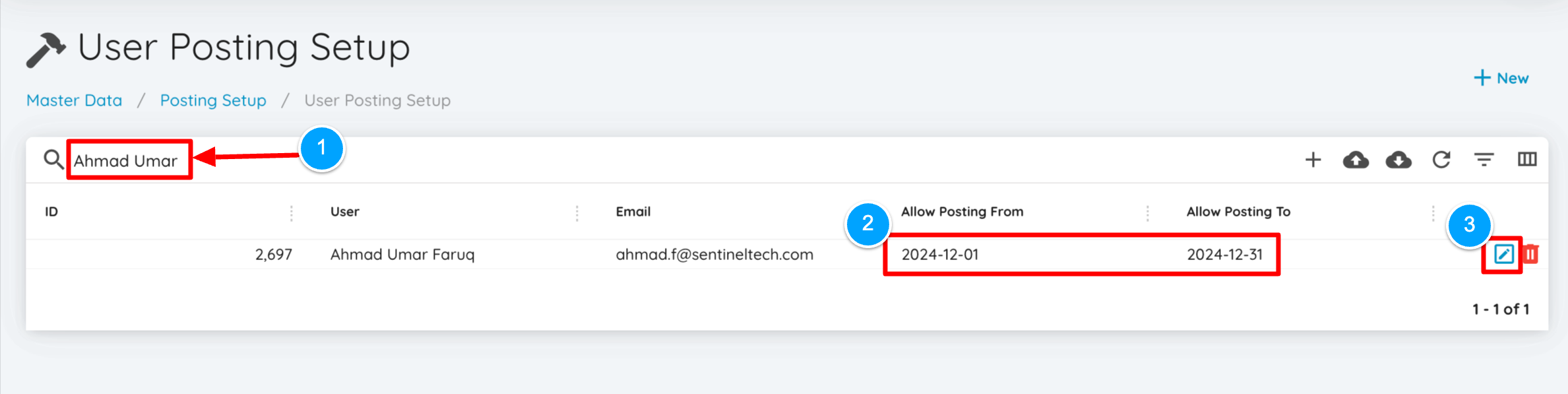 In the User Posting Setup menu, find the name whose posting period you want to extend, then check the "Allow Posting From" until "..Posting To." If it has passed, click the edit button next to the delete button.
 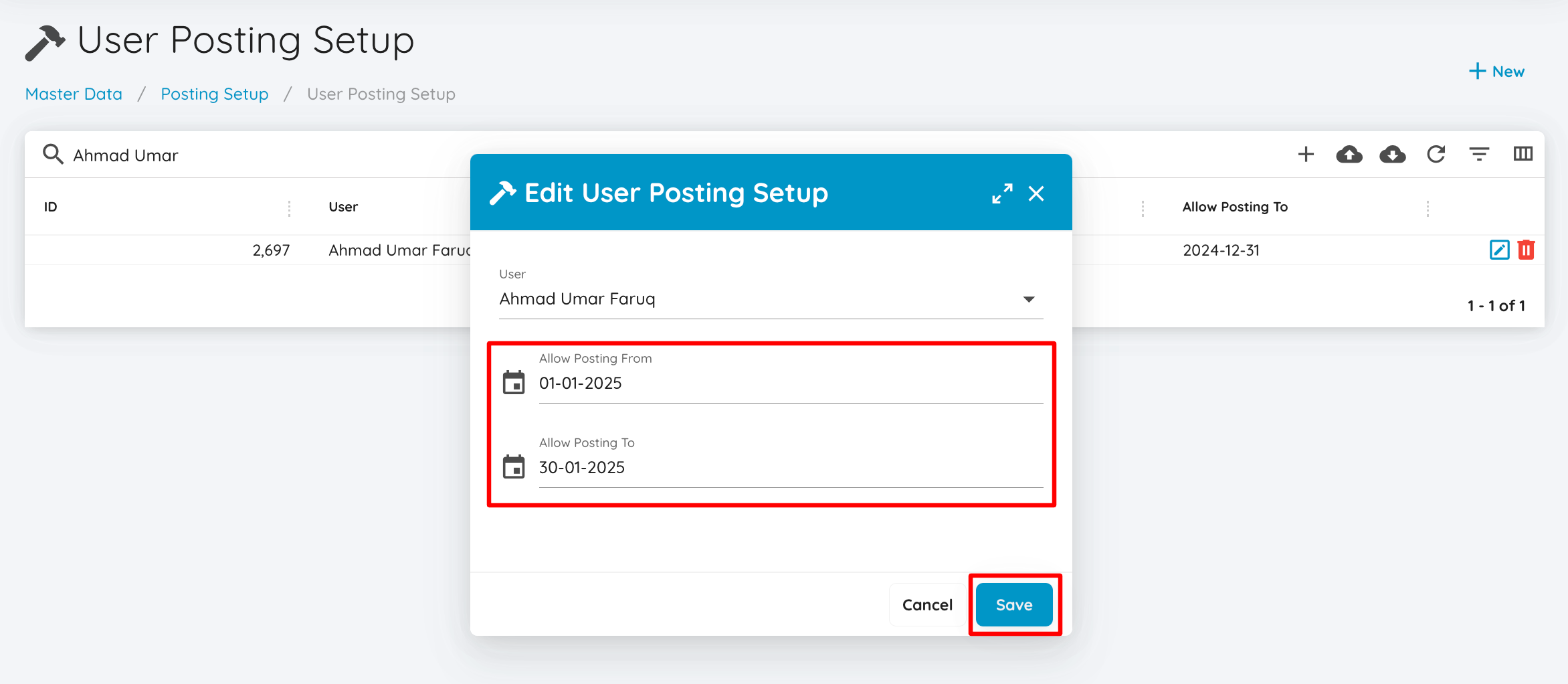 After adding the period, click save. Then try posting again.
Note: The period must be created monthly to avoid posting errors in previous or upcoming months.
What if I Cannot post with the notification "...no accounting period"?
If you can't post with an error notification like the one below:  You can directly add the accounting period in the "Accounting Period" menu under General Configuration, or you can search for the keyword Accounting Period in the search tools.
 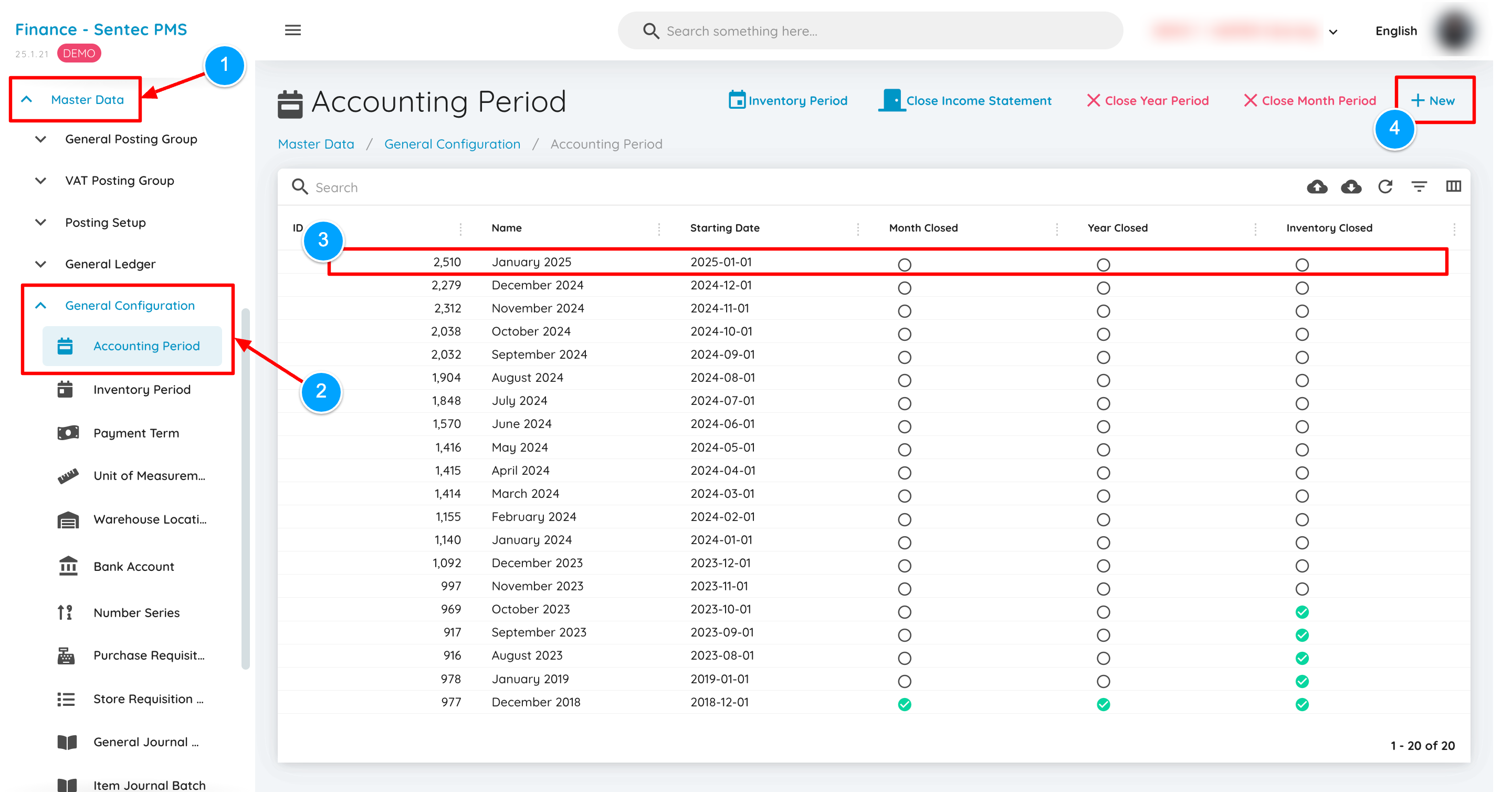 In the Accounting Period menu, the next step is to check for the current month. If the next month is unavailable, you can click the "+ New" button.
 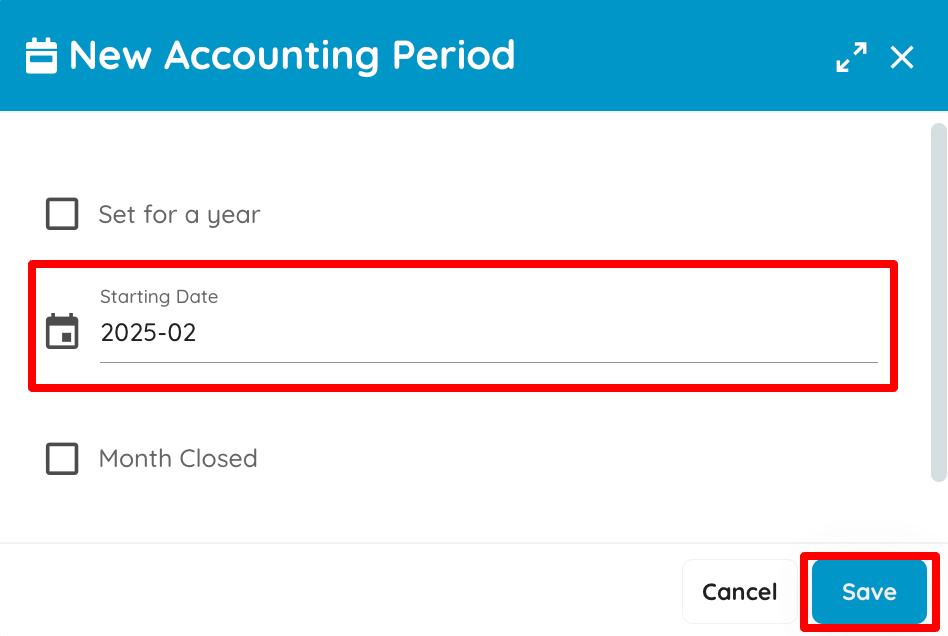 After selecting the next month, click save. Note: The Accounting Period must be added monthly after closing.
What if I Cannot post with the notification "...no inventory period"?
If you are unable to post and receive an error notification like the one below :  You can directly add the inventory period in the 'Inventory Period' menu under General Configuration, or you can type the keyword 'Accounting Period' in the search tool.
 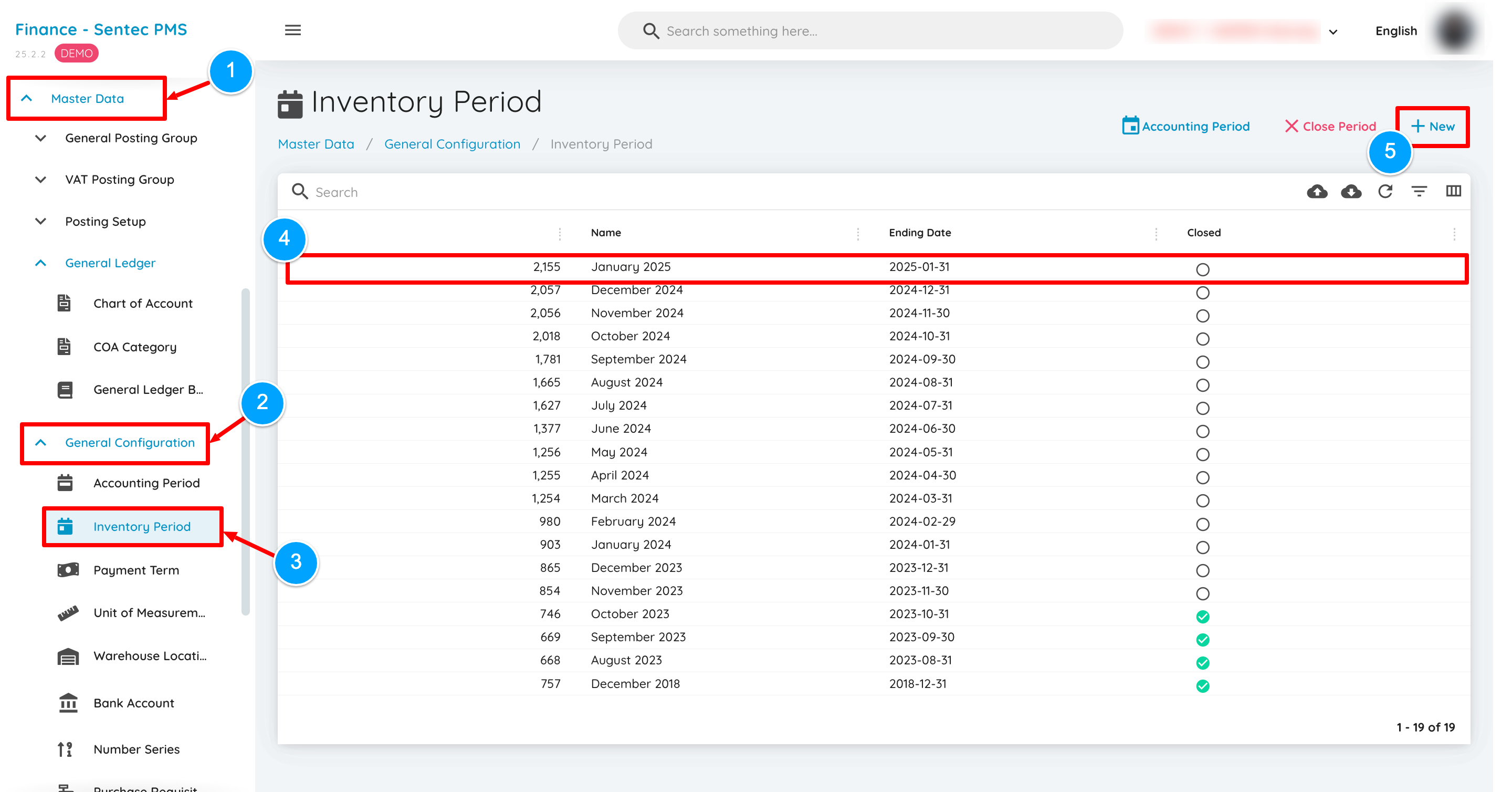 After accessing the Inventory Period menu, the next step is to check the current month. If the next month is not available, you can click the '+ New' button directly.
 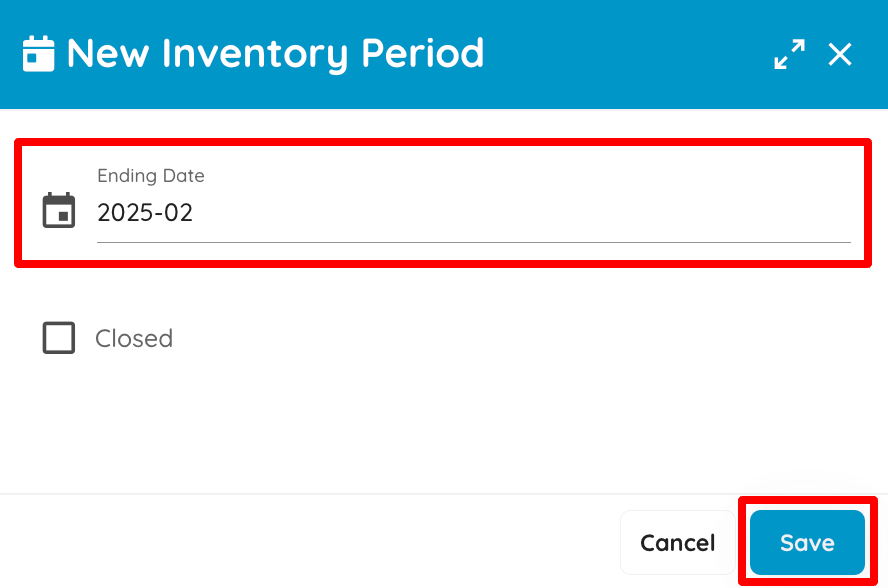 Once you have selected the next month, click the save button.
Note: For the Inventory Period, it must be added monthly after the closing.
How to upload General Ledger Budget ( Finance )
Several important points should be noted when uploading the general ledger budget to ensure the data is processed correctly and to avoid potential errors.
The PDF file can be opened and downloaded via the link, here
How to perform closing year
Several important points should be noted when performing the year-end closing process to ensure all financial transactions are properly finalized and to avoid potential errors.
The PDF file can be opened and downloaded via the link, here
Interface Journal from Finance - Closing Year
Several important points need to be considered when making journal entries to transfer the balance of profit and loss accounts to the retained earnings account correctly and to avoid potential errors.
The PDF file can be opened and downloaded via the link, here
Sentec Agent
Can't Print Bill with the notif "Failed to Print... Network Error"
 If you encounter that notification when trying to print a CO or Bill, you can go to the Agent menu under the General Settings sub-menu.
 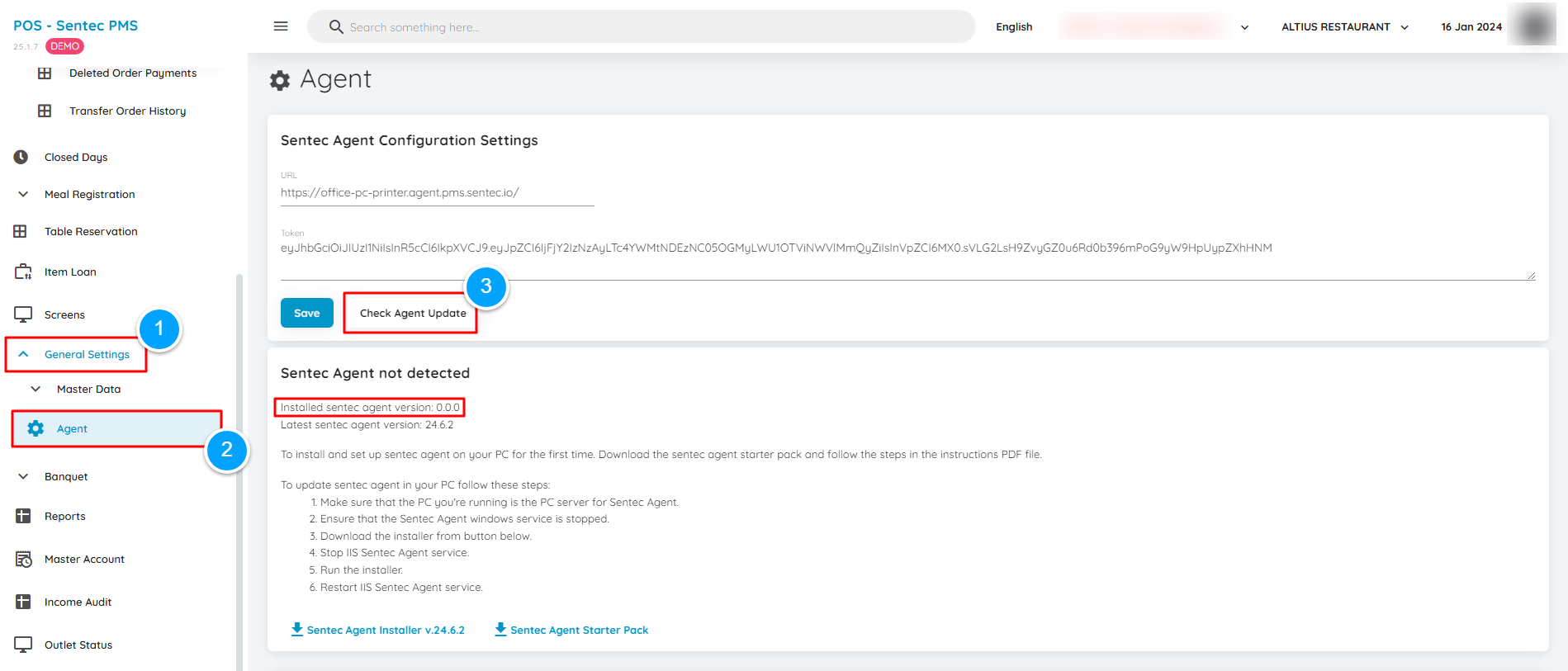 Then click the 'Check Agent Update' button. If the displayed 'Installed Sentec Agent' version is 0.0.0, there is a slight issue with the Sentec Agent status.
 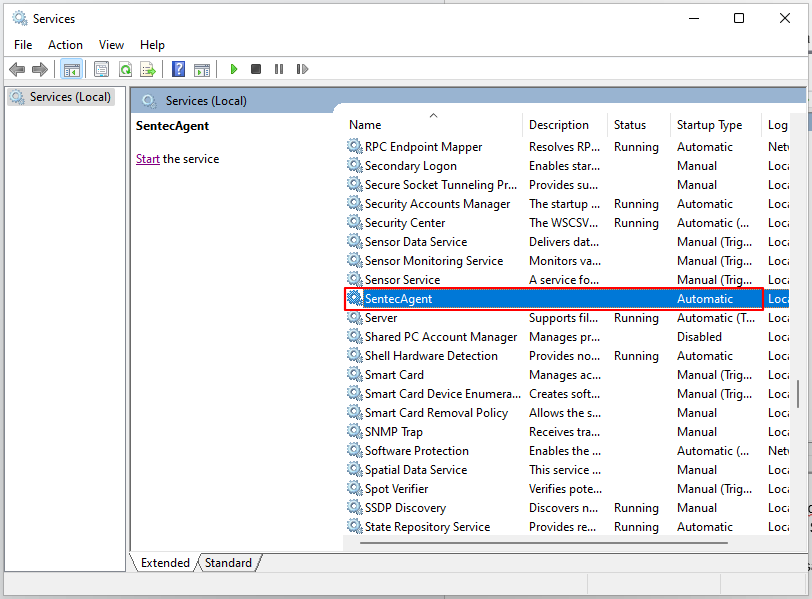 For the first checking method, you can go directly to the Windows Services application and log in as an admin. Once in the Services menu, check the Sentec Agent service. If its status is empty, it can be confirmed that the Sentec Agent service is not running.
 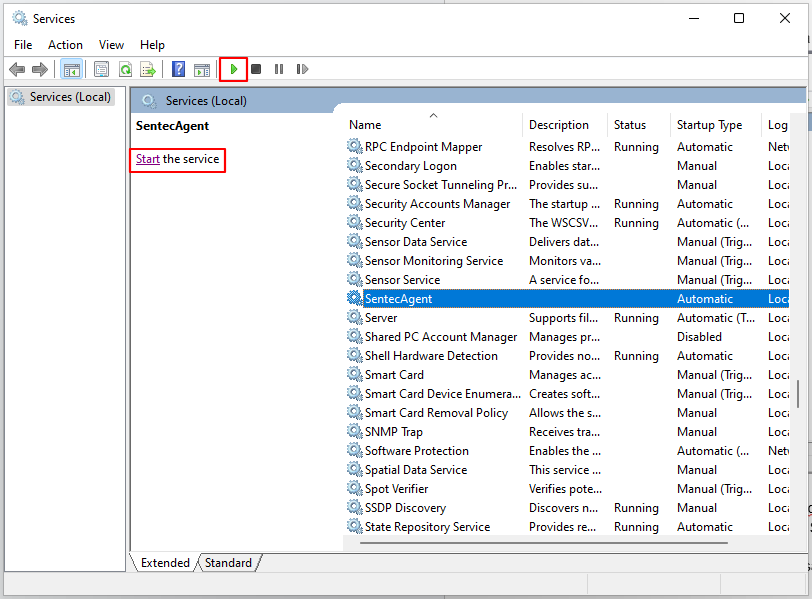 Next, you can directly click 'Start' the service or click the play symbol located in the header section.
 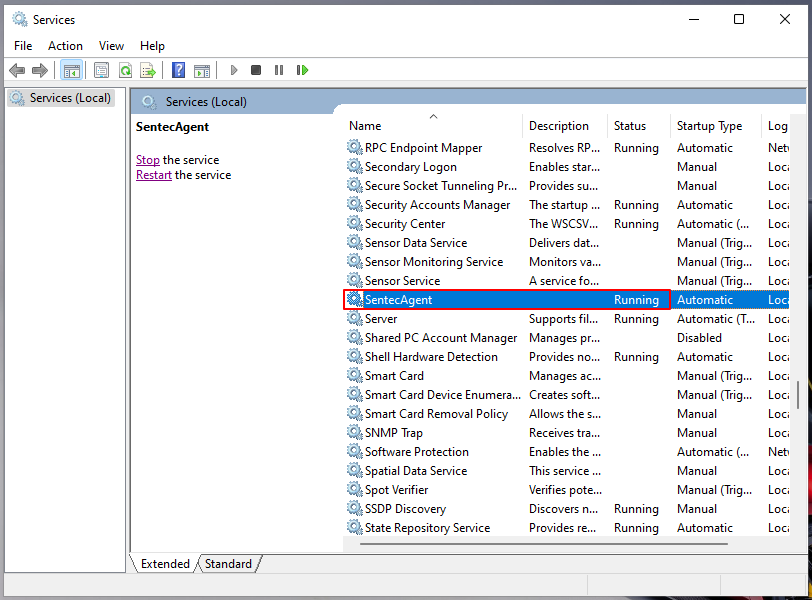 Once the status is 'Running,' you can try going back to the Agent menu and clicking 'Check Agent Update' again.
 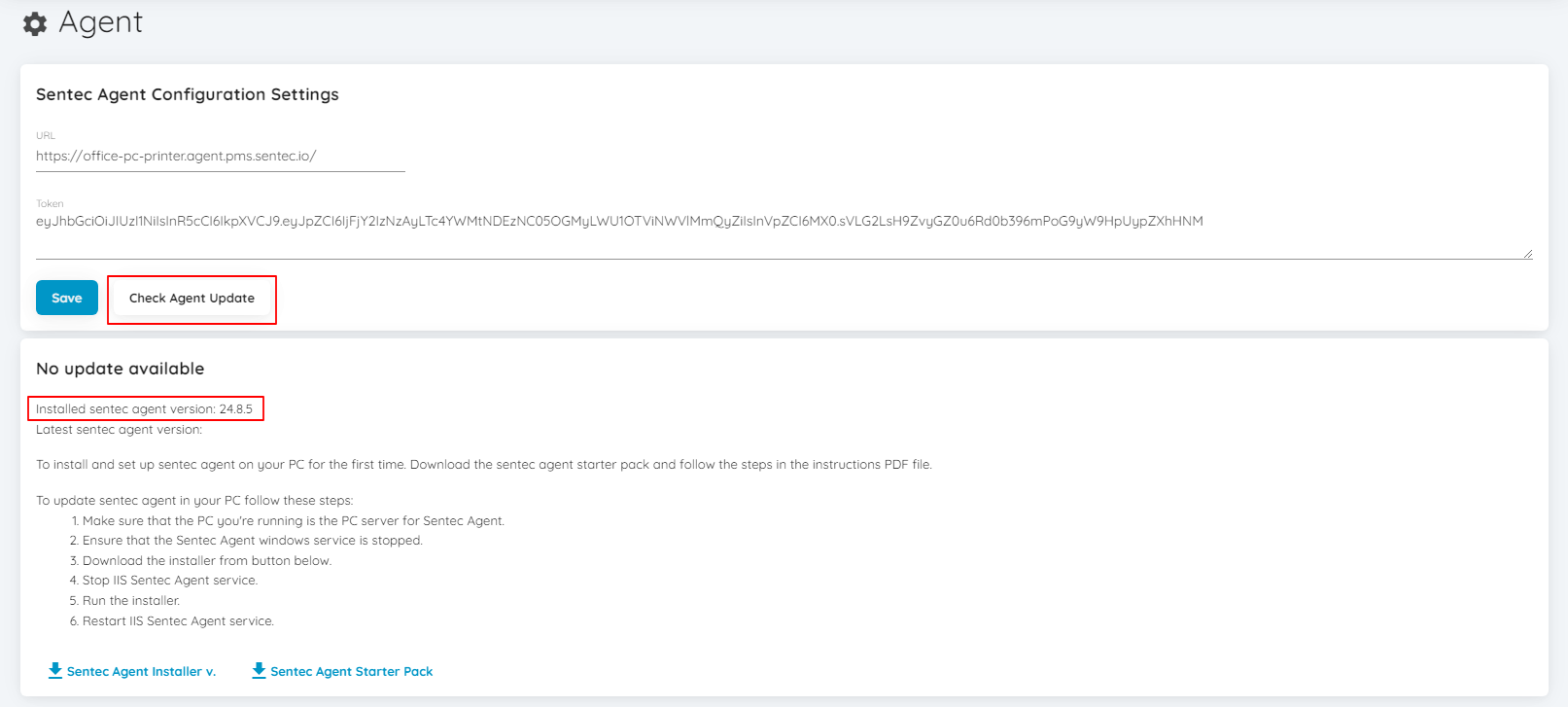 If the Sentec Agent version is displayed, you can try reprinting it.
How to Display the Token List on the Sentec Agent Web
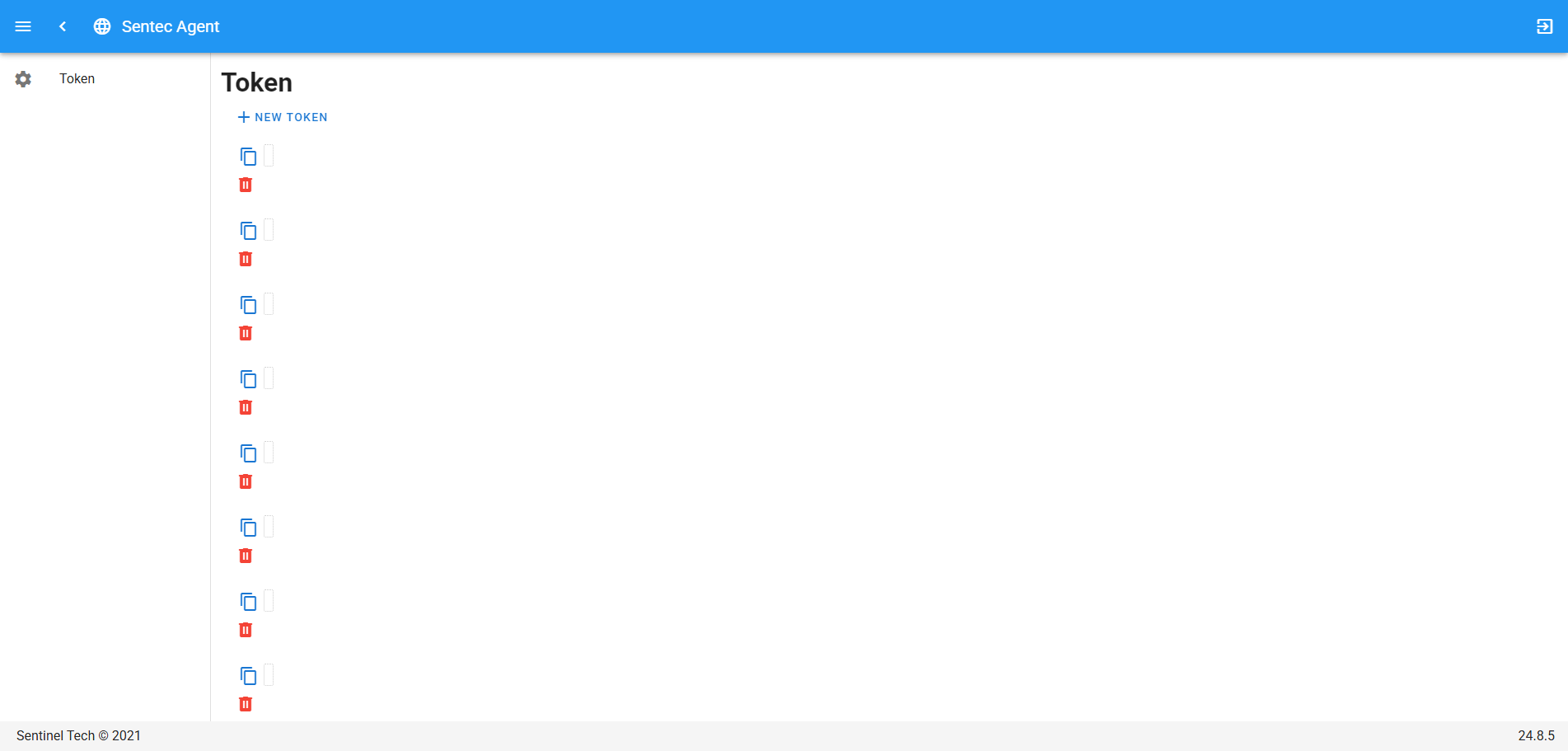
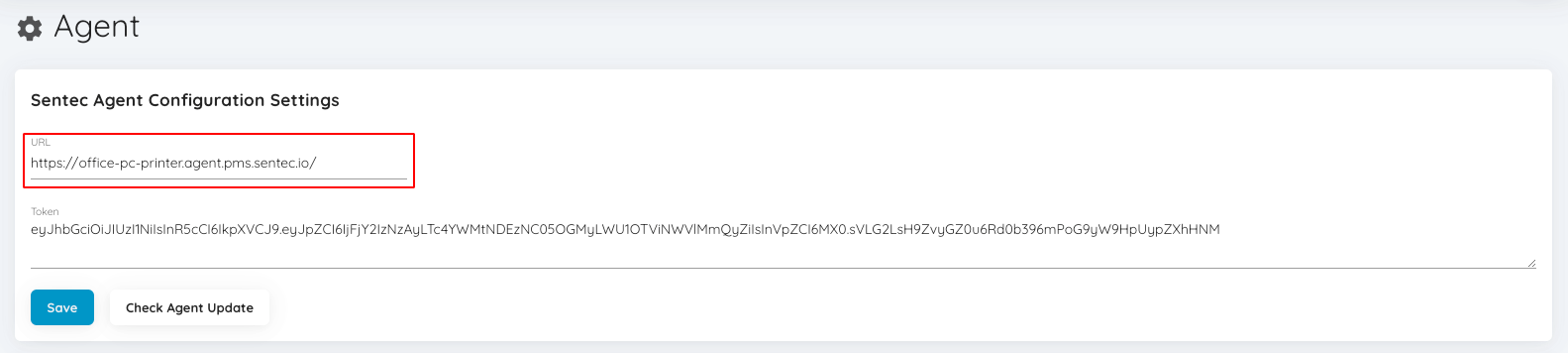 When trying to access the Sentec Agent Web by replacing the URL in the browser's search bar, and the token list appears empty as shown in the image below :
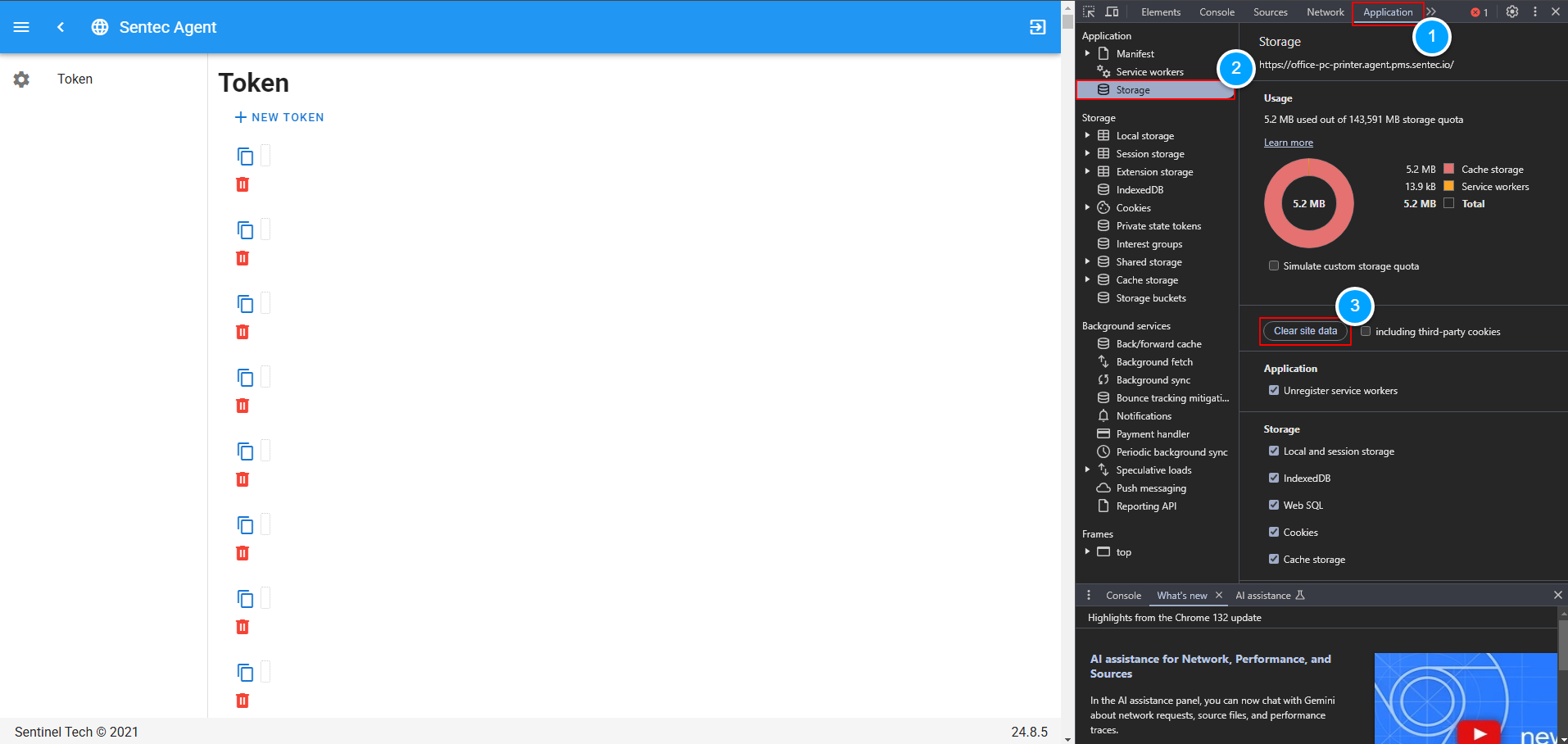
  For the first step, you can clear site data by opening the Inspect menu, then navigating to the Application tab -> Storage -> Clear Site Data.
  Next, you can refresh the page, and the login screen will be displayed again.
 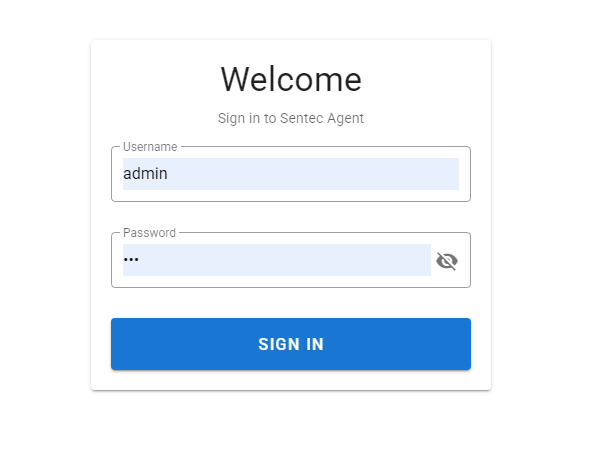 On the login page, you can enter the following username and password :
Username : admin
Password : 123 / 12345 / $3nt3c 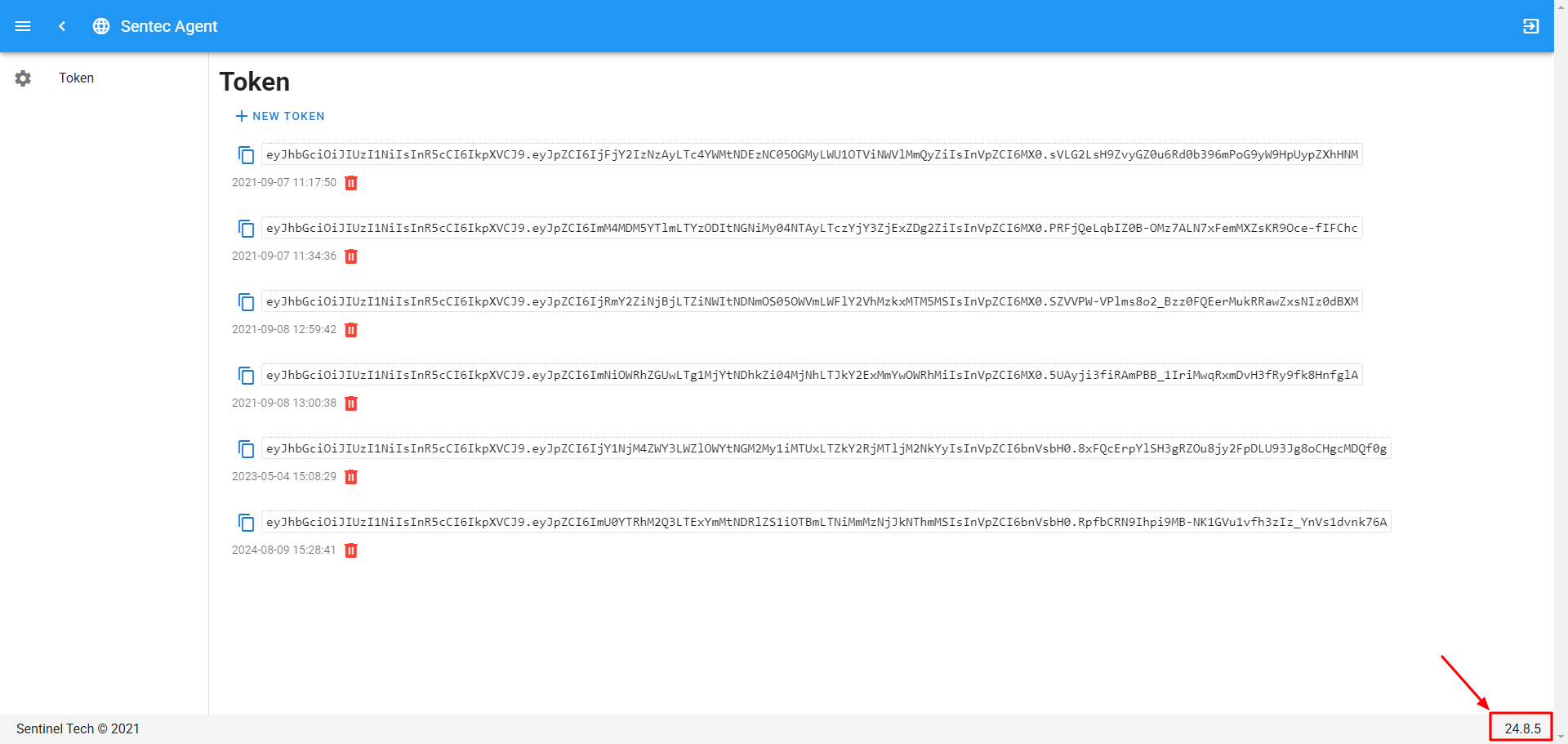 After logging in, all the token lists will be displayed. Make sure that the version shown on the Sentec Agent page matches the one installed in the Agent menu (POS) or Keycard Setup (PMS).
Can't Print Bill with the notif "cannot reach the server. Check your connection, proxy, agent or certificate setup."
 If an error notification appears when performing Print CO (Captain Order) or Print Bill, open the Services menu in Windows, then find the Sentec Agent service. If the service status is Stopped, click Start to run the service.
Note: This step can only be performed if Sentec Agent is installed on the PC being used. If the PC is acting as a Client, proceed to the next steps. 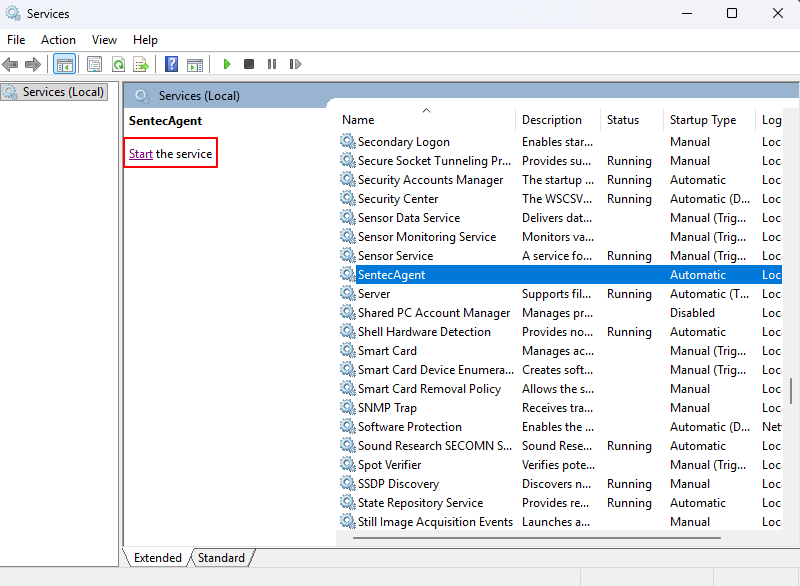 If the error still appears after starting the Sentec Agent service, click the Site Information icon next to the URL in the browser, then select Site Settings.
 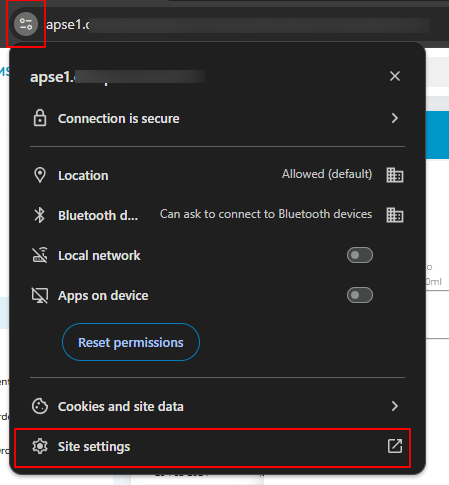 On the Site Settings page, find Pop-ups and redirects and Local network access, then change their status to Allow.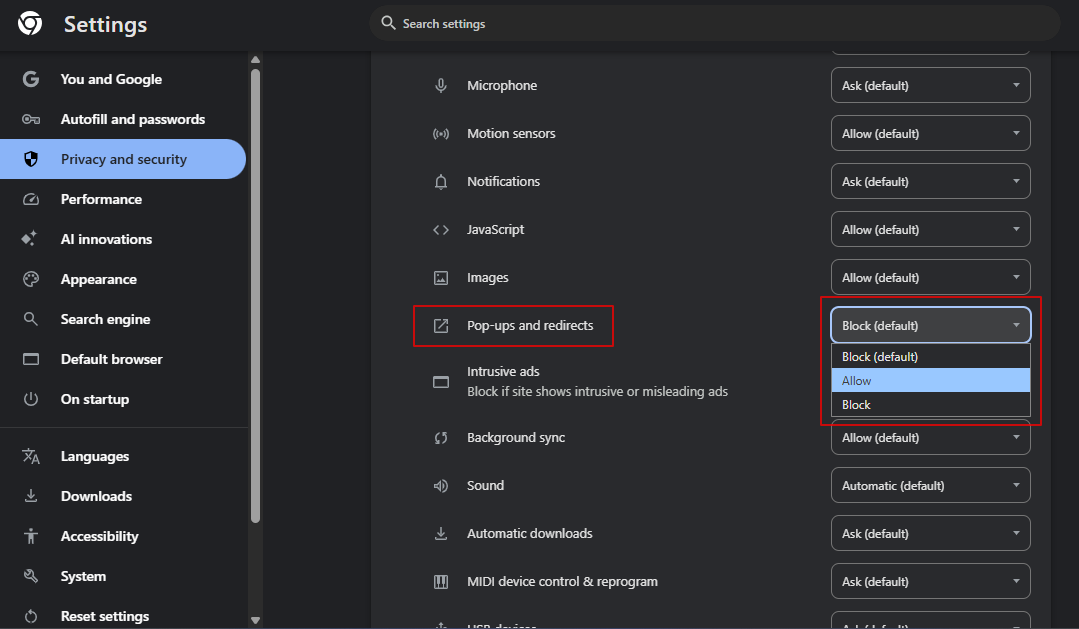
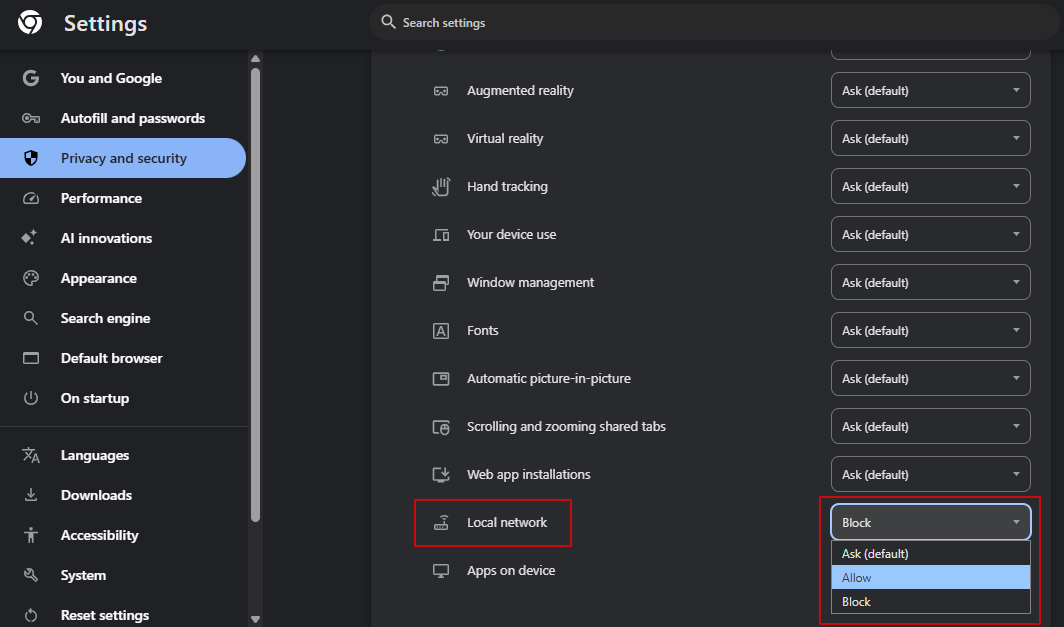 Return to the Sentec POS page, then reload the page.
  After the page has finished loading, perform a test print again to ensure that the printing process is working properly.
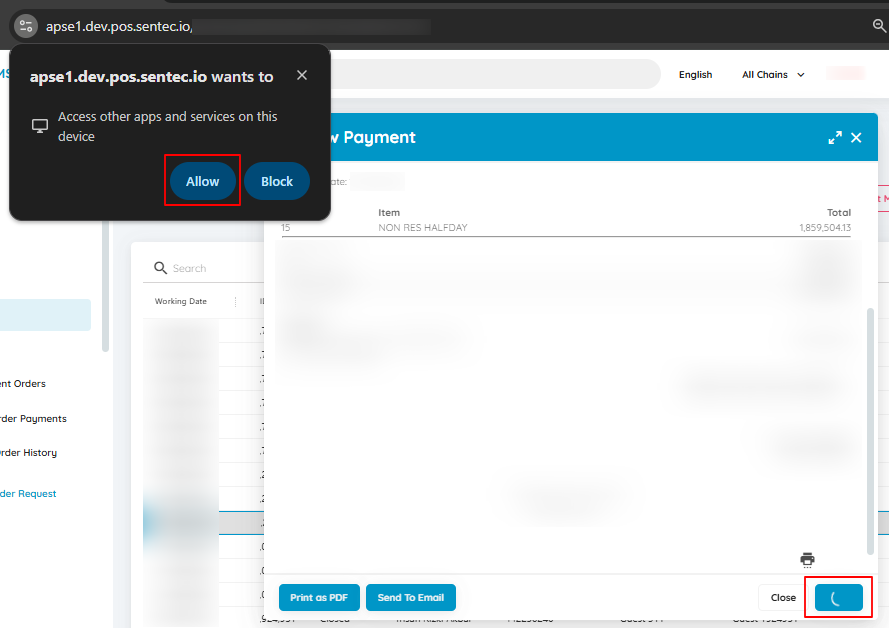
  If a pop-up notification appears when processing Print Bill or Print CO (Captain Order), click Allow, as shown in the image below.