
POS (Point of Sale)
The previous section covered the POS Dashboard displays. This section covers the POS sub-menus available in Sentec PMS.
1. Table
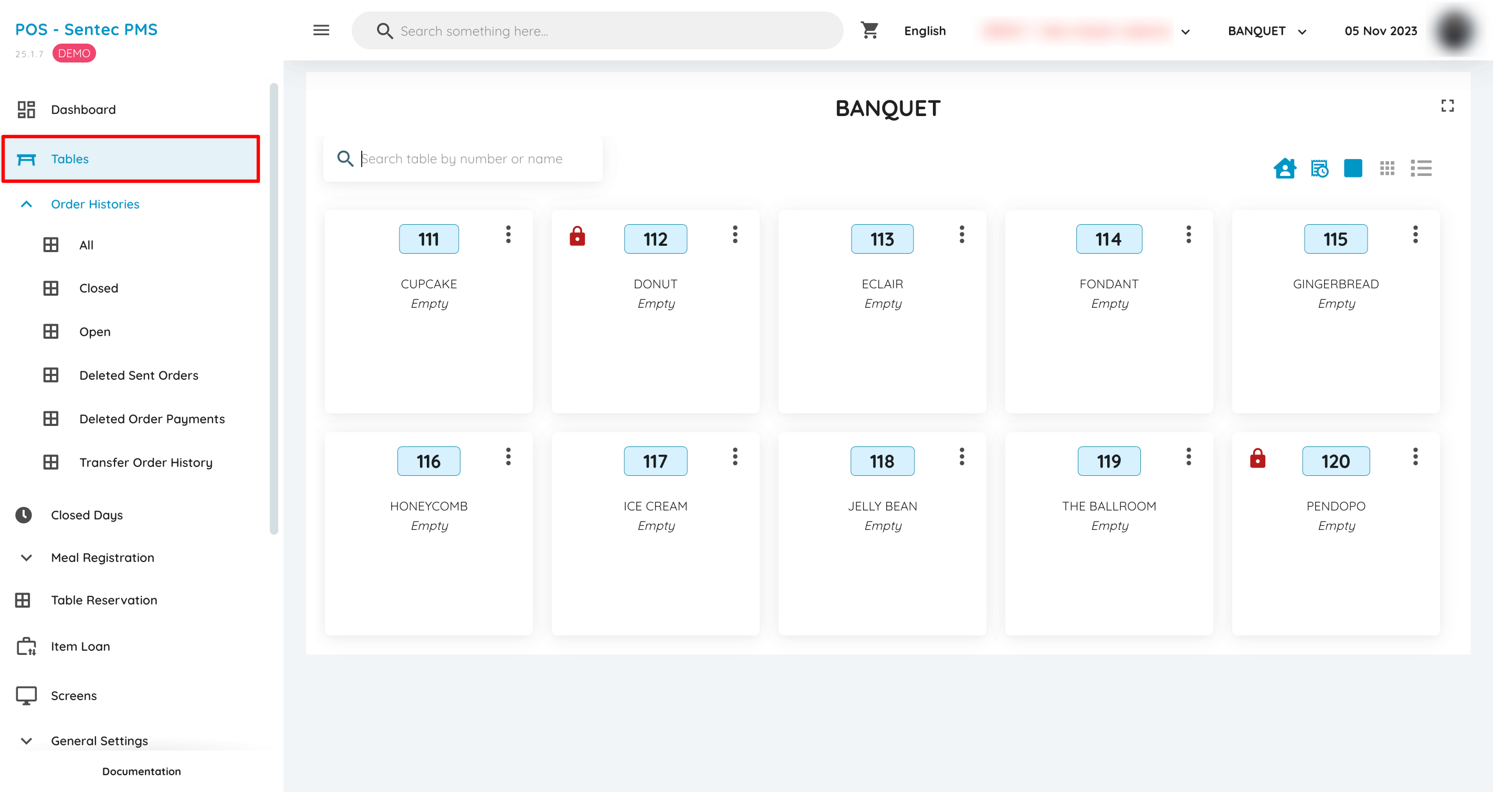
This menu displays all tables available for order placement in the current outlet. Each outlet may have a different number of tables, depending on the configuration.
2. Order Histories
All Orders
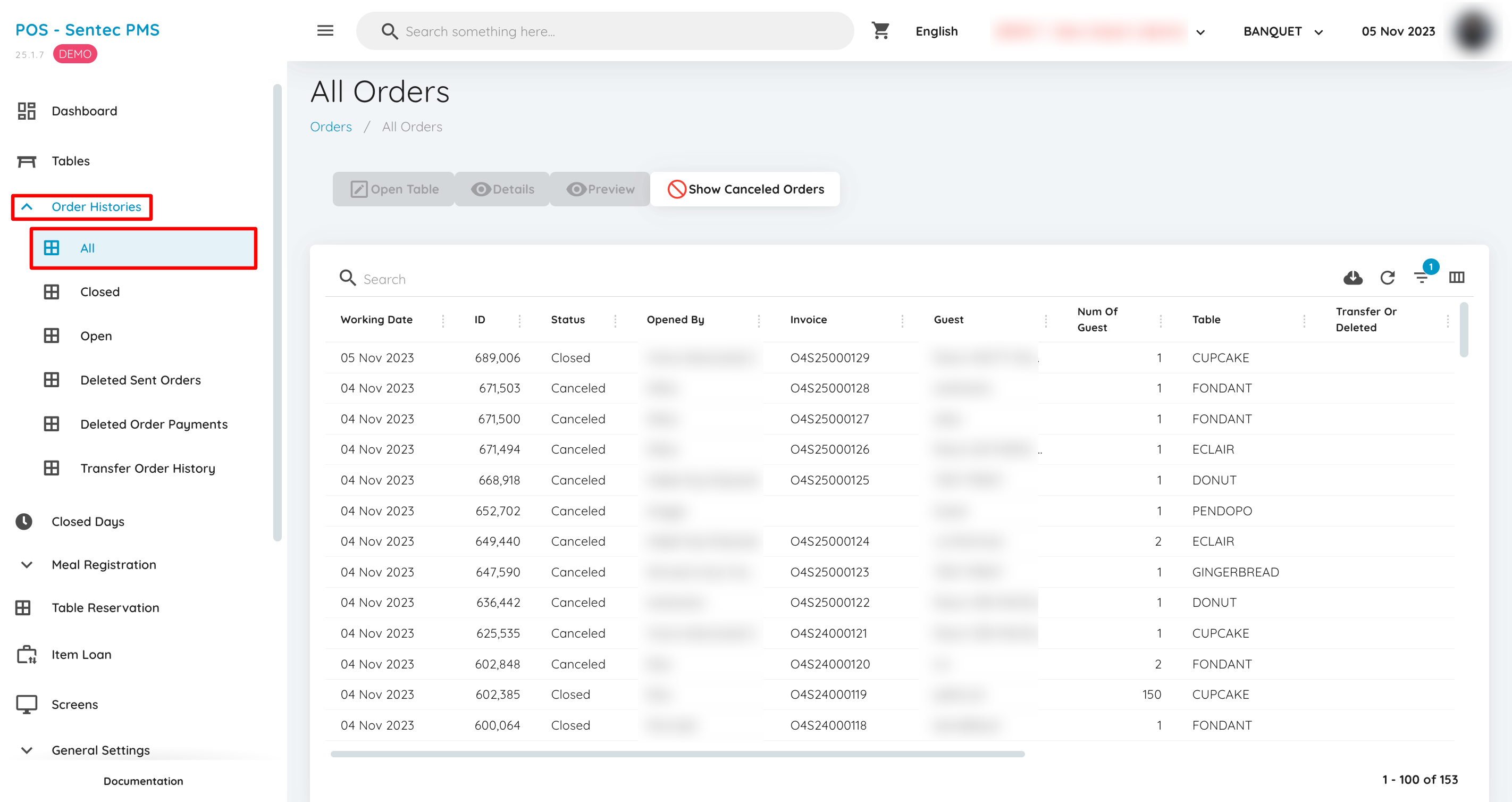
The Order Histories - All menu displays all orders that have been placed, whether their status is Open, Closed, or Cancelled.
Closed Orders
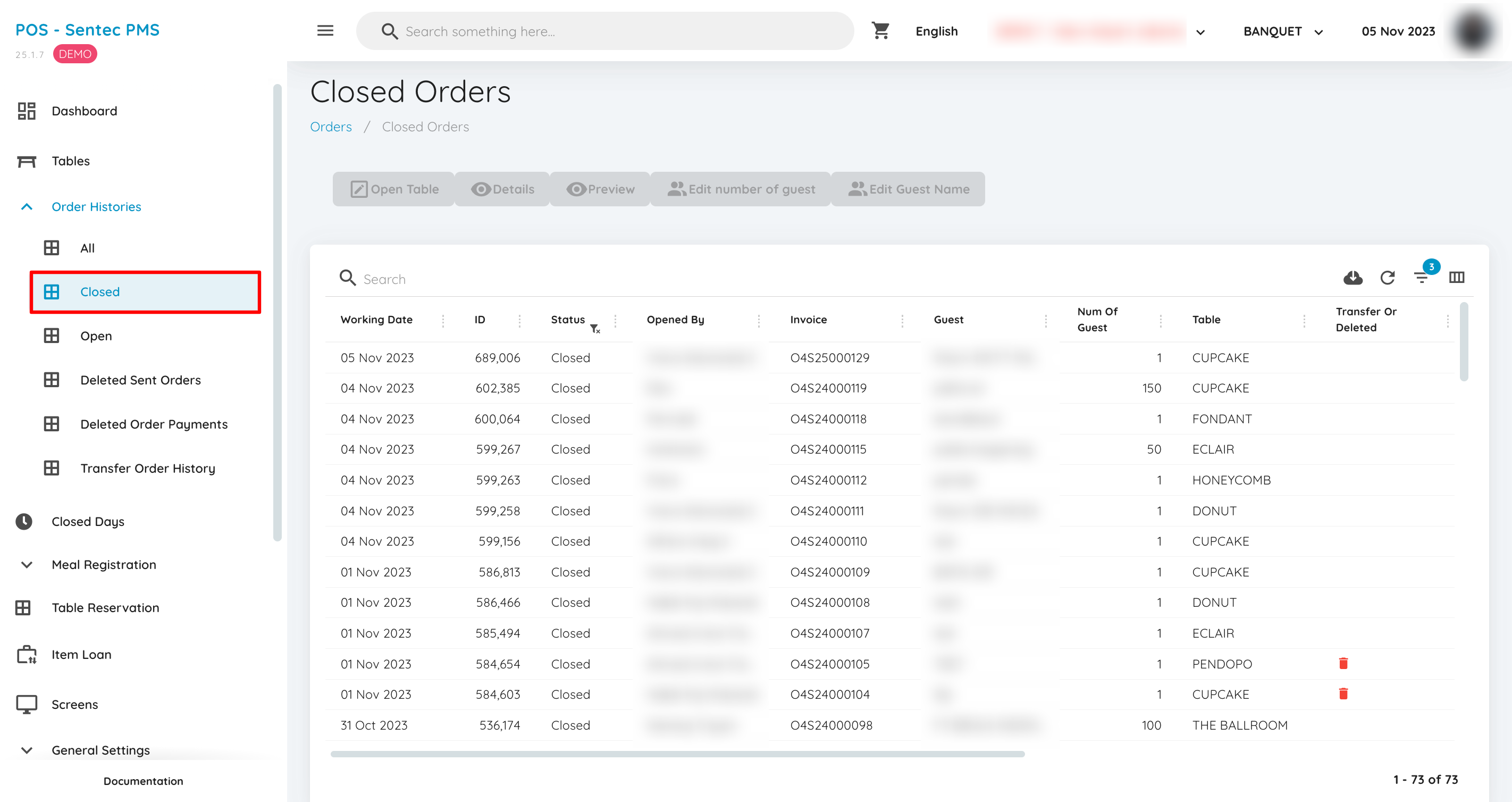
The Order Histories - Closed menu displays all orders that have been completed up to the payment process.
Open Orders
The Order Histories - Open menu displays all currently active orders that have not yet been processed for payment.
Deleted Sent Orders
The Deleted Sent Orders menu contains a list of items that were sent to the kitchen via the Table menu and then removed from the order.
Deleted Order Payments
The Deleted Order Payments menu displays a list of payments that were previously processed for an order but later deleted. This menu allows users to track recorded payments that were canceled, which can be useful for auditing or transaction history checks.
Transfer Order History
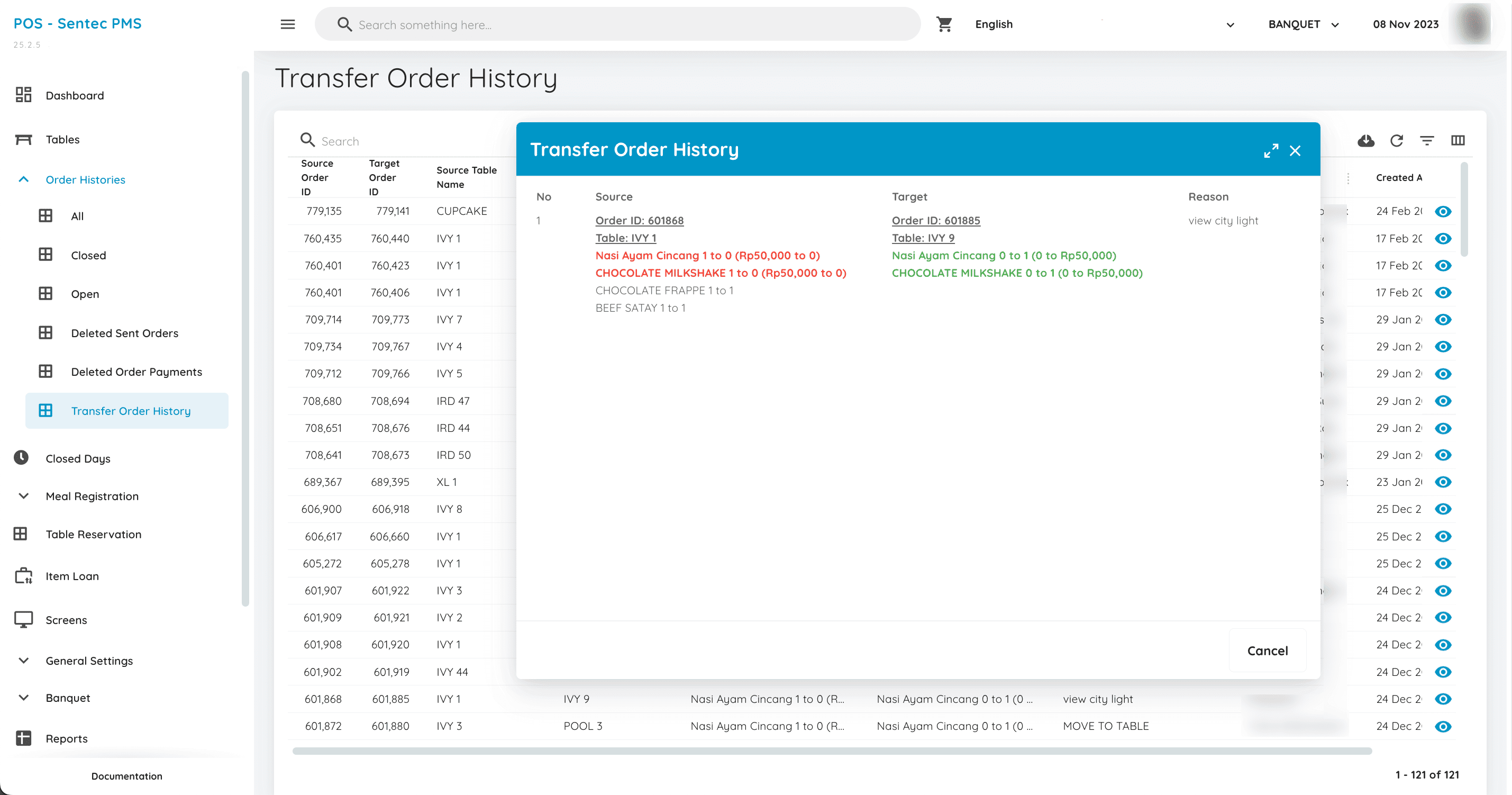
The Transfer Order History menu displays a history of item transfers from one order or table to another. This menu helps users track order changes, ensure transaction accuracy, and avoid errors in recording item transfers.
3. Closed Days
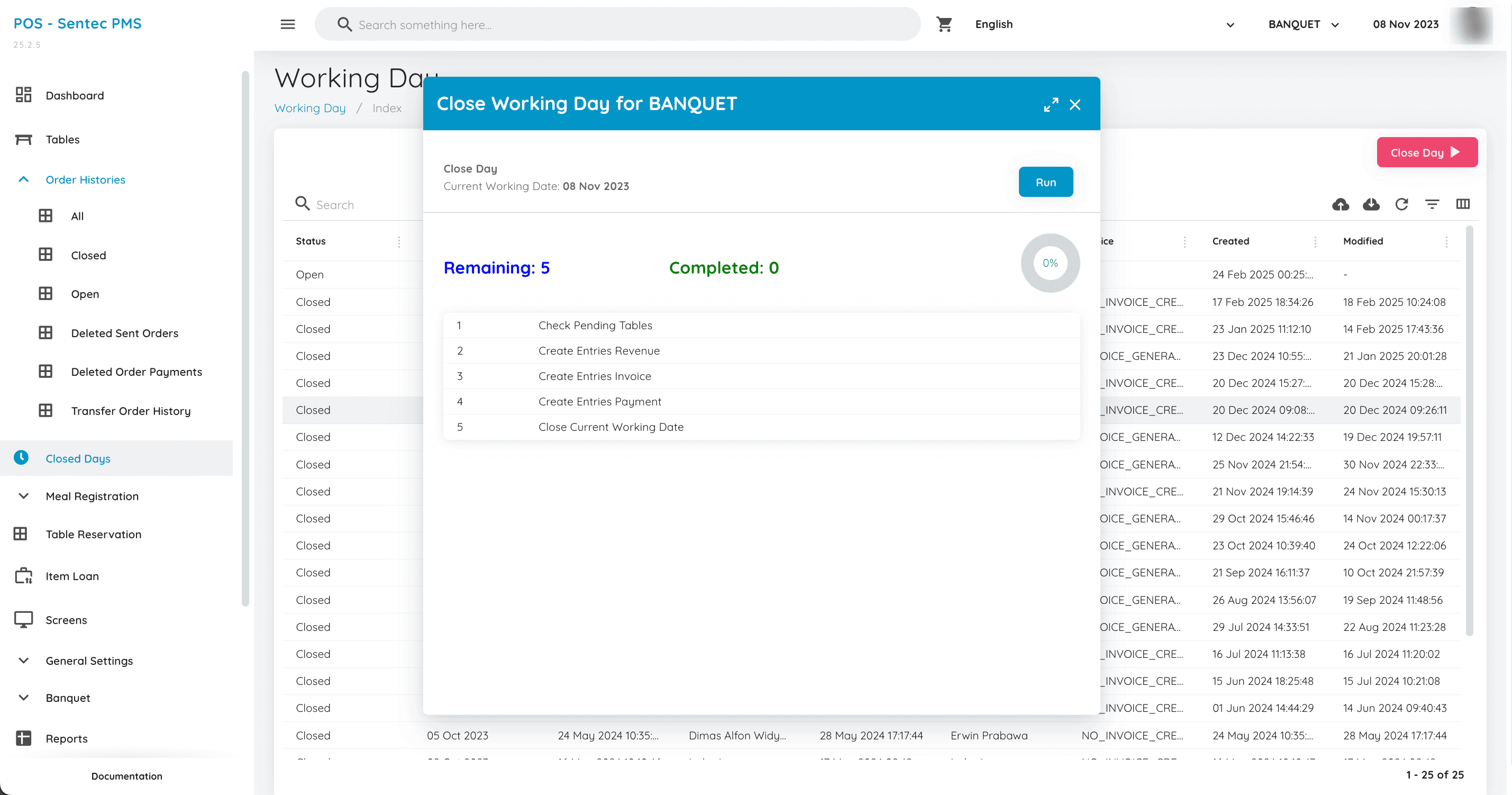
The Closed Days/Working Day menu is used to process the Close Day at the outlet. During this process, the system performs several checks and records before closing the operational day. The system verifies that no tables have open orders, then generates revenue, invoice, and payment entries before completing the day-end process. Additionally, this menu displays a history of Closing Days, allowing users to view previously closed days.
4. Meal Registration
The Meal Registration menu is used to record guests entitled to meals based on their reservation. The registration process ensures that each guest claiming a meal matches the reservation data recorded in the system.
There are several types of Meal Registration: Room Breakfast Registration, Room Lunch Registration, Room Dinner Registration, Banquet Lunch Registration, and Banquet Dinner Registration.
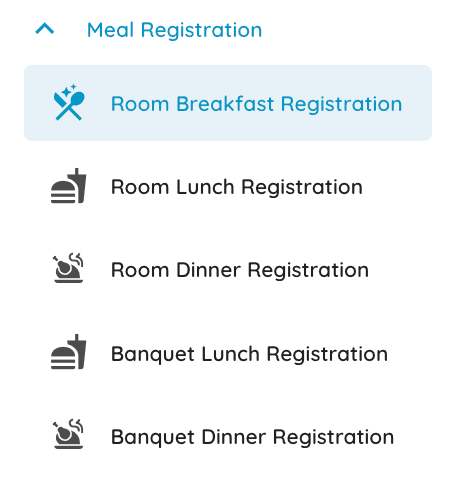
Room Breakfast Registration
This menu is used to record hotel guests having breakfast. The reservations displayed in this menu include:
- Reservations with Stay Date one day before the Working Date.
- Reservations with board Breakfast/Channel Breakfast.
- Reservations with revenue categorized as Breakfast Meal Registration in the Revenue Center.
Guest registration can be done in two ways:
- Tapping a registered card provided to the guest.
- Clicking the Register Guest button to manually record the guest.
Each reservation also has a Detail button, allowing users to register guests individually if needed.
Room Lunch & Dinner Registration
This menu functions the same as Room Breakfast Registration but is used for registering guests entitled to lunch or dinner. The reservations displayed in this menu include only those with revenue categorized as Lunch/Dinner Meal Registration in the Revenue Center.
Banquet Lunch & Dinner Registration
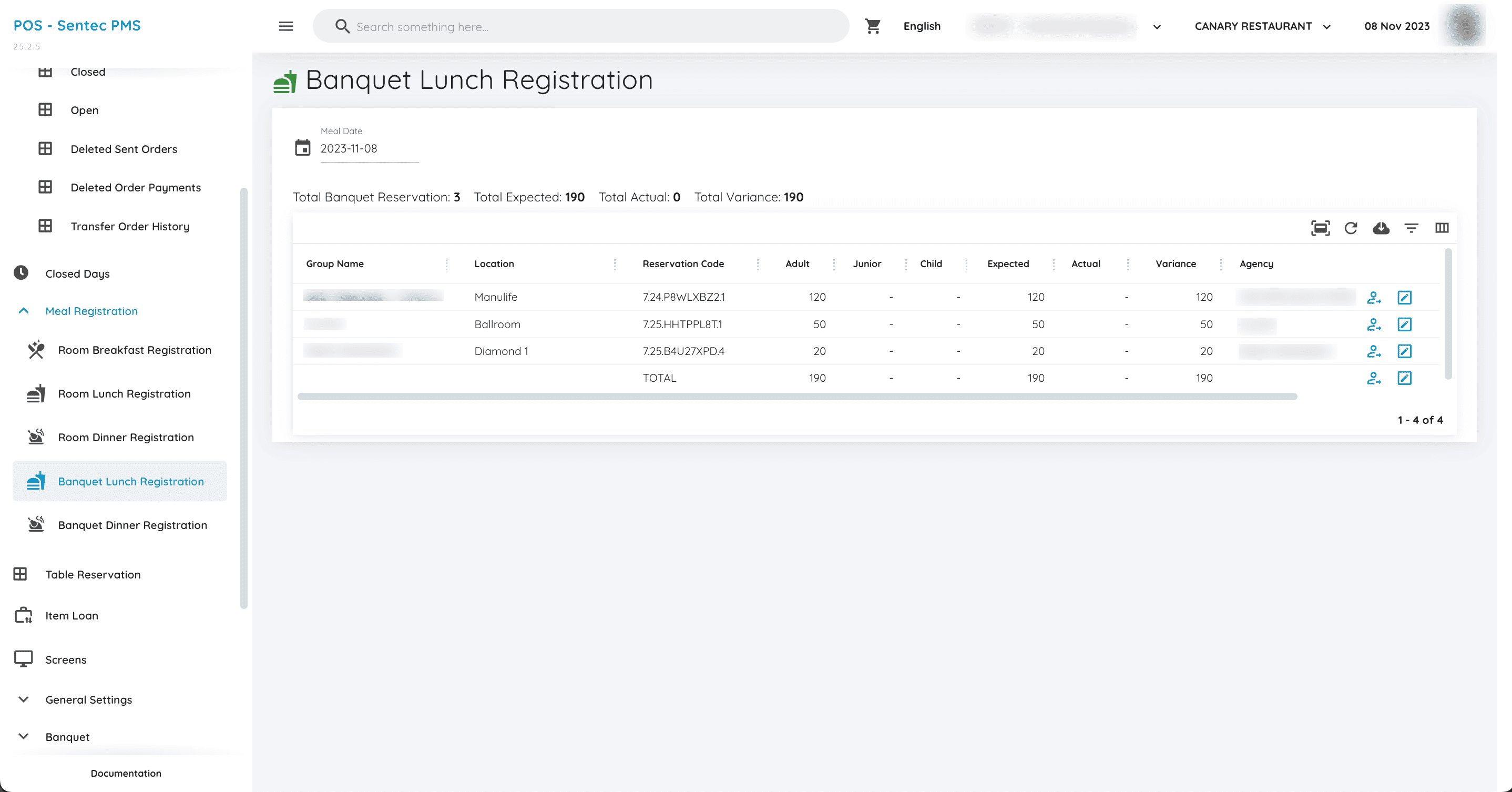
This menu is used for registering guests under a Banquet Reservation. The displayed reservations include only Banquet Reservations with revenue categorized as Lunch/Dinner Meal Registration in the Revenue Center.
This menu differs slightly from Room Meal Registration:
- Users directly enter the number of guests to be registered, without selecting guests one by one.
- The number of guests registered in Banquet Lunch & Dinner Registration is taken from the package or pax count recorded in the Banquet Reservation.
5. Table Reservation
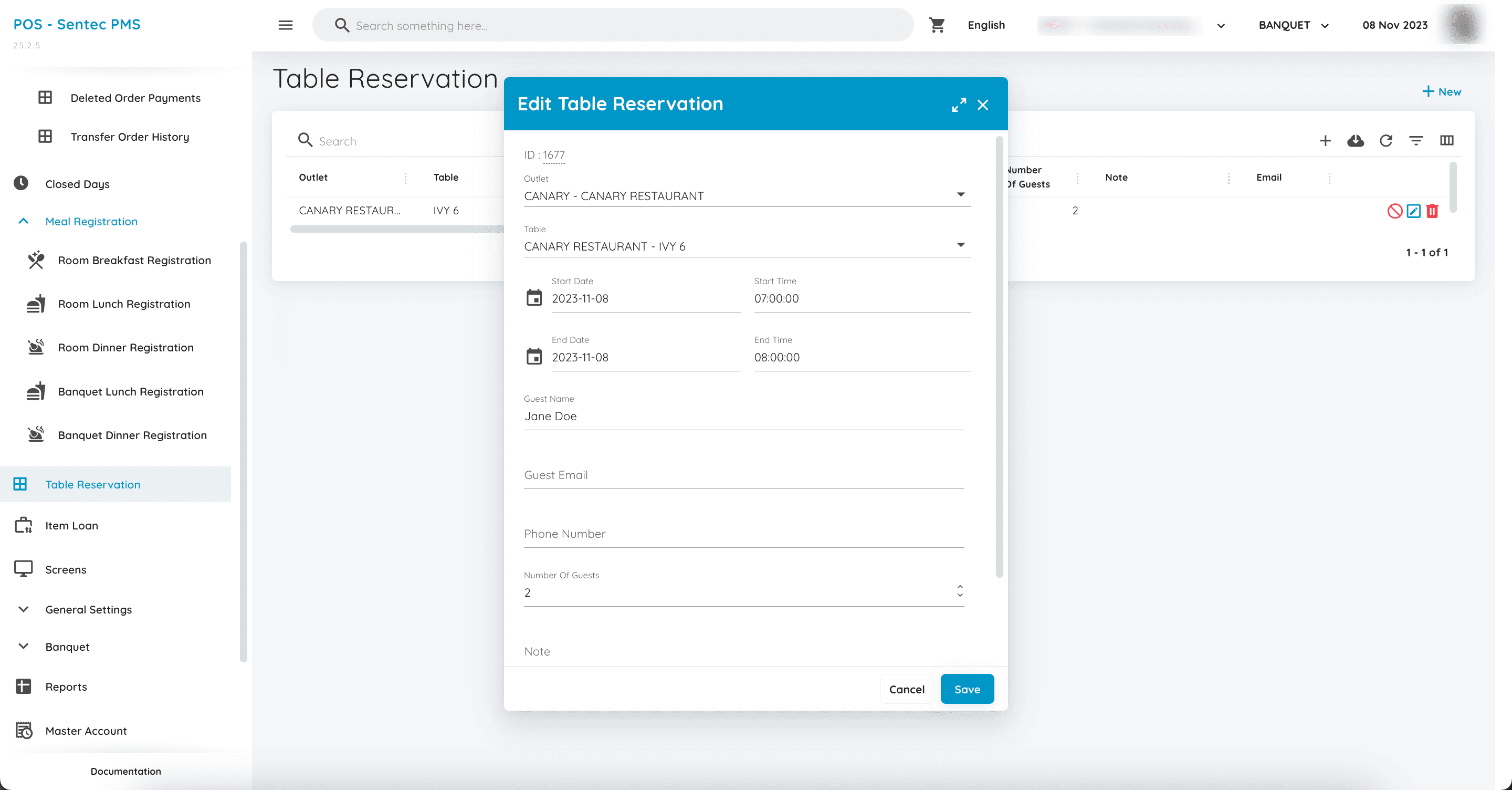
This menu allows guests to book a table without ordering food or beverages. Table reservations can be made in advance to ensure availability before guests arrive.
6. Item Loan
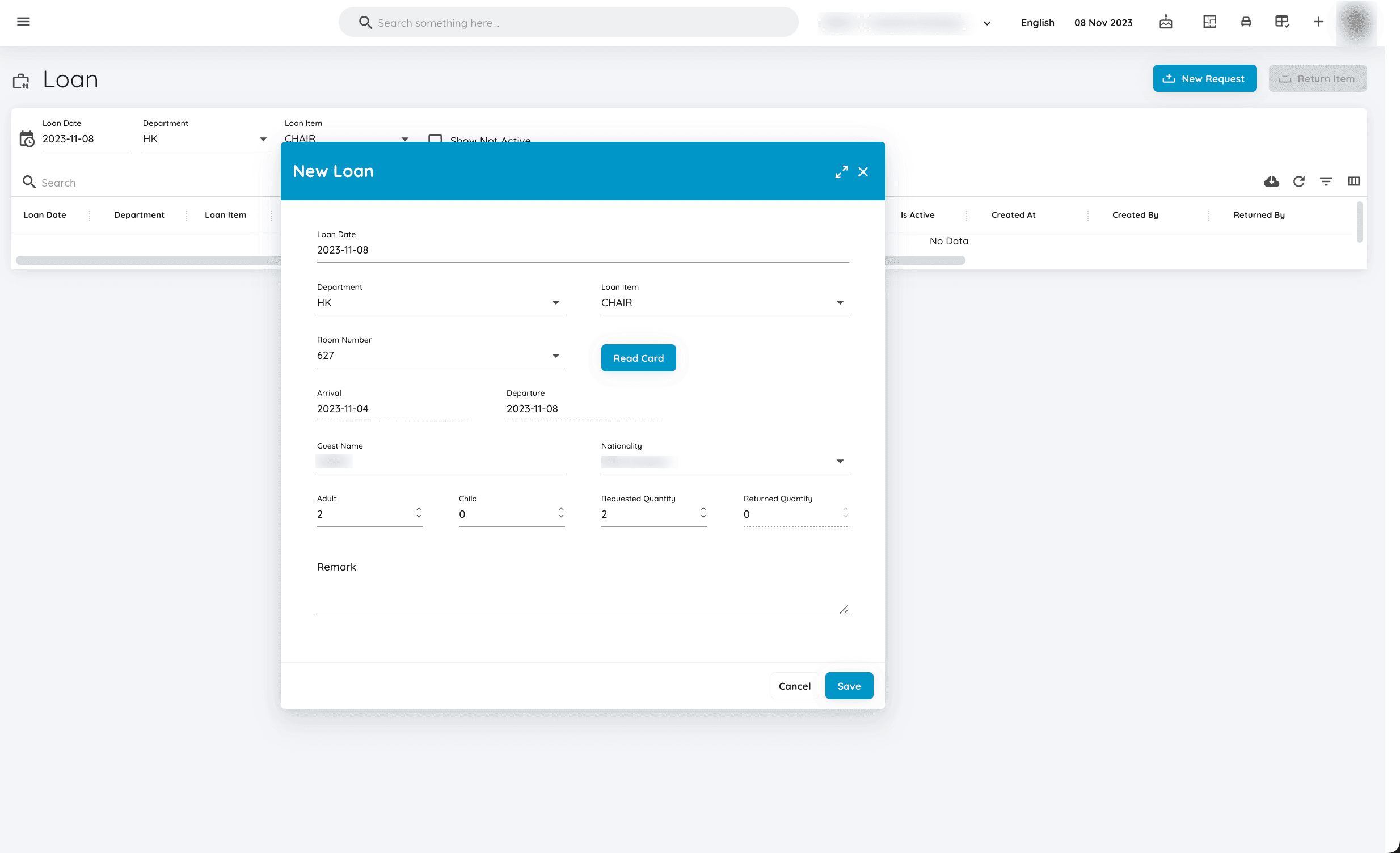
The Item Loan menu records item loans by hotel guests. Users can create new loan requests, record item returns, and view ongoing or completed loans.
When creating a loan request, users can enter details such as loan date, related department, room number, guest name, borrowed item quantity, and additional notes if needed.
Additionally, search and filter features help users view loan history by date, department, and borrowed items.
7. Screen
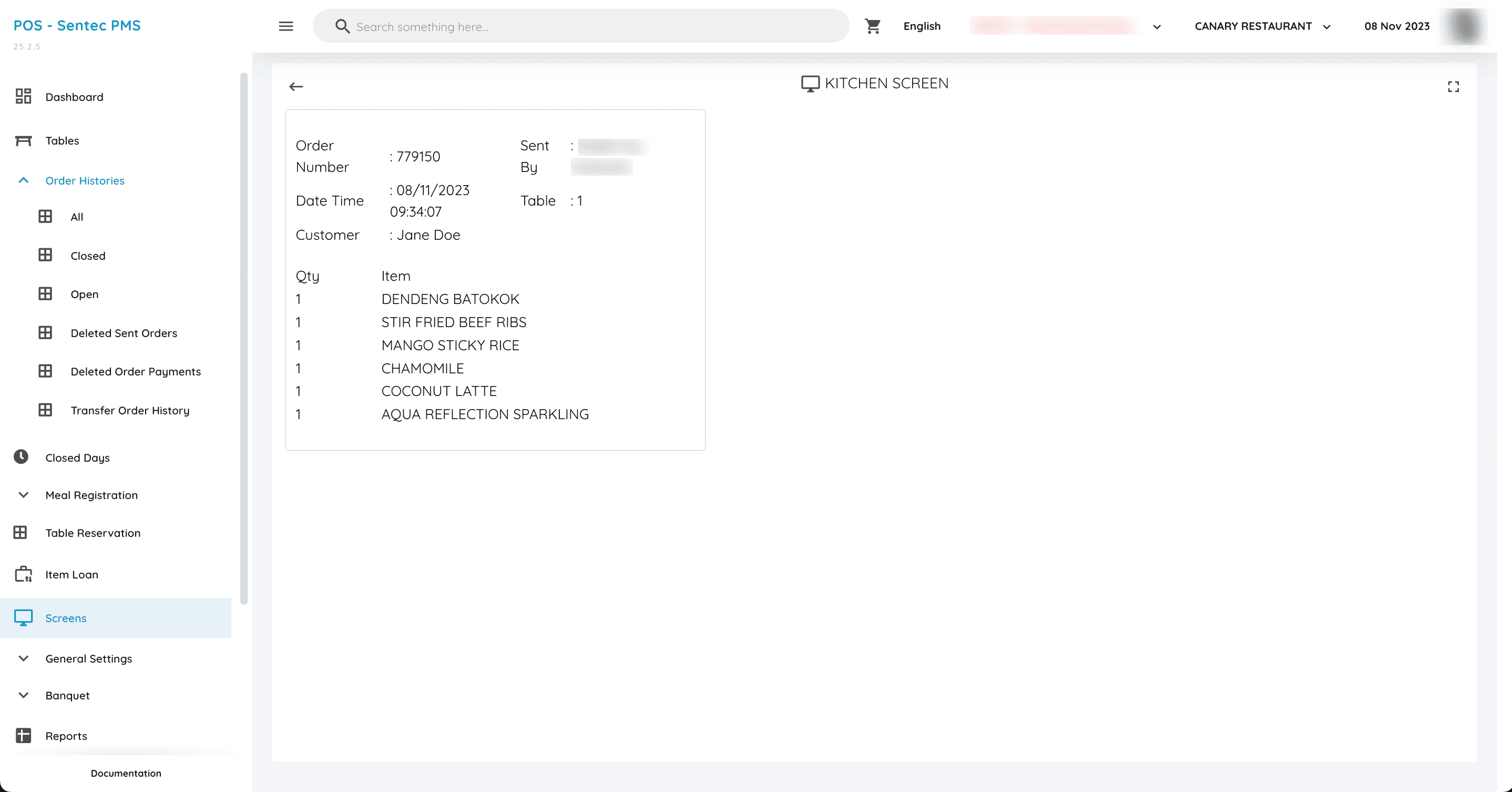
The Screen menu displays orders sent from the Table menu. The orders shown on this page include only items/articles configured for the Screen.
This menu's main function is to provide the kitchen with information about food and beverages to be prepared. Each incoming order is displayed with details like item name and order quantity.
This menu helps ensure that the kitchen team can see orders in real time and prepare them as needed without receiving them manually from a server or cashier.
8. Reports
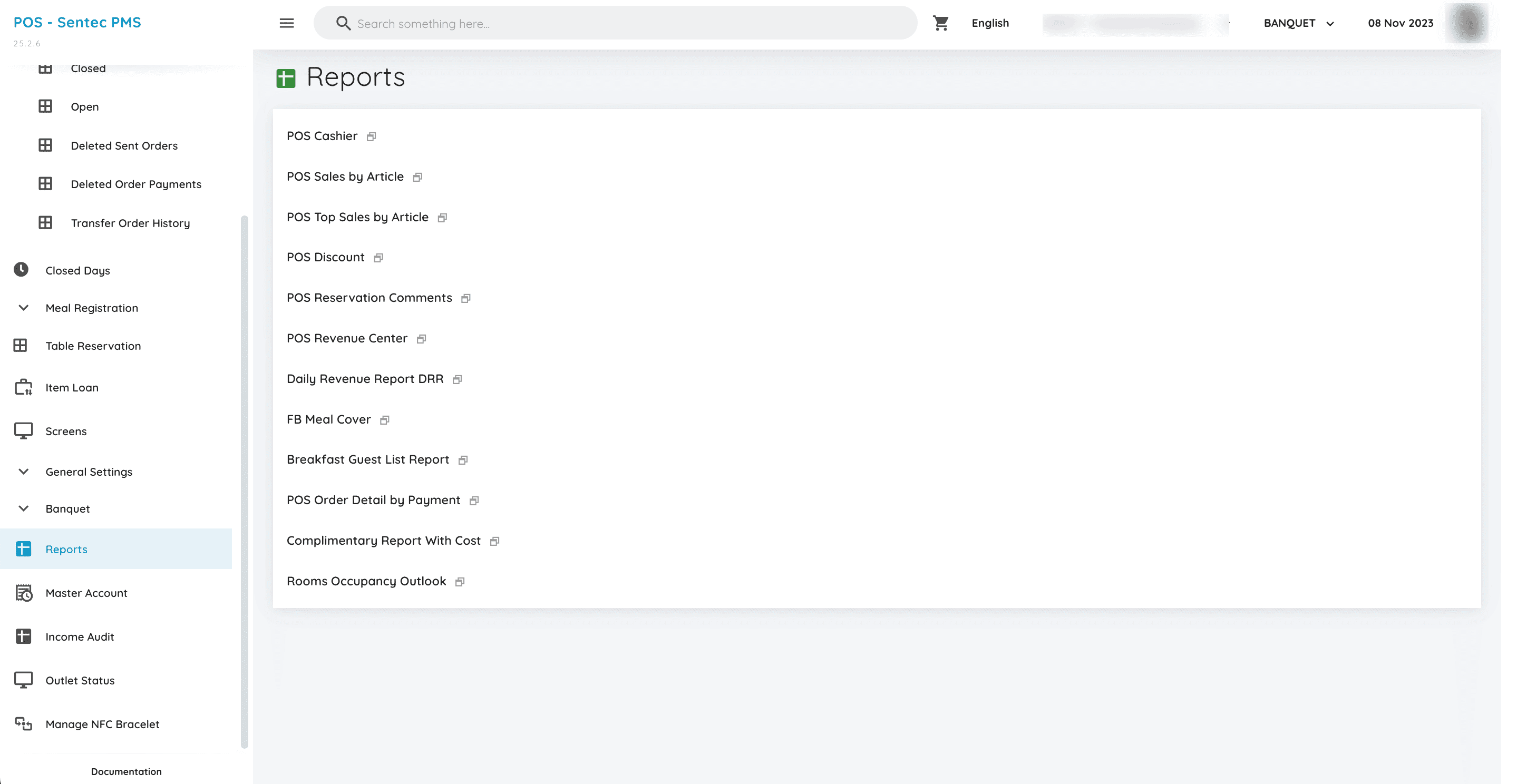
The Reports page displays various reports useful for operational and financial analysis. These reports include POS Cashier, POS Sales by Article, POS Top Sales by Article, POS Discount, POS Reservation Comments, POS Revenue Center, and more.
Each report provides specific information, such as sales data, applied discounts, reservation comments, and daily revenue. This page helps management monitor business performance, manage transactions, and understand sales and occupancy trends.
9. Income Audit
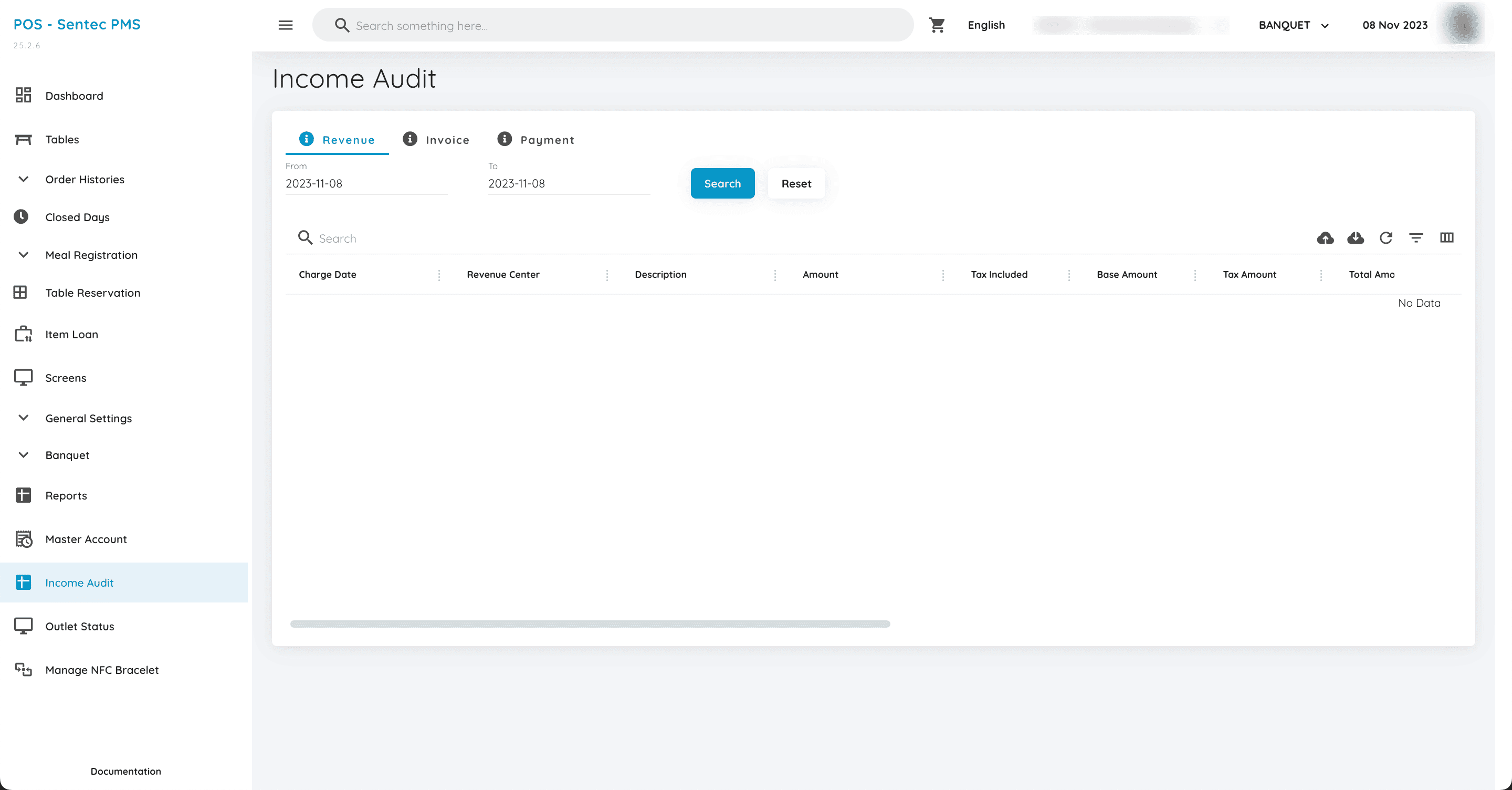
The Income Audit menu is used to review and analyze revenue within the system. Users can search for data based on a specific period and audit recorded transactions.
This menu helps the finance team verify and ensure revenue report accuracy.