
Front Office
The previous section explained the Dashboard information displays. This section covers the Front Office sub-menus in Sentec PMS.
1. Tape Chart
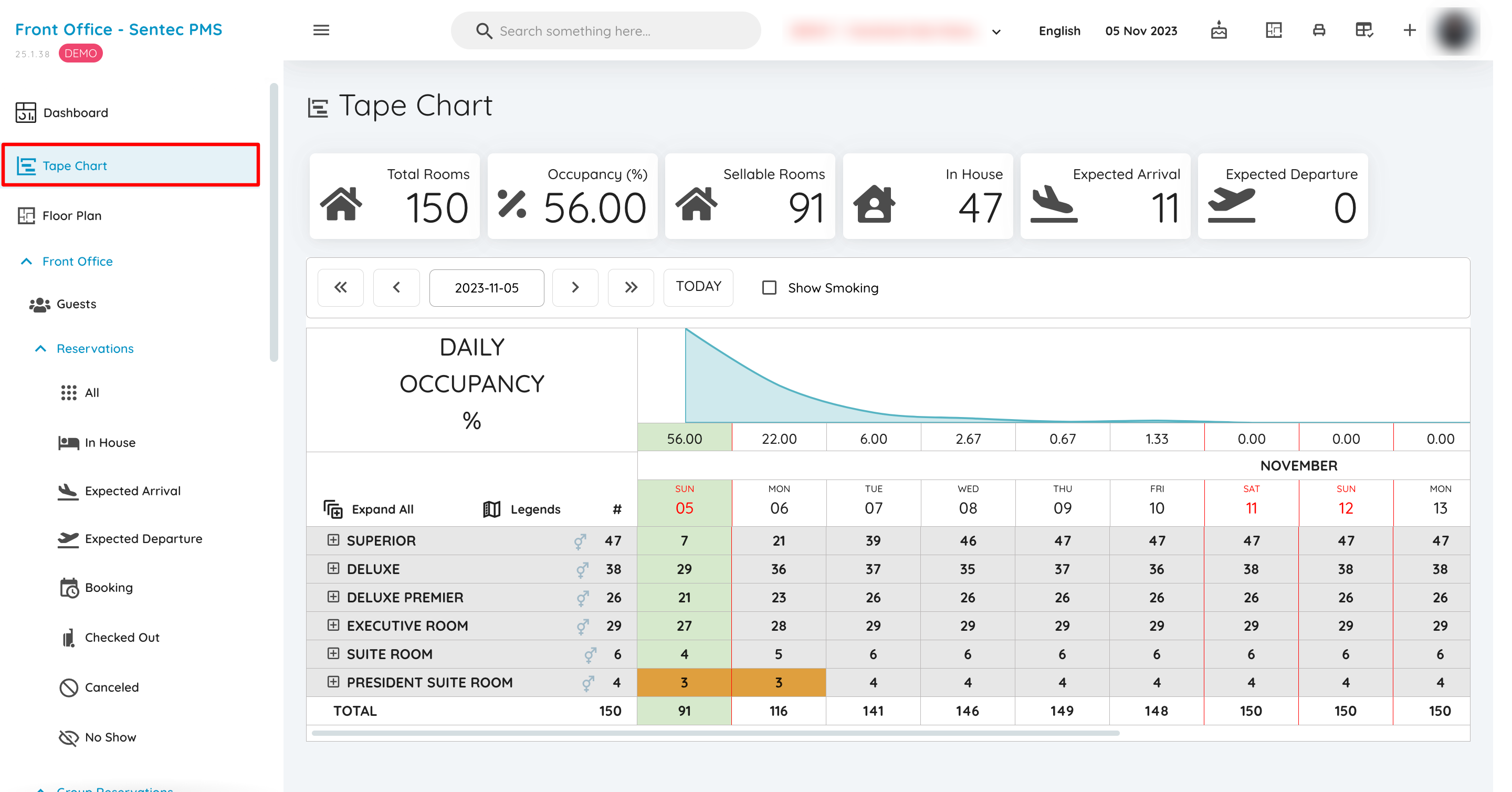
Displays a summary of the total room availability and occupied rooms, as well as a complete detail of the Room Status, while ensuring that the working date in the system is accurate.
2. Floor Plan
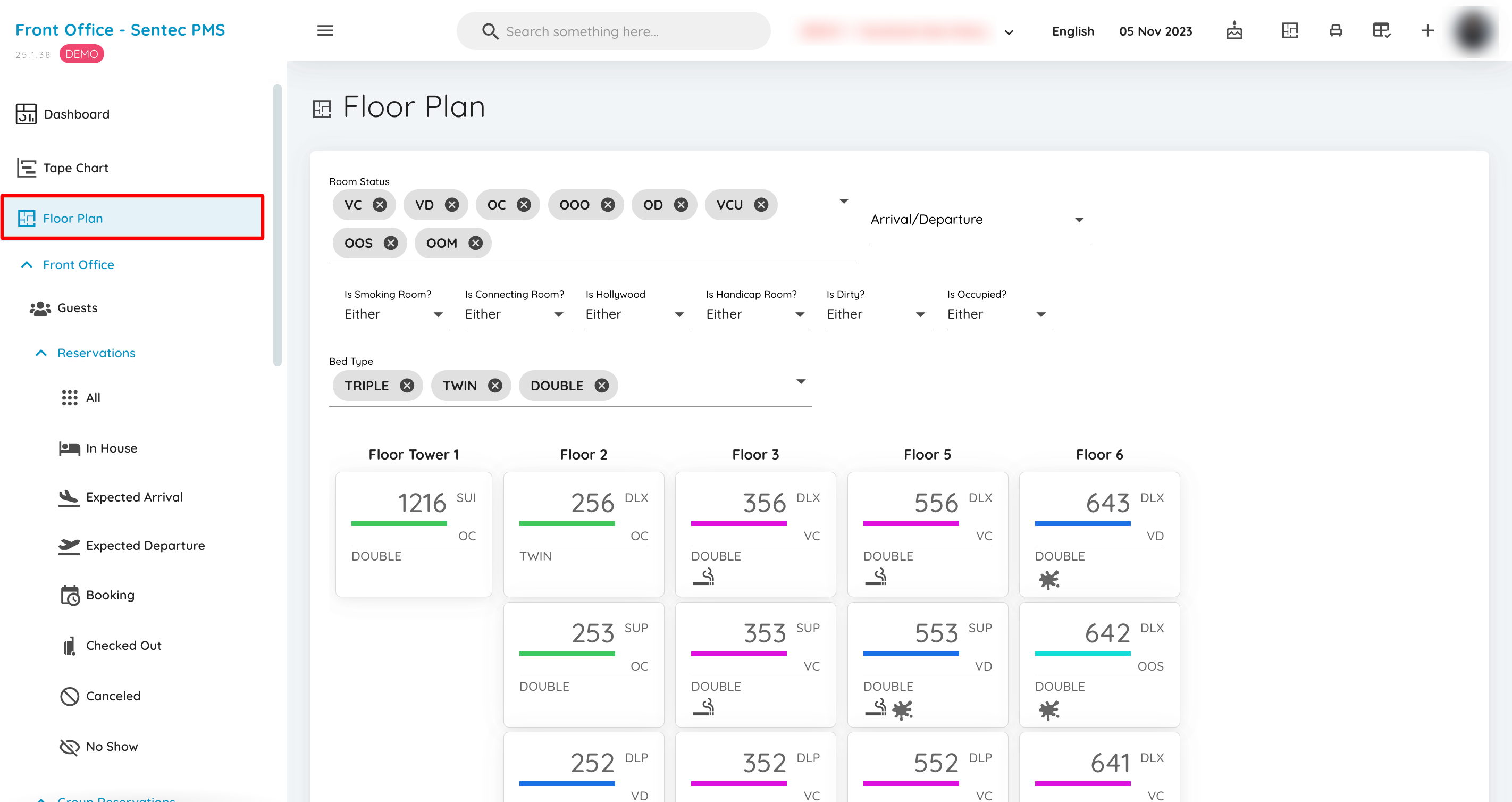
The Floor Plan displays the total number of rooms, room types, and overall room status, which can be organized by floor. The room status menu buttons can be selected and clicked as needed. However, by default, the room status menu buttons will always be set to Expected Arrival and Expected Departure.
3. Guests
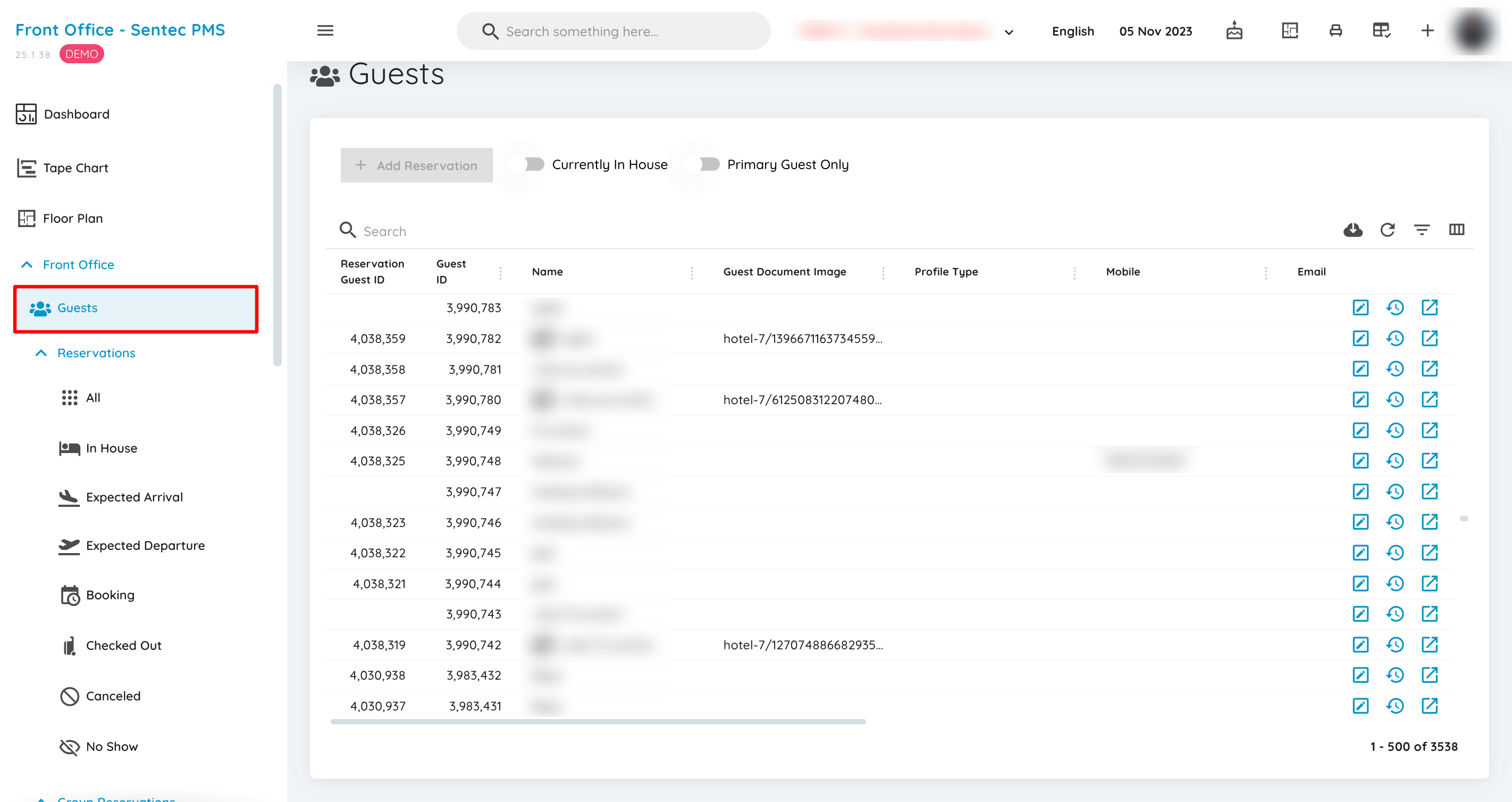
This menu displays a list of guests in the system who were previously created based on their reservations, whether their data has been updated and completed or not.
4. Reservations
Reservations are used to manage all processes related to room bookings, covering all reservation statuses from new bookings and in-house guests to departed guests and cancellations. With this menu, hotel staff can easily monitor, modify, and manage guest reservations according to the hotel's operational needs.
Reservation - All
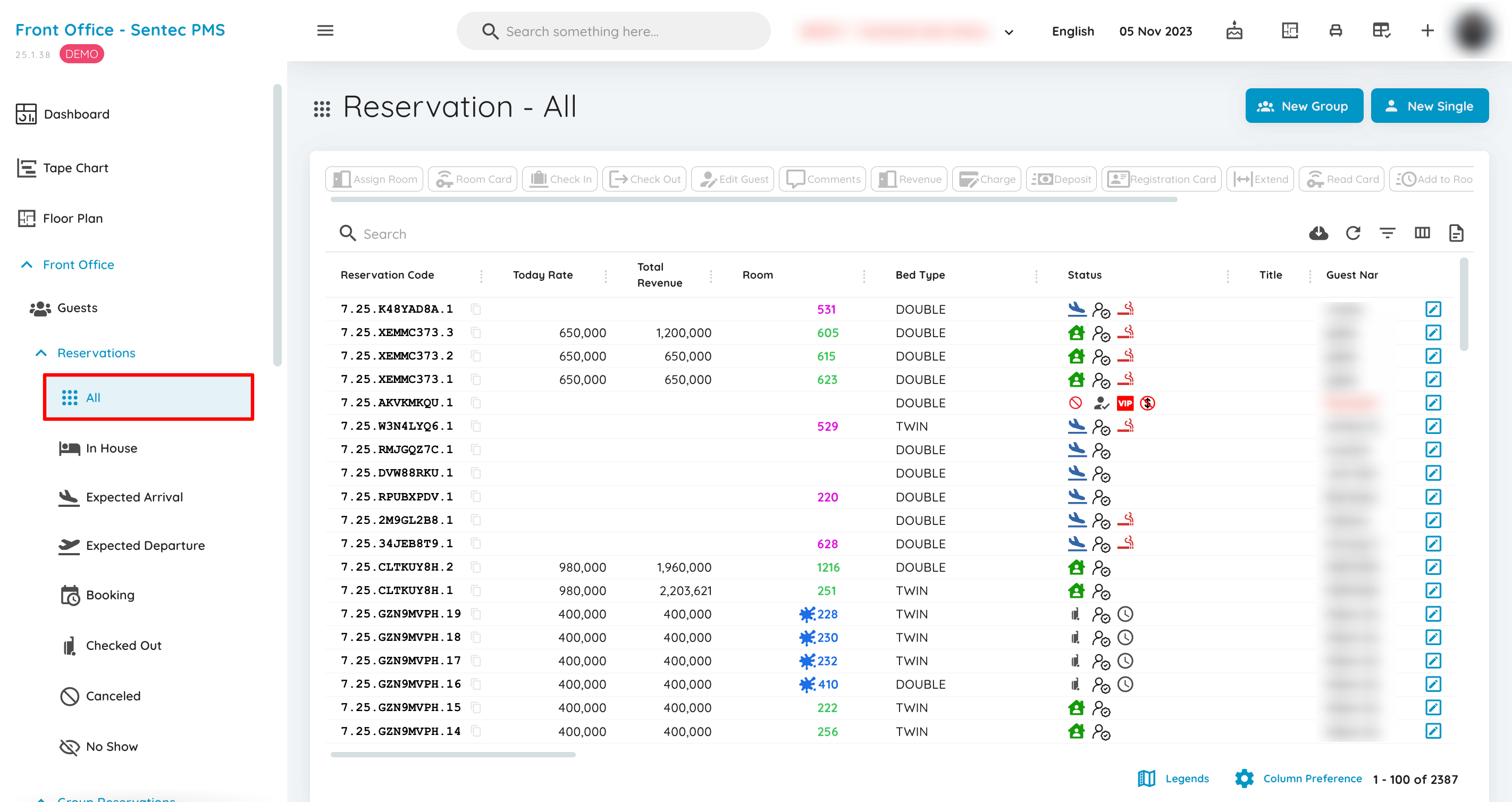
Displays all reservations created in the system without any filters. This includes manually created reservations, breakdowns from Group Reservations, and online reservations, regardless of their status-Booking, Check-In, Check-Out, Cancelled, or No Show.
Reservation - In House
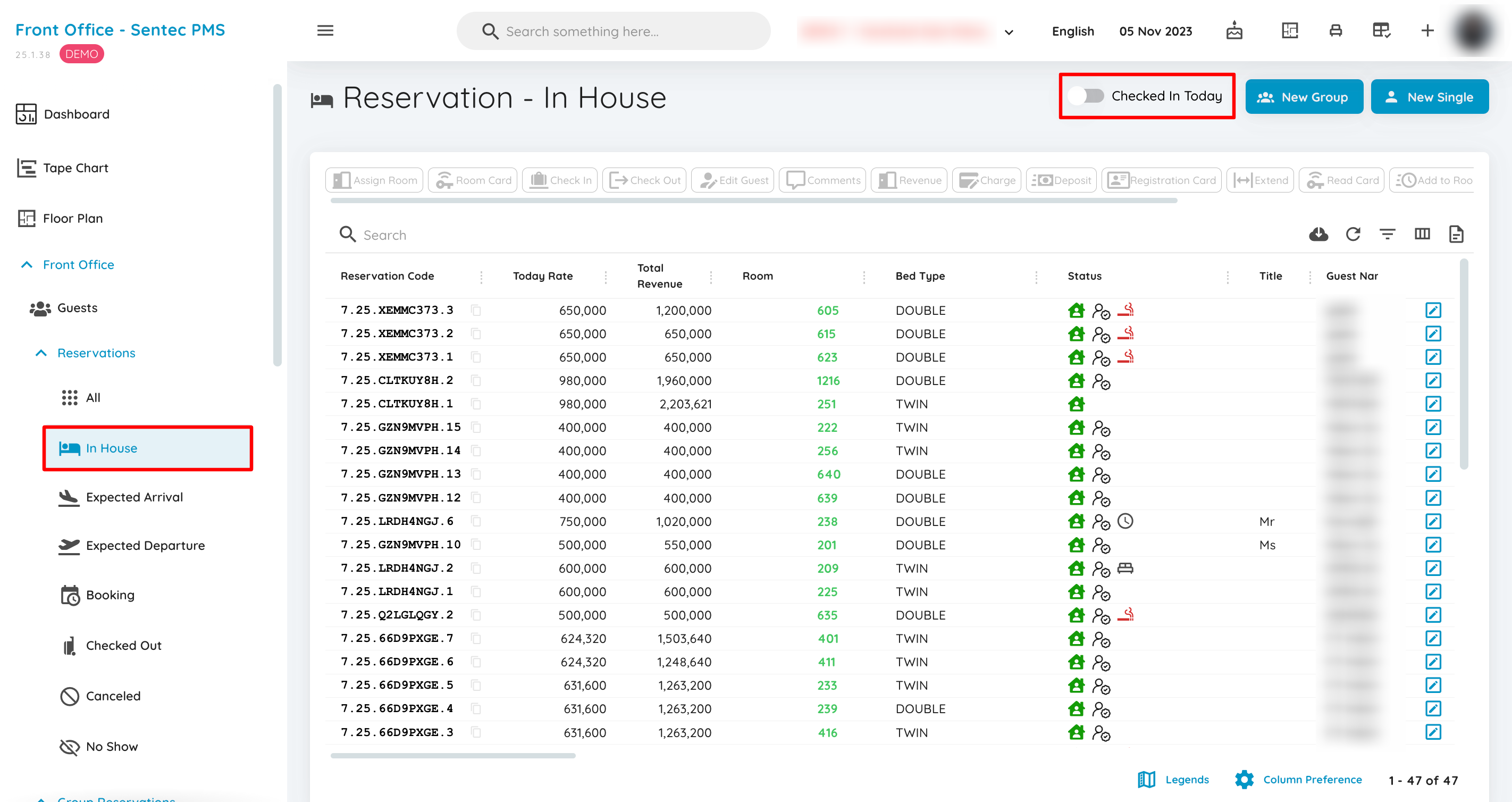
Displays all reservations with the status CHECKED IN or can be filtered to show only newly checked-in reservations based on the working date.
Reservation - Expected Arrival
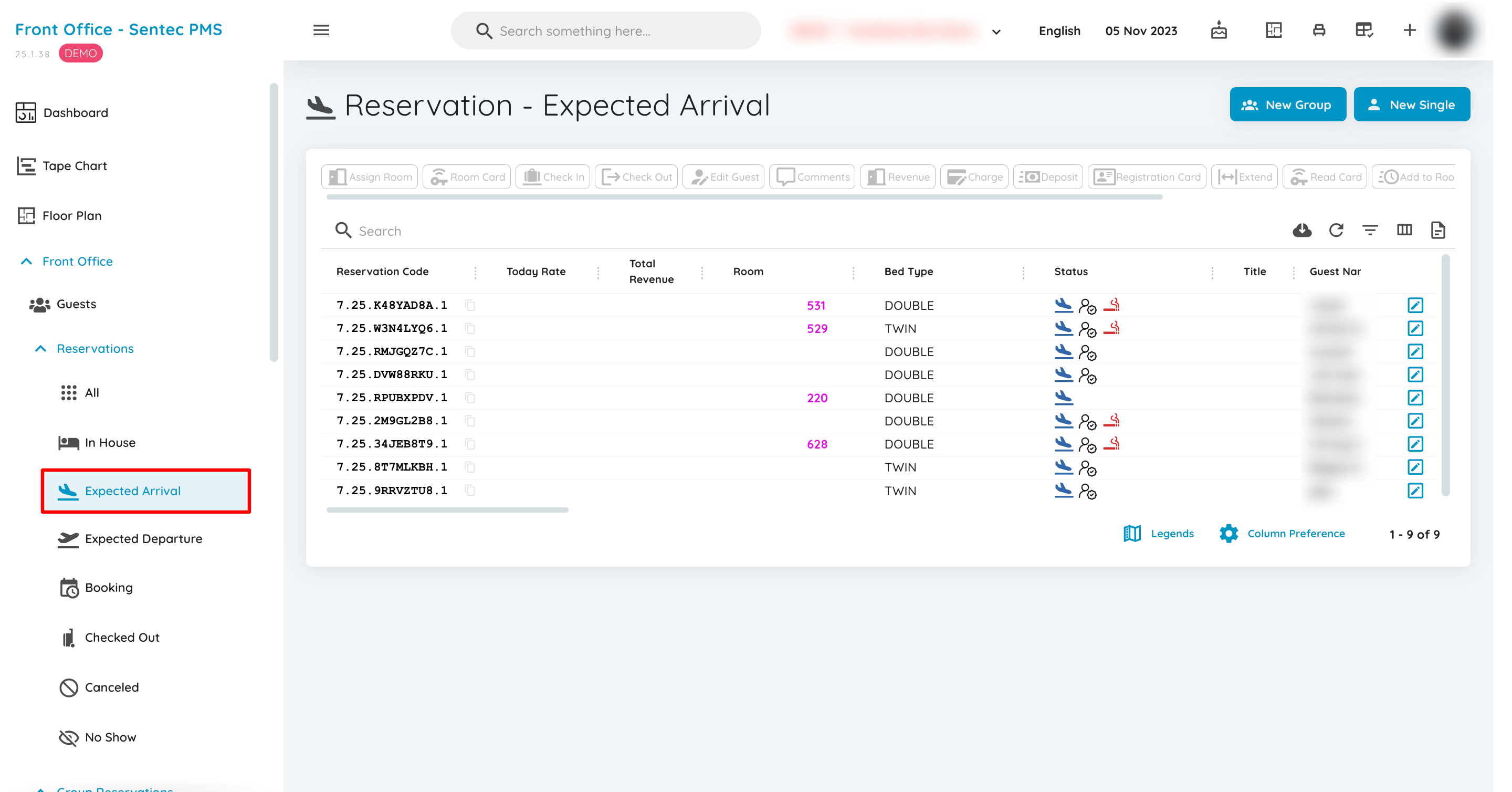
Displays all reservations with the status BOOKING and an arrival date that matches the working date.
Reservation - Expected Departure
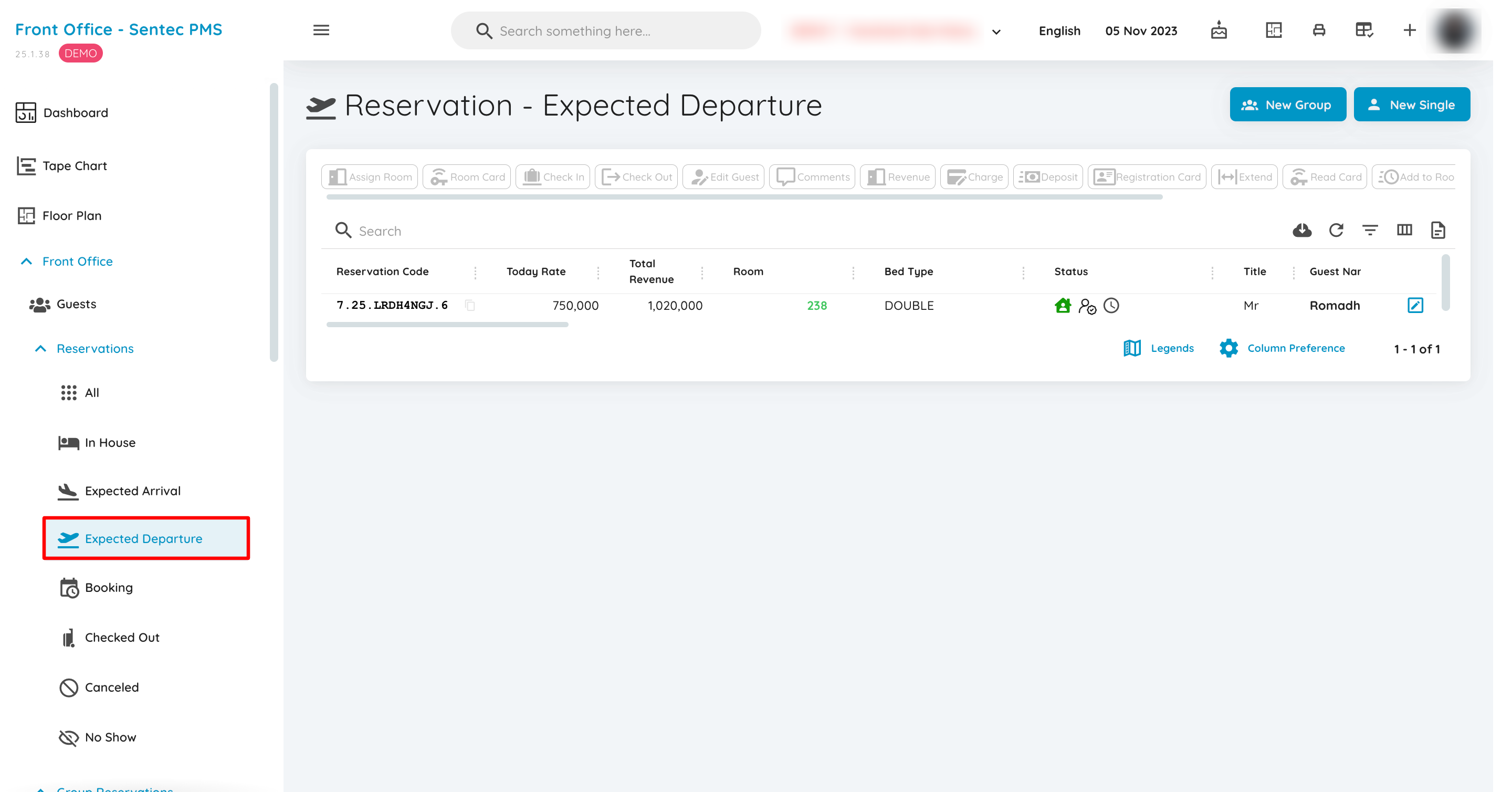
Displays all reservations with the status CHECKED IN and a departure date that matches the working date.
Reservation - Booking
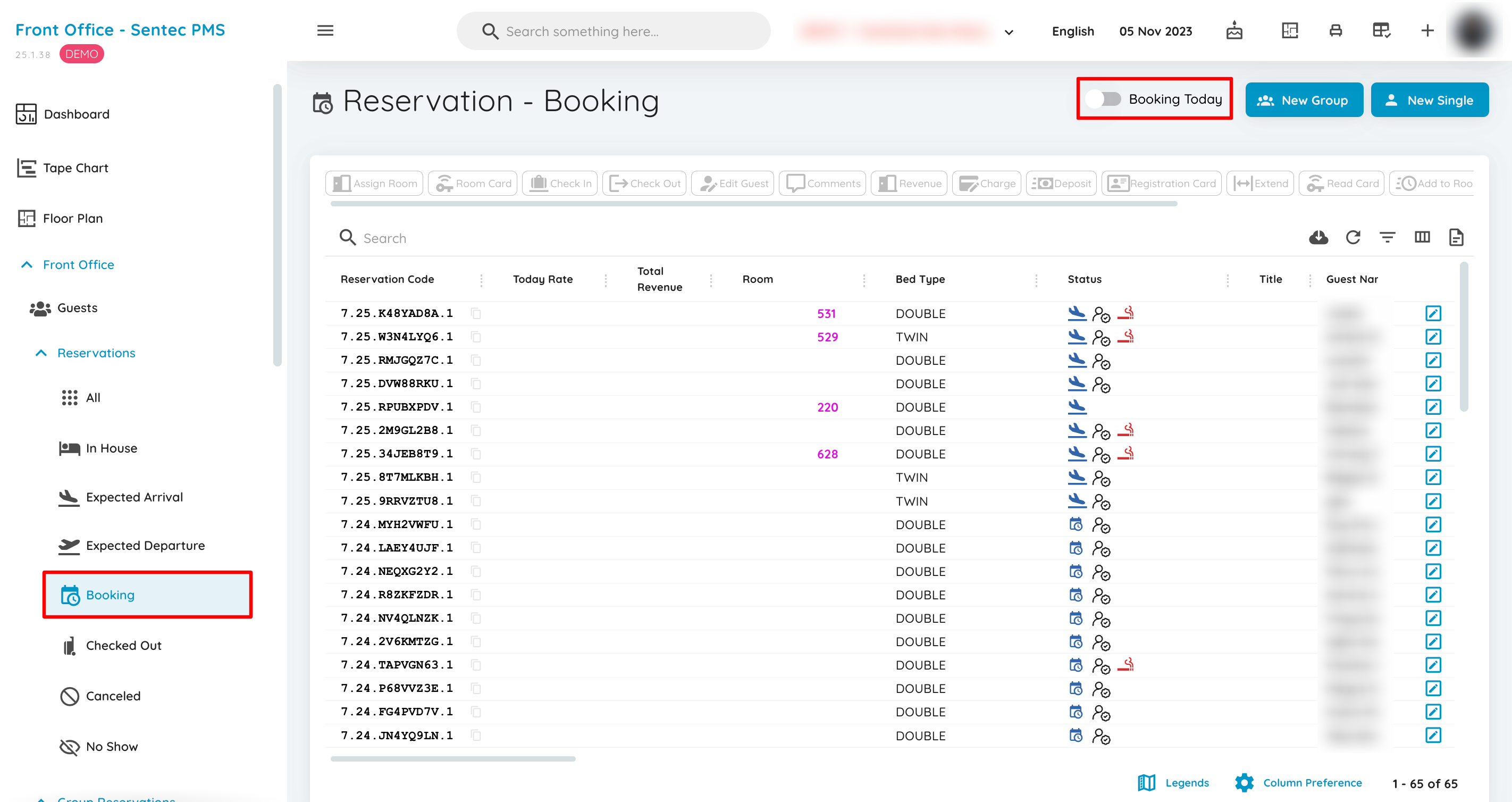
Displays all reservations with the status BOOKING from the beginning of the system's creation until now. It can also be filtered to show bookings based on the working date.
Reservation - Checked Out
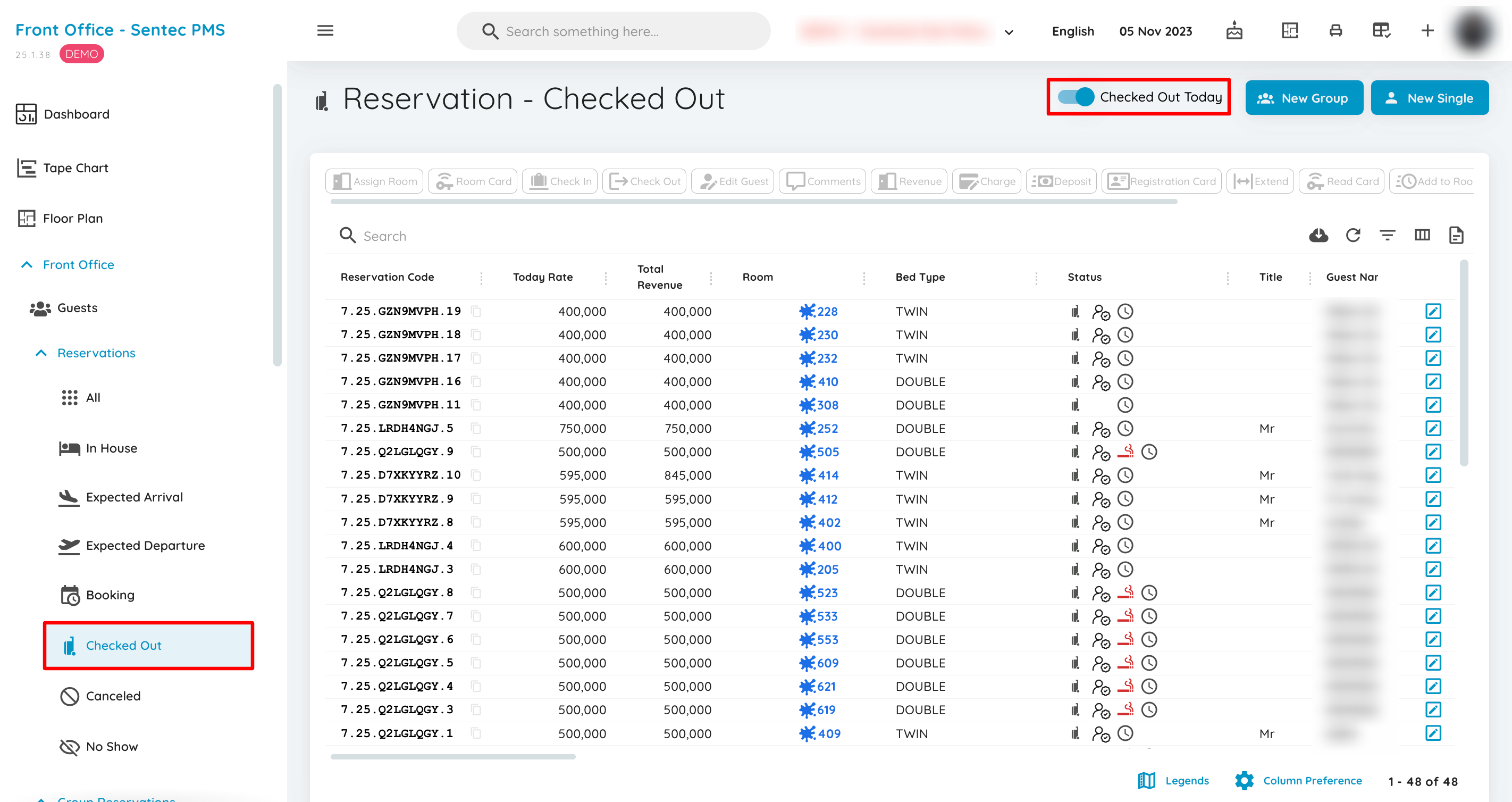
Displays all reservations with the status CHECKED OUT, meaning the guest has left the room, from the beginning of the system's usage until today. It can also be filtered to show reservations with a departure date matching the working date.
Reservation - Canceled
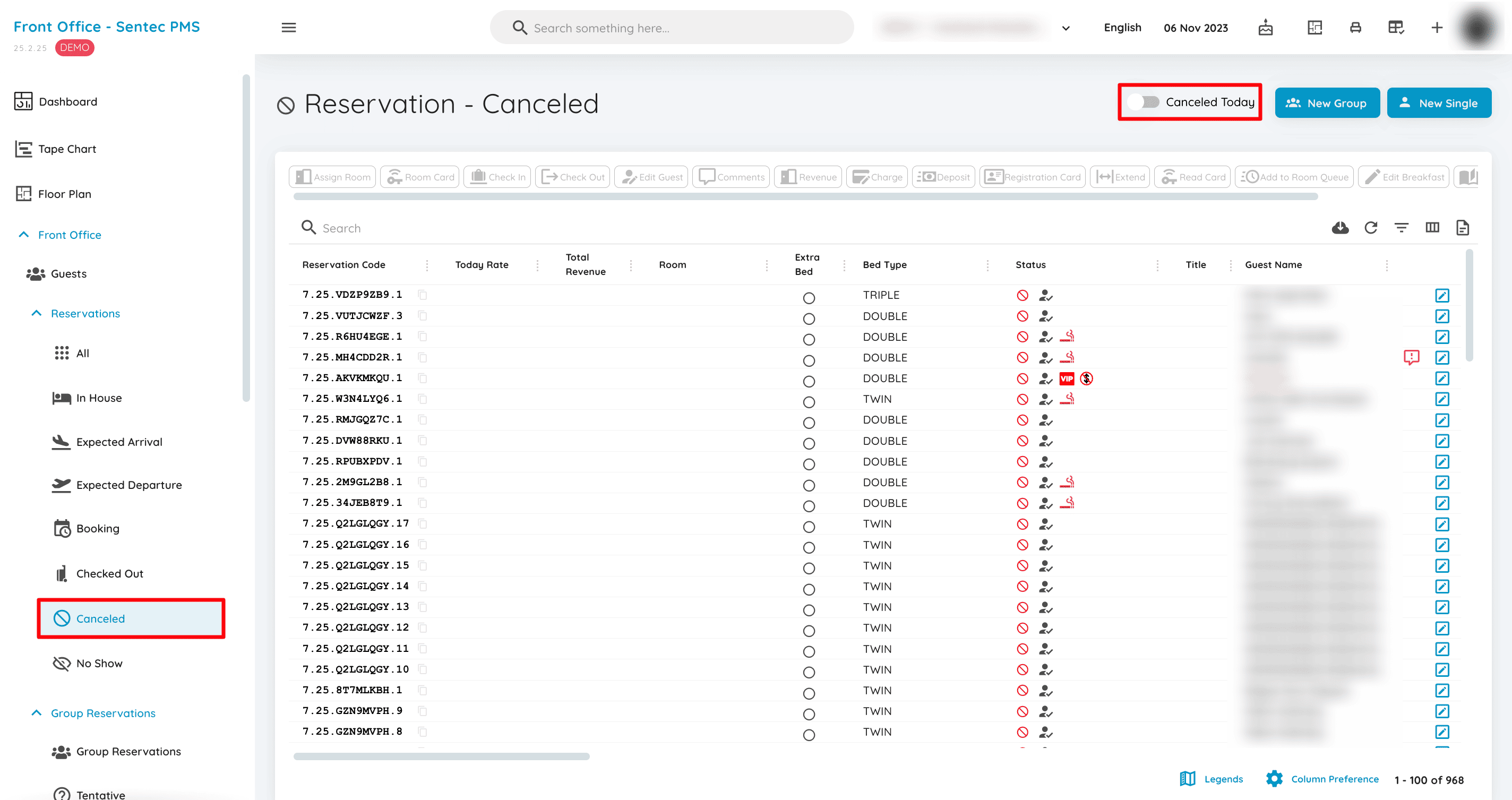
Display all reservations with a status of CANCELLED, including all reservations that have been canceled and are considered void. From the beginning of the system's use until today. Alternatively, they can be filtered based on the cancellation date that matches the working date.
Reservation - No Show
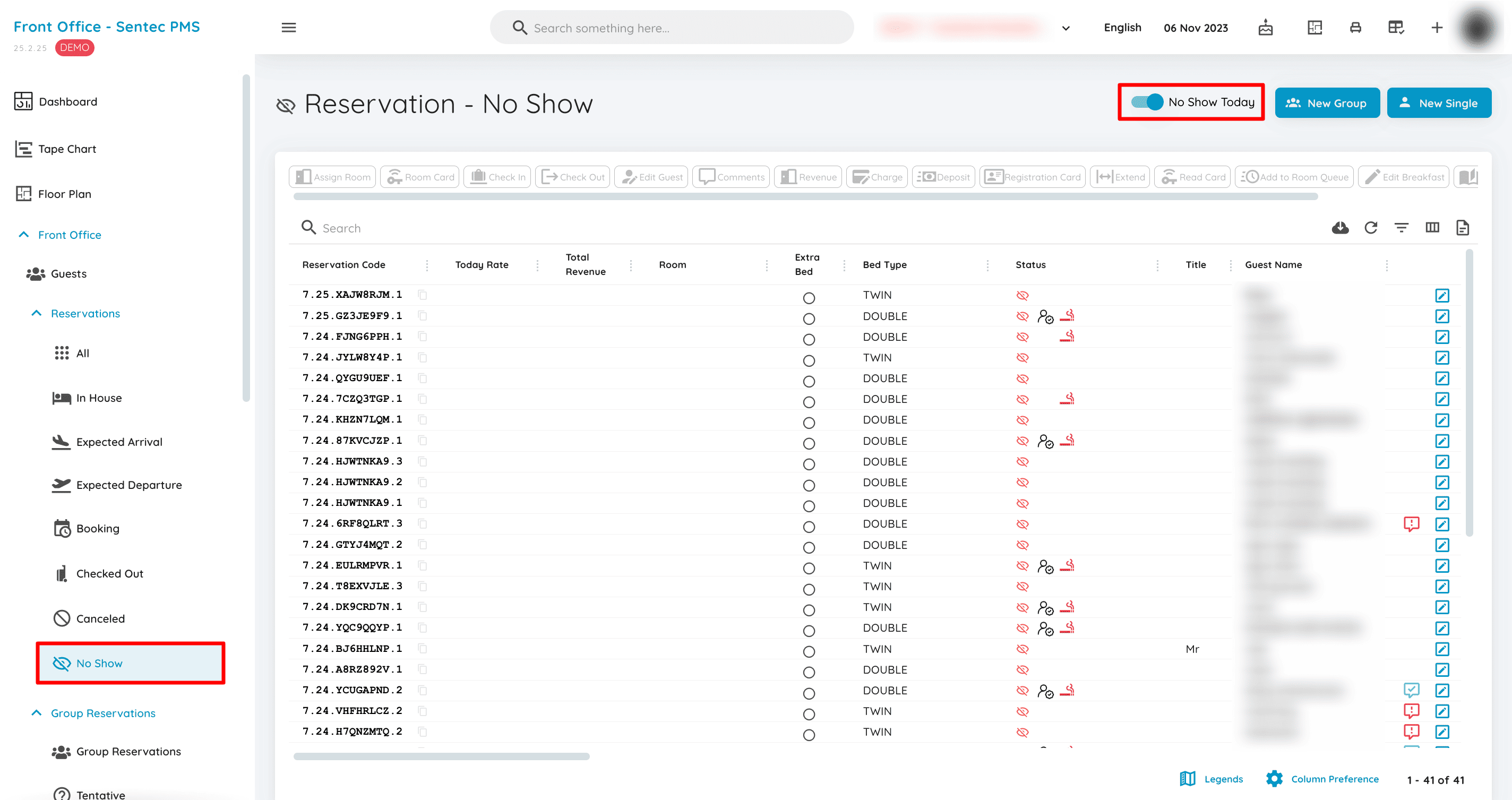
Display all reservations with a status of NO SHOW, including all reservations where the guest did not arrive and stay, but there is still a possibility for check-in and they are considered as revenue. From the beginning of the system's use until today. Alternatively, they can be filtered based on the No Show process date that matches the working date.
5. Group Reservations
Group Reservations are used to manage large room bookings made by groups, such as private tours, corporate events, or conferences. This menu allows hotel staff to efficiently view, organize, and monitor group reservations, including both confirmed and tentative bookings.
Group Reservations
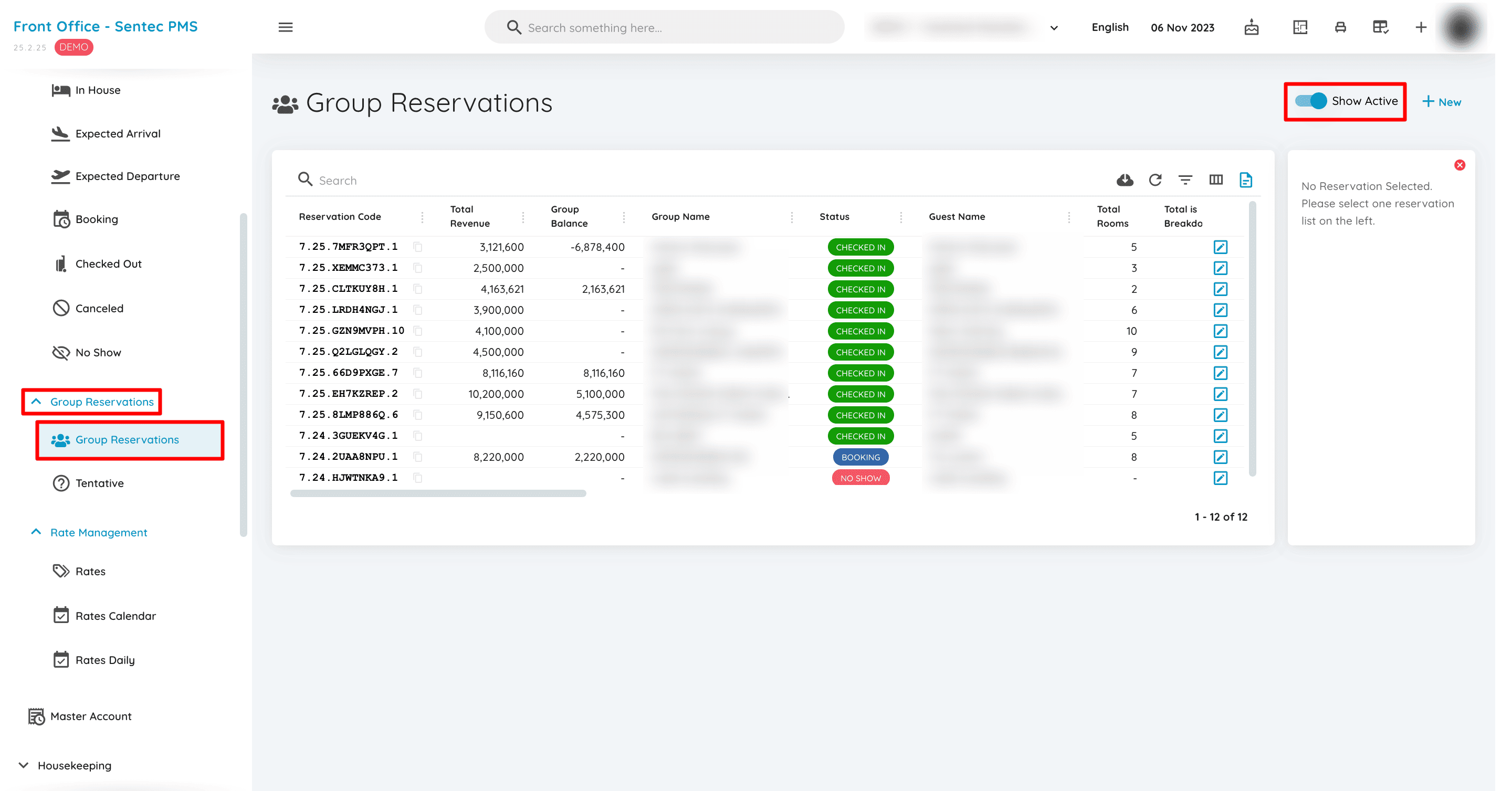
In Group Reservation, all group lists in a hotel will be displayed. By default, only Group Reservations with the status BOOKING & CHECKED IN are shown. To view reservations with the status CHECKED OUT or CANCELLED, toggle the 'Show Active' option off. Group Reservations include multiple rooms and are created directly in the system, not through online travel agency bookings.
Reservation - Tentative
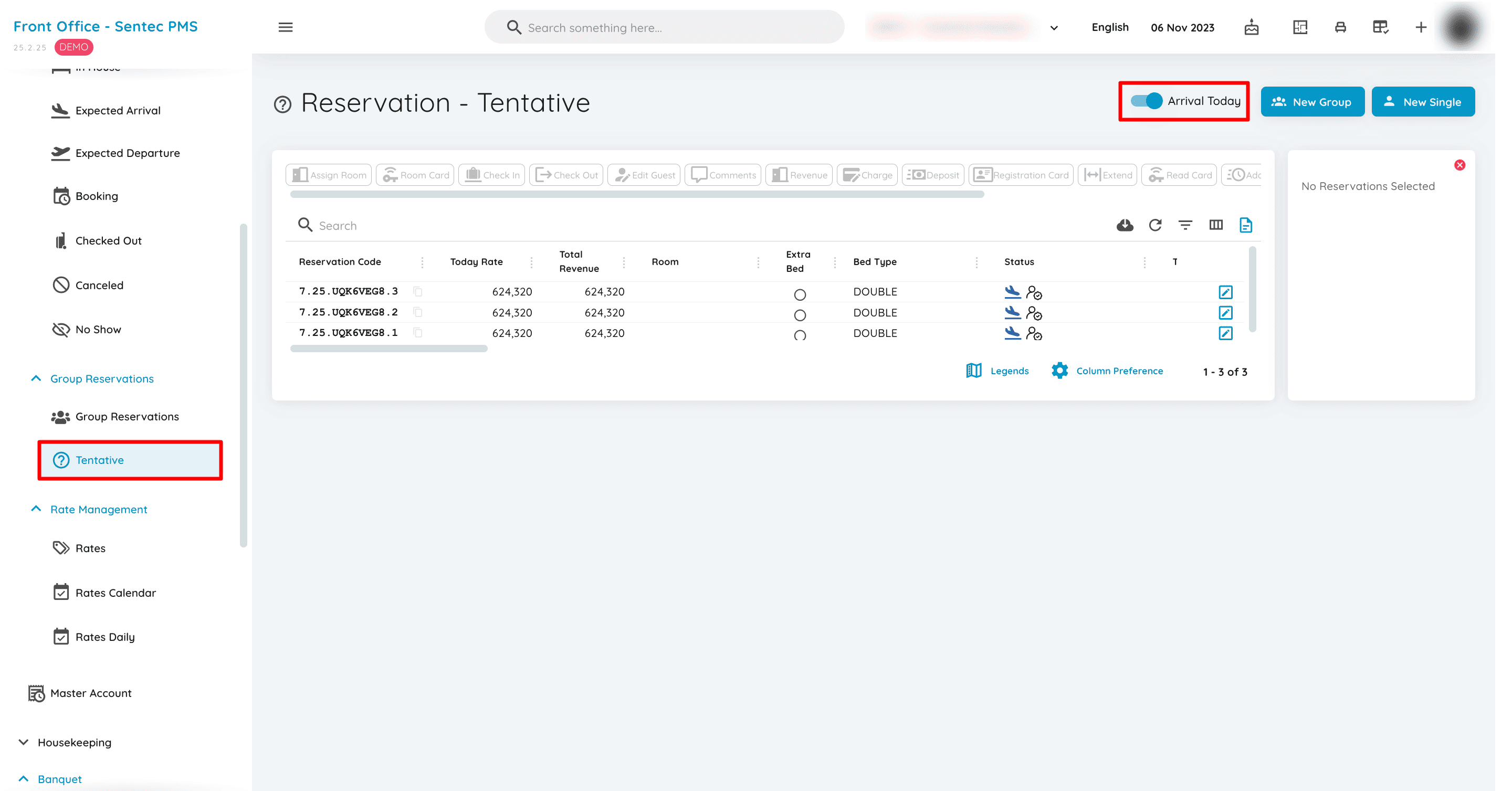
Display all Group Reservations where the breakdown is set to False, which are considered not yet fully confirmed. These tentative reservations can also be filtered based on the arrival date that matches the working date.
6. Rate Management
Rate Management is used to manage room rates flexibly and strategically. This menu allows hotel staff to create, edit, and adjust room prices. Additionally, this feature enables daily rate checking to ensure that the set prices align with the hotel's policies.
Rates
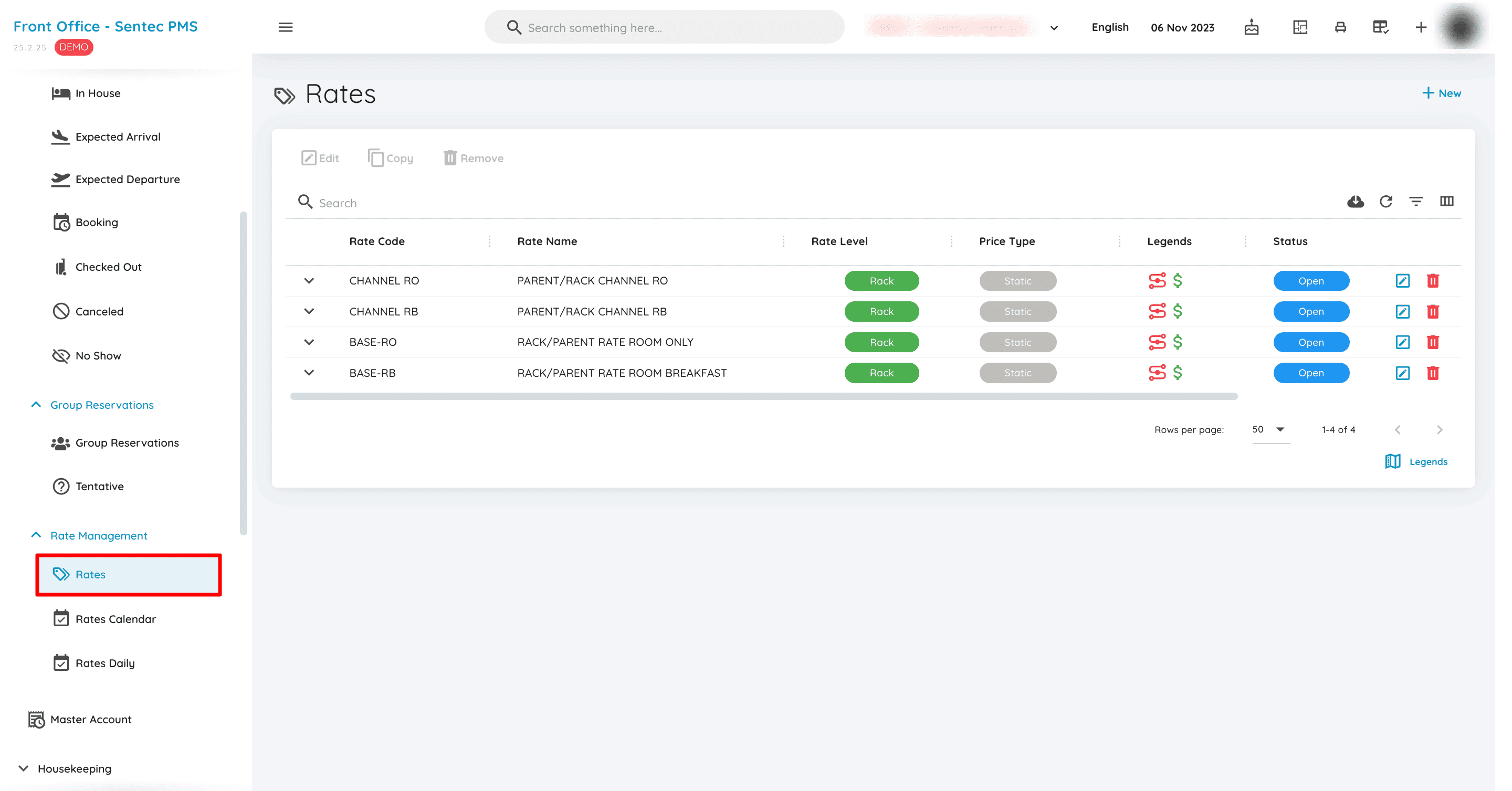
In the Rates menu, codes and rates will be displayed based on previously set rates, as well as newly created rates that have not existed before, adjusted according to the settings of each hotel unit.
Rates Calendar
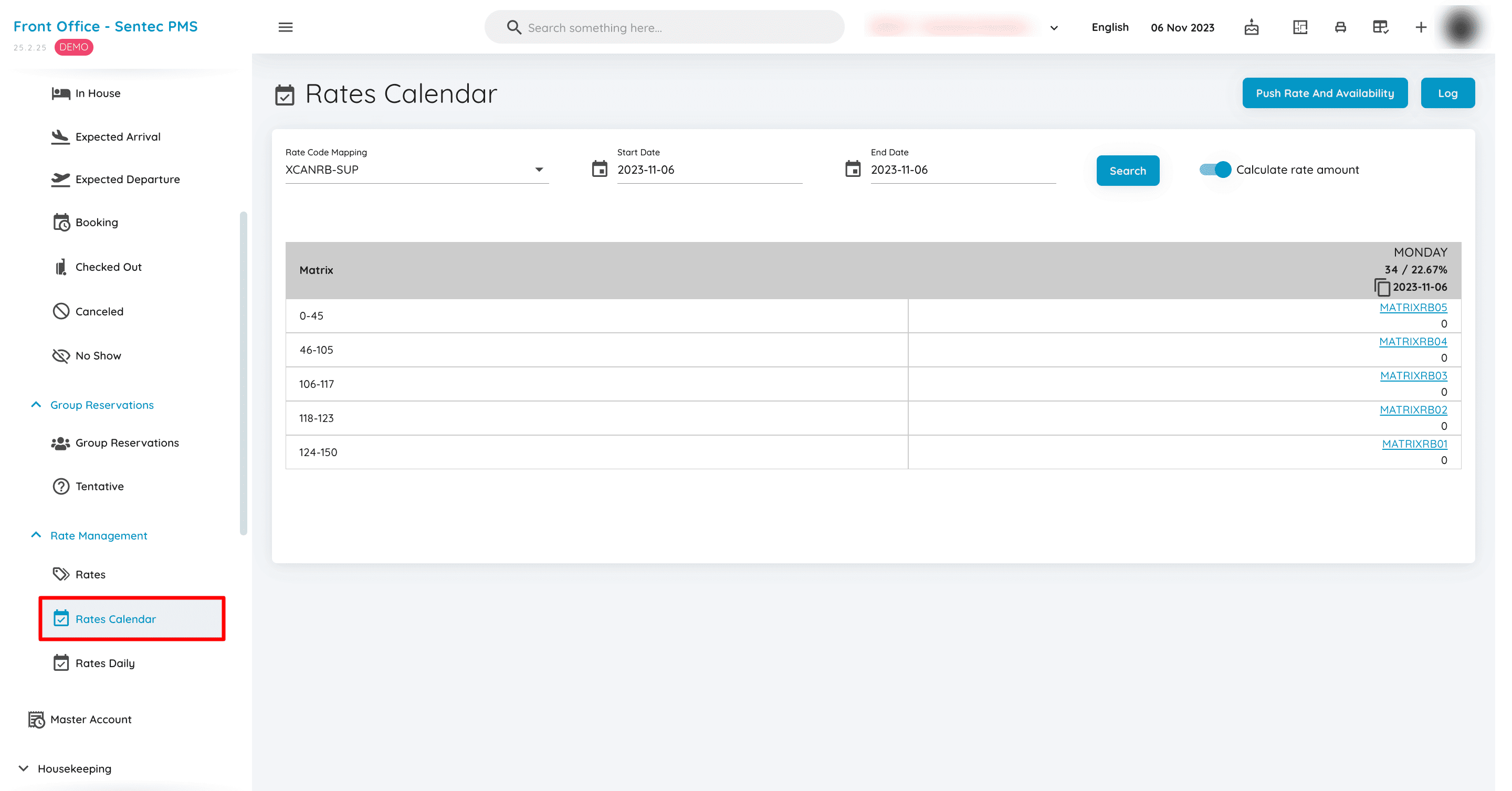
Rates Calendar is a menu designed to update daily prices in Sentec PMS, aligned with the Rate Matrix in the Commercial Action Plan. The application of the Rate Matrix pricing is also adjusted based on the daily operations of each hotel.
Rates Daily
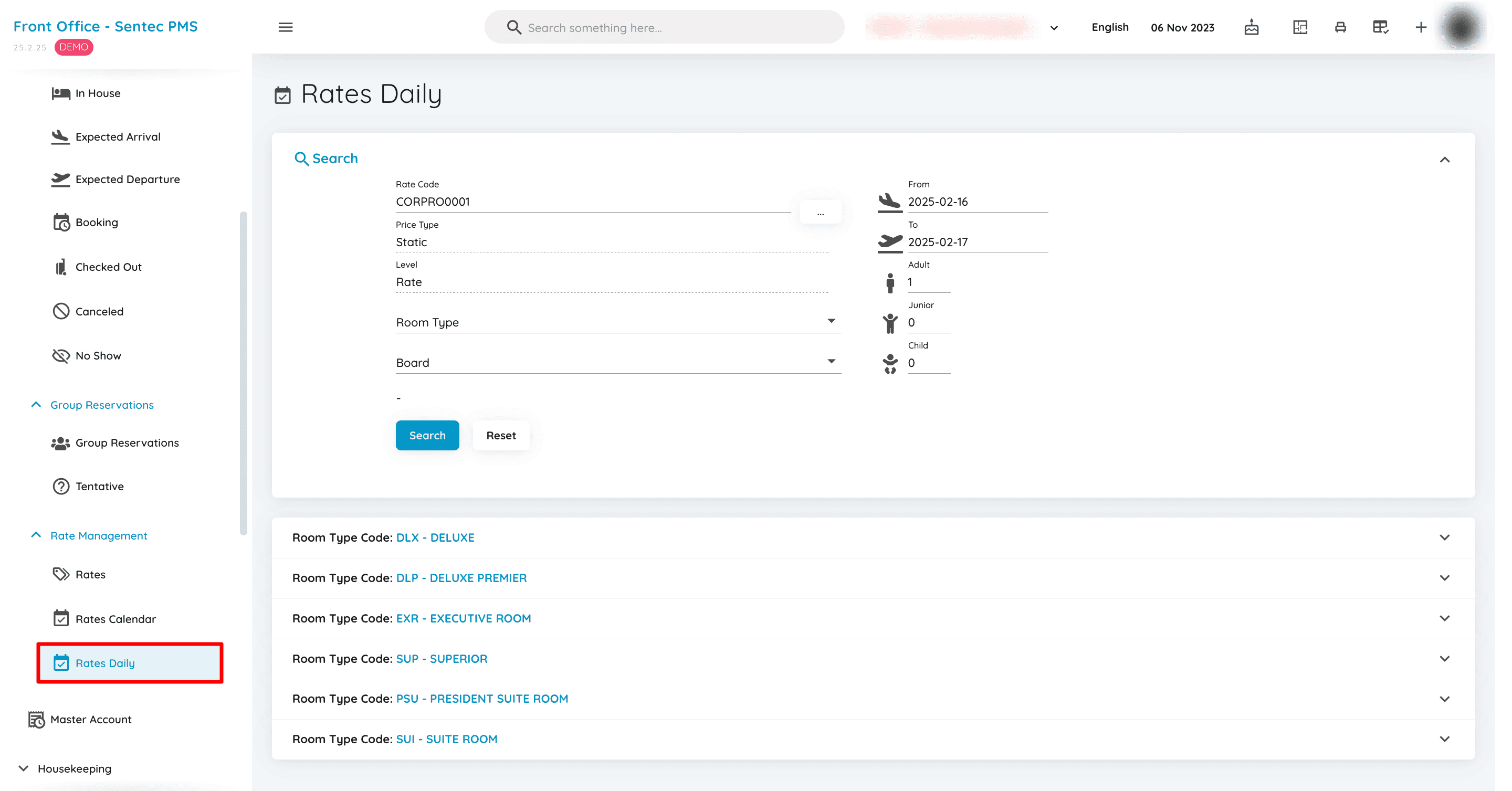
Rates Daily displays and reviews the composition or total rate from the rate configuration previously set in the Rates menu for a specified period.
7. Master Account
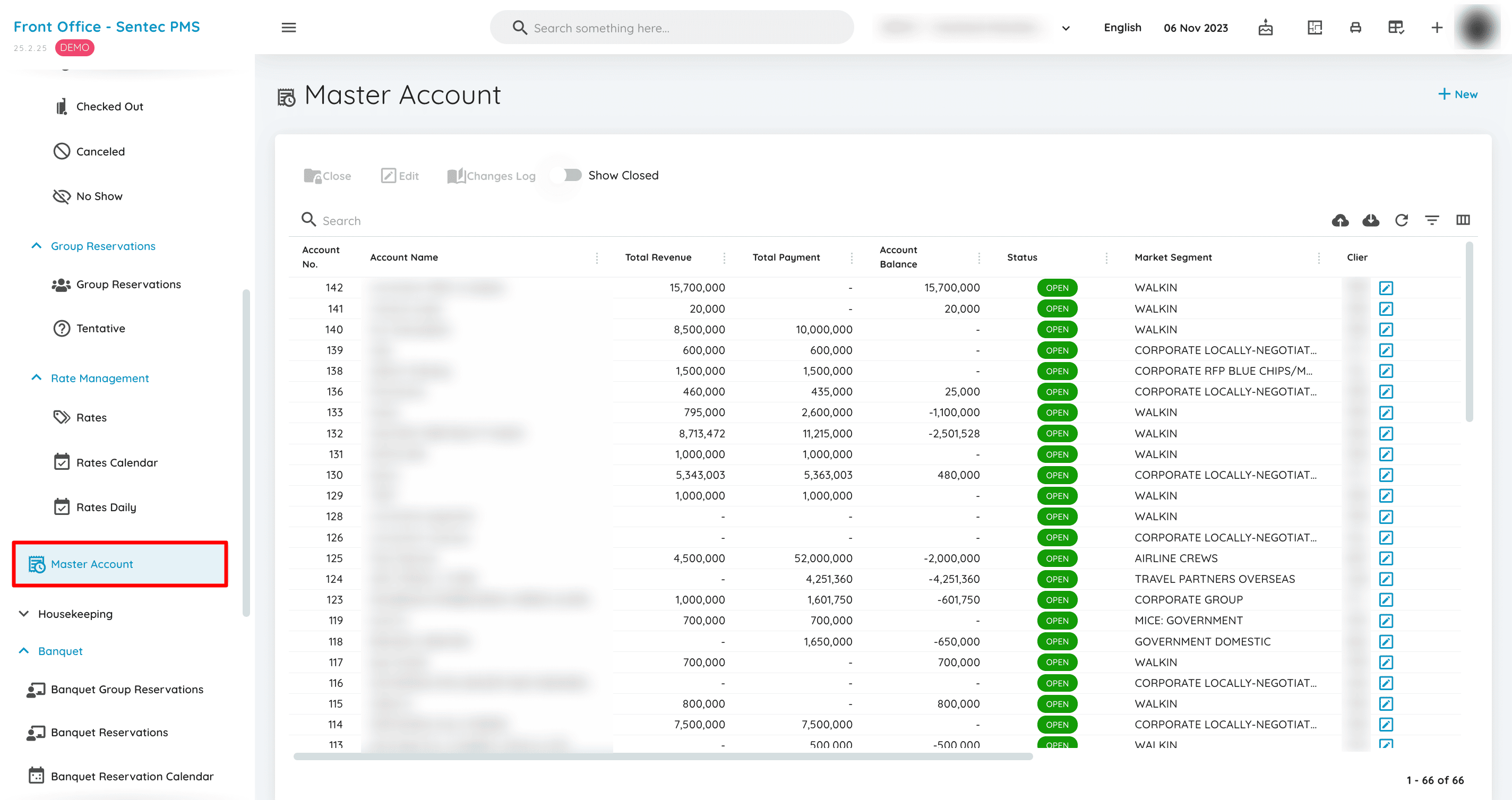
Master Account displays all guest folios not linked to a specific room reservation. This account is also used to record and process all guest transactions, which are then counted as revenue. By default, the 'Show Closed' toggle is set to False, displaying only active (Open) accounts. To view closed accounts, the toggle can be switched to True.
8. Housekeeping
Housekeeping is used to efficiently manage room cleanliness, maintenance, and conditions. This menu helps housekeeping staff organize daily tasks, monitor room status, handle maintenance requests, and manage lost-and-found items and loaned amenities. With this feature, the hotel can ensure that every room is always in optimal condition for guests, enhancing their comfort and satisfaction during their stay.
Room Queue
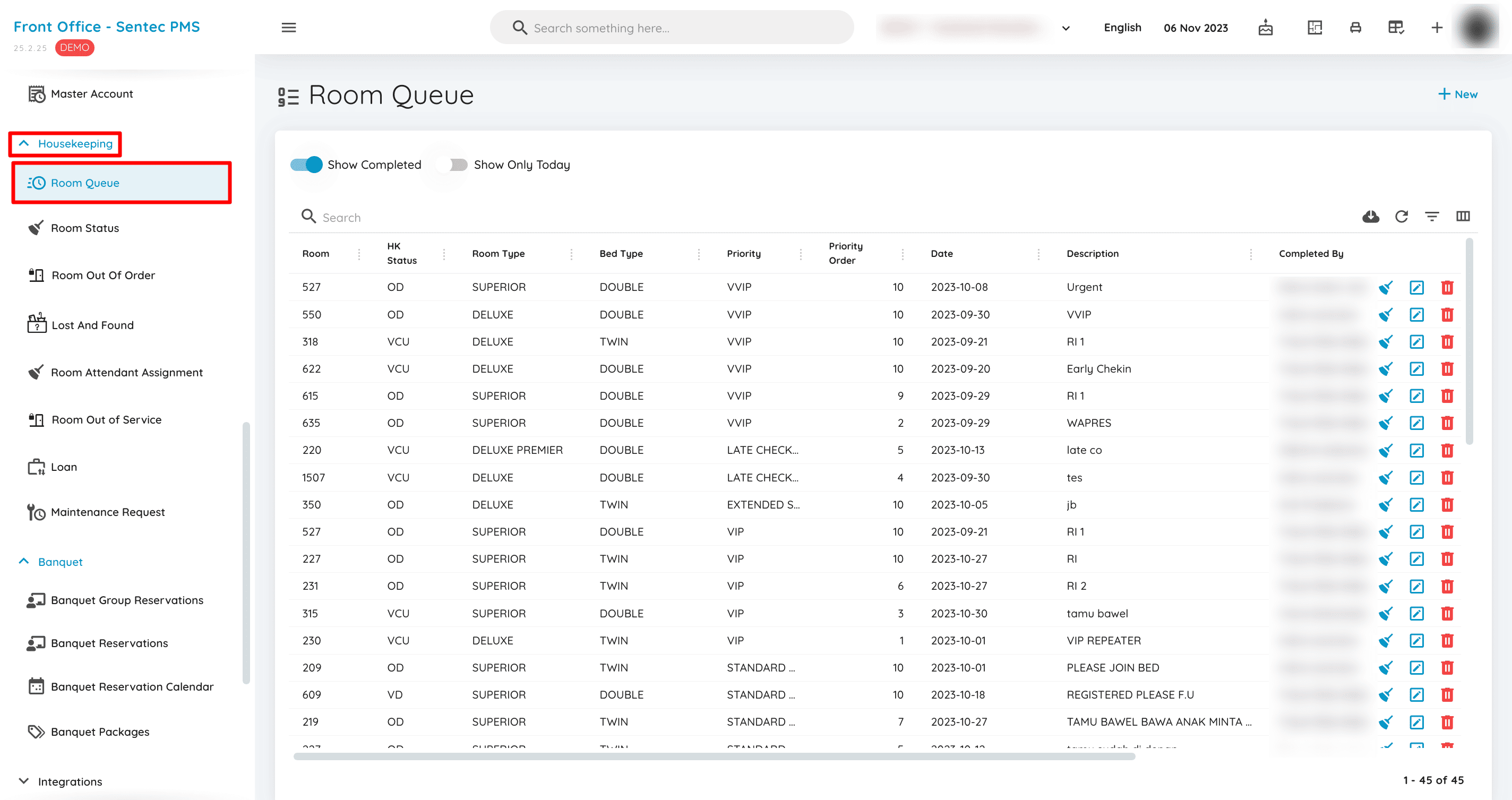
Room Queue displays a list of prioritized room assignments. It can also show rooms designated for EA Today by enabling the 'Show Only Today' toggle, ensuring that rooms with VD/VCU/OD status are promptly updated to VC.
Room Status
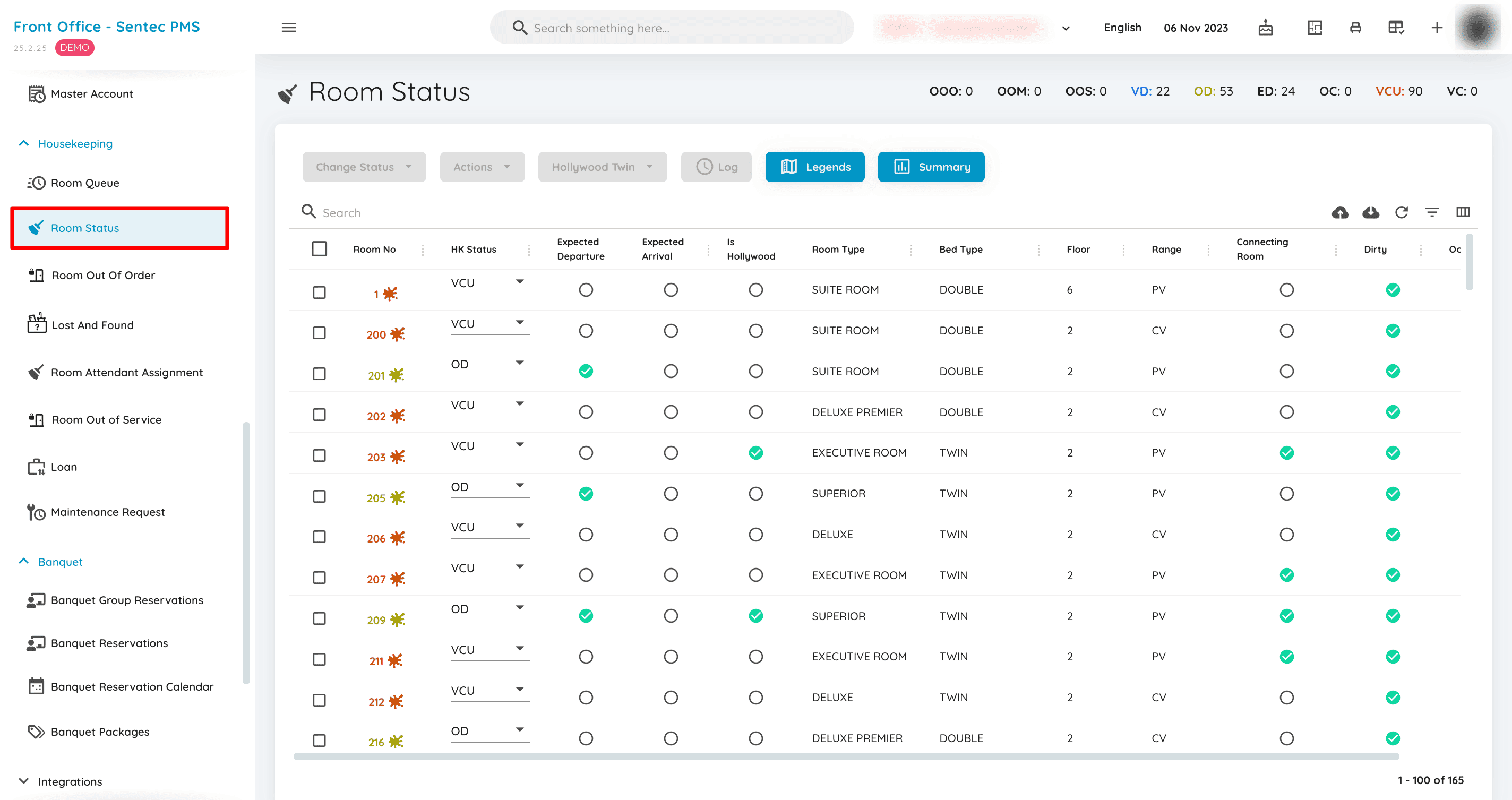
Room Status displays all room statuses in the system, either in full or filtered based on the criteria set for the working date.
Room Out of Order
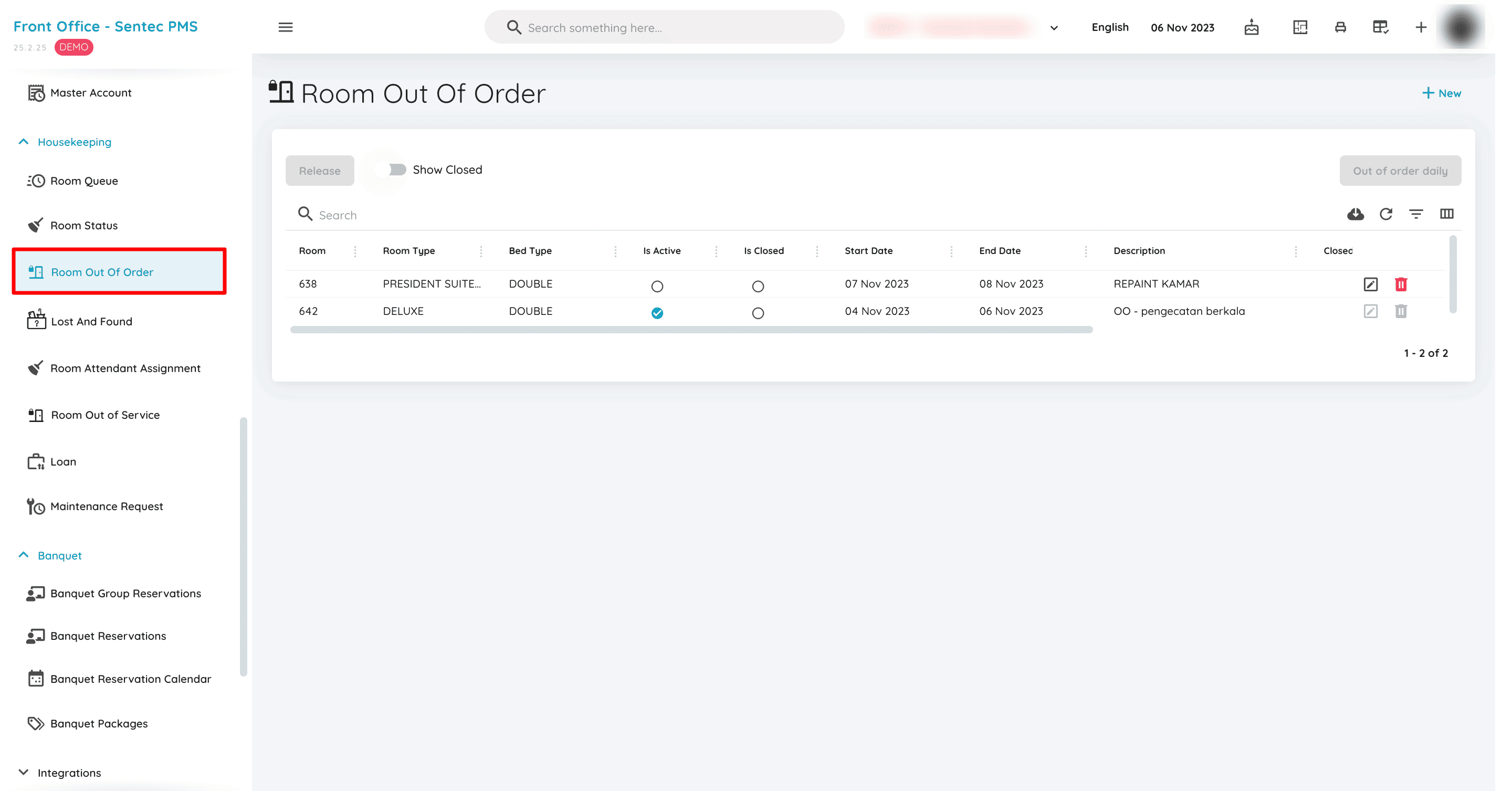
Displays all rooms in the system that are marked as out of order, based on the designated period for each room.
Room Out of Service
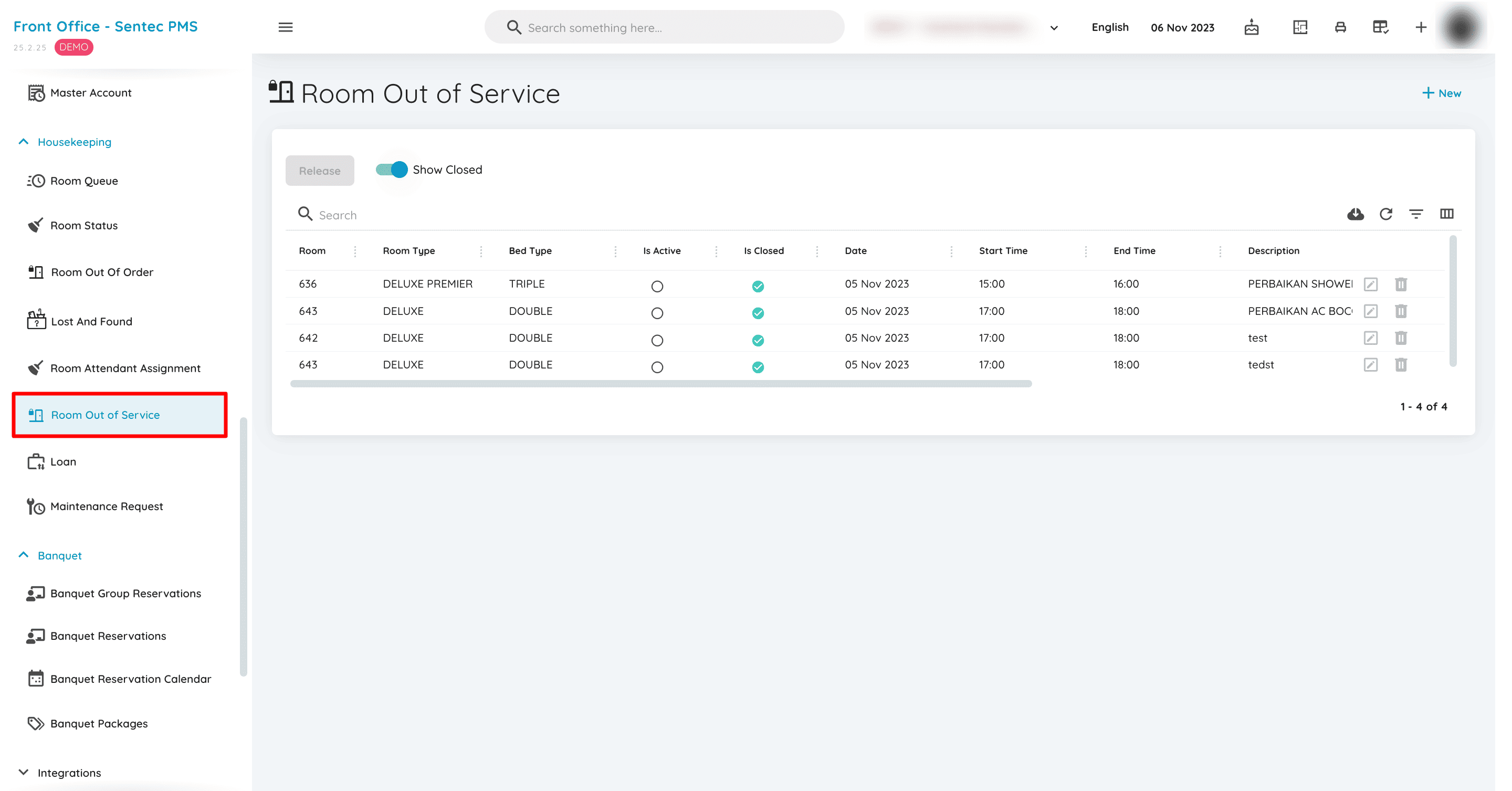
Room Out of Service is a menu used to manage the status of rooms that are temporarily unavailable for sale or guest occupancy due to certain reasons but can be repaired within a short period.
Room Attendant Assignment
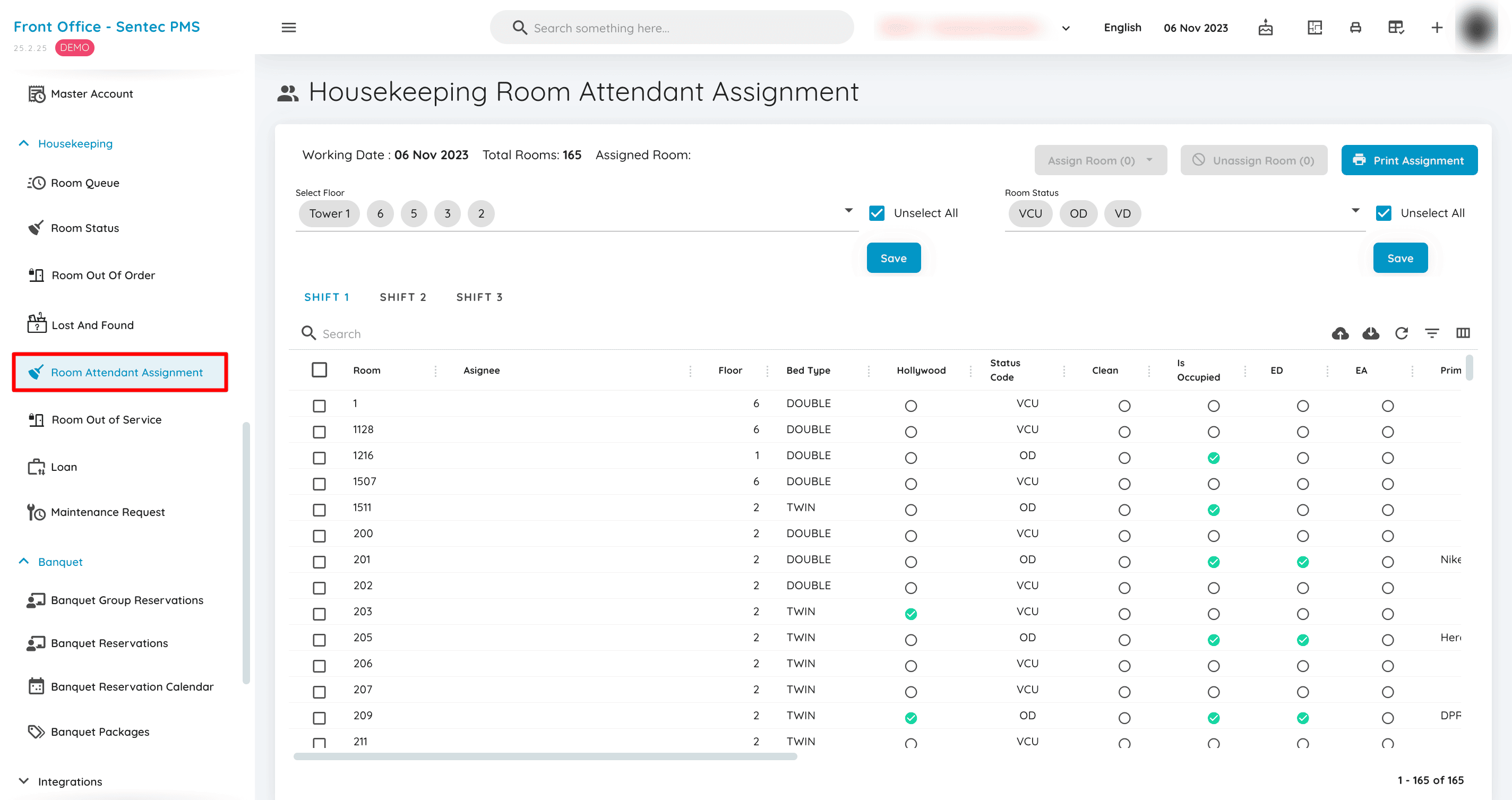
This menu serves as a tool and information resource for room cleaning staff to carry out their tasks. The schedule follows the system's working date. It also includes details on the Total Room and Total Assigned Room, along with several assignment tabs based on shifts.
Lost and Found
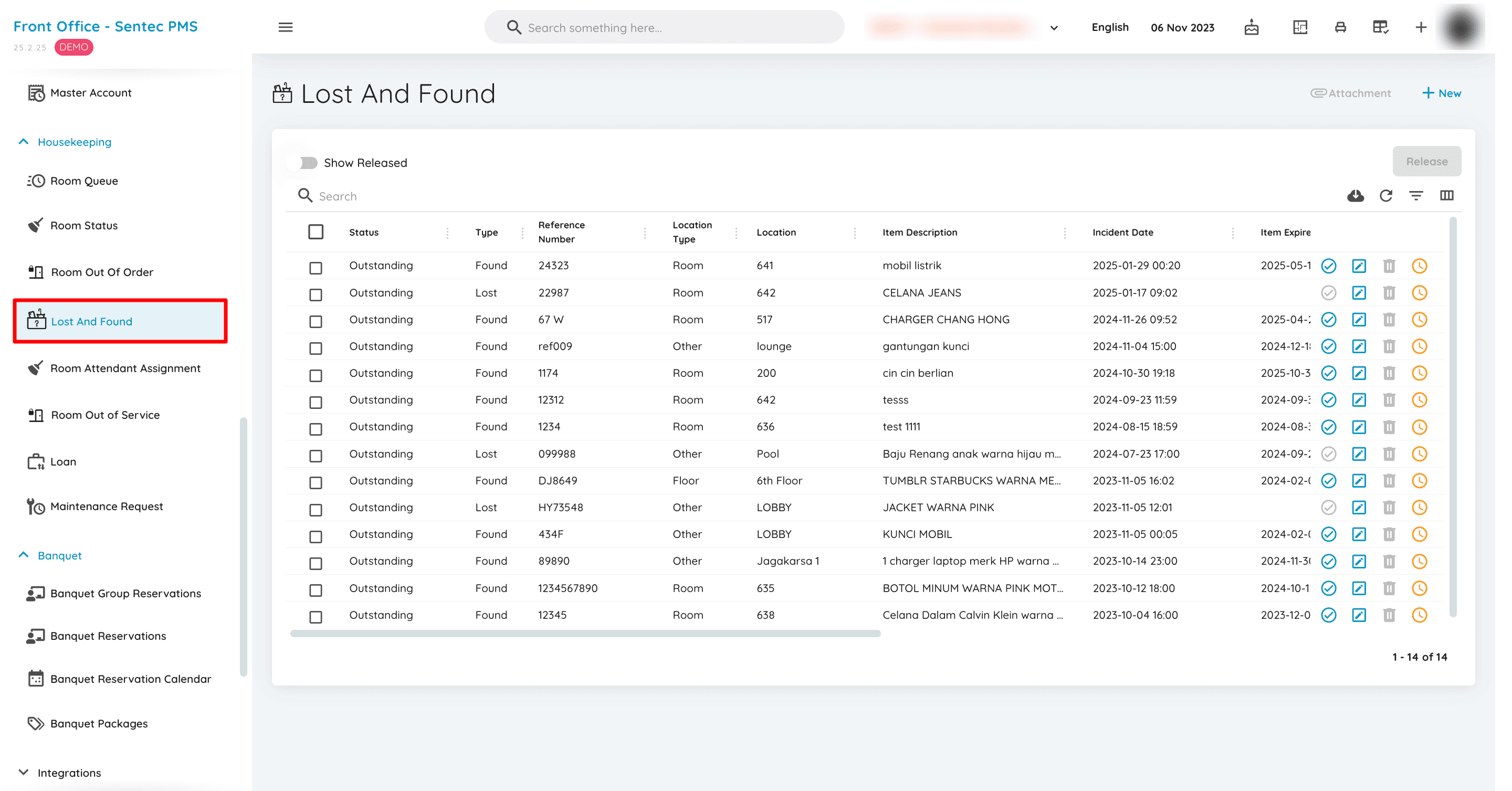
This menu displays a list of all recorded lost and found items in the hotel, which can only be managed by Housekeeping.
Loan
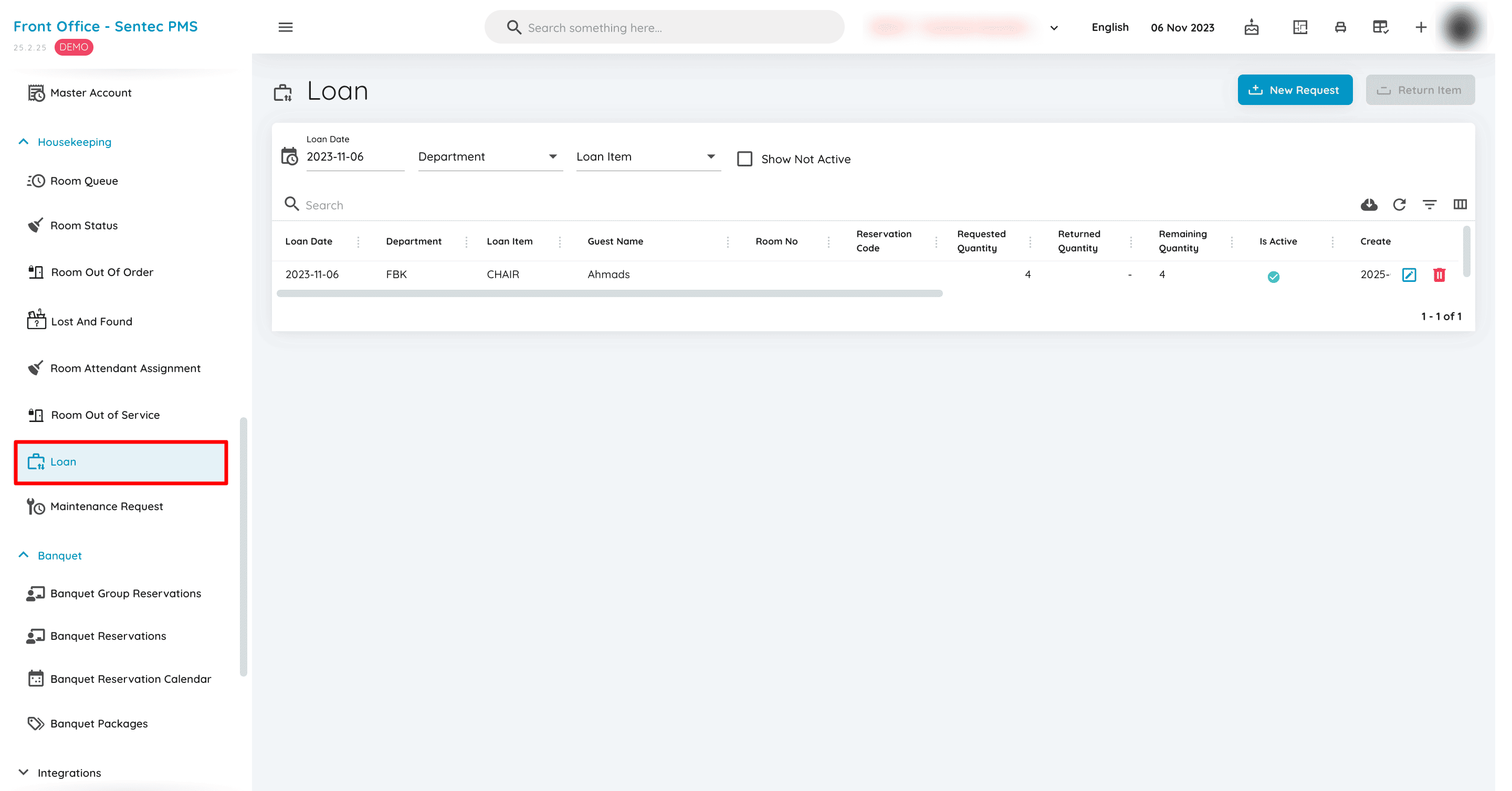
Loan is a menu used by the relevant team to record the lending of hotel items or facilities to guests or between departments.
Maintenance Request
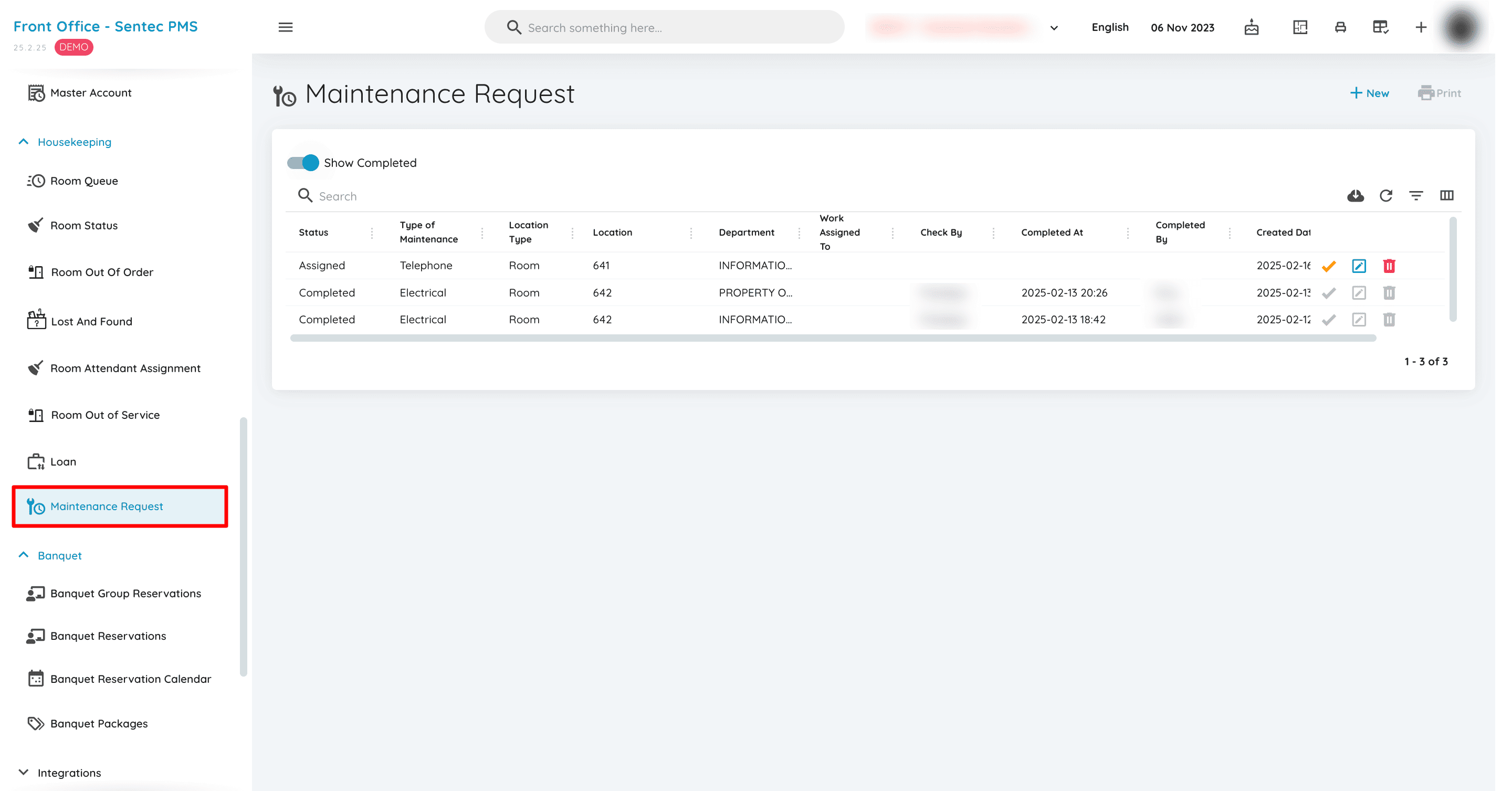
Maintenance Request allows the operations team or managers to report and manage issues related to hotel facility maintenance.
9. Banquet
Banquet is used to manage event reservations and organization in the hotel's meeting rooms or ballroom. This menu allows hotel staff to handle event bookings, view daily and weekly schedules, and manage the list of event packages offered. The goal is to help the hotel organize various types of events in a more structured and efficient manner.
Banquet Group Reservations
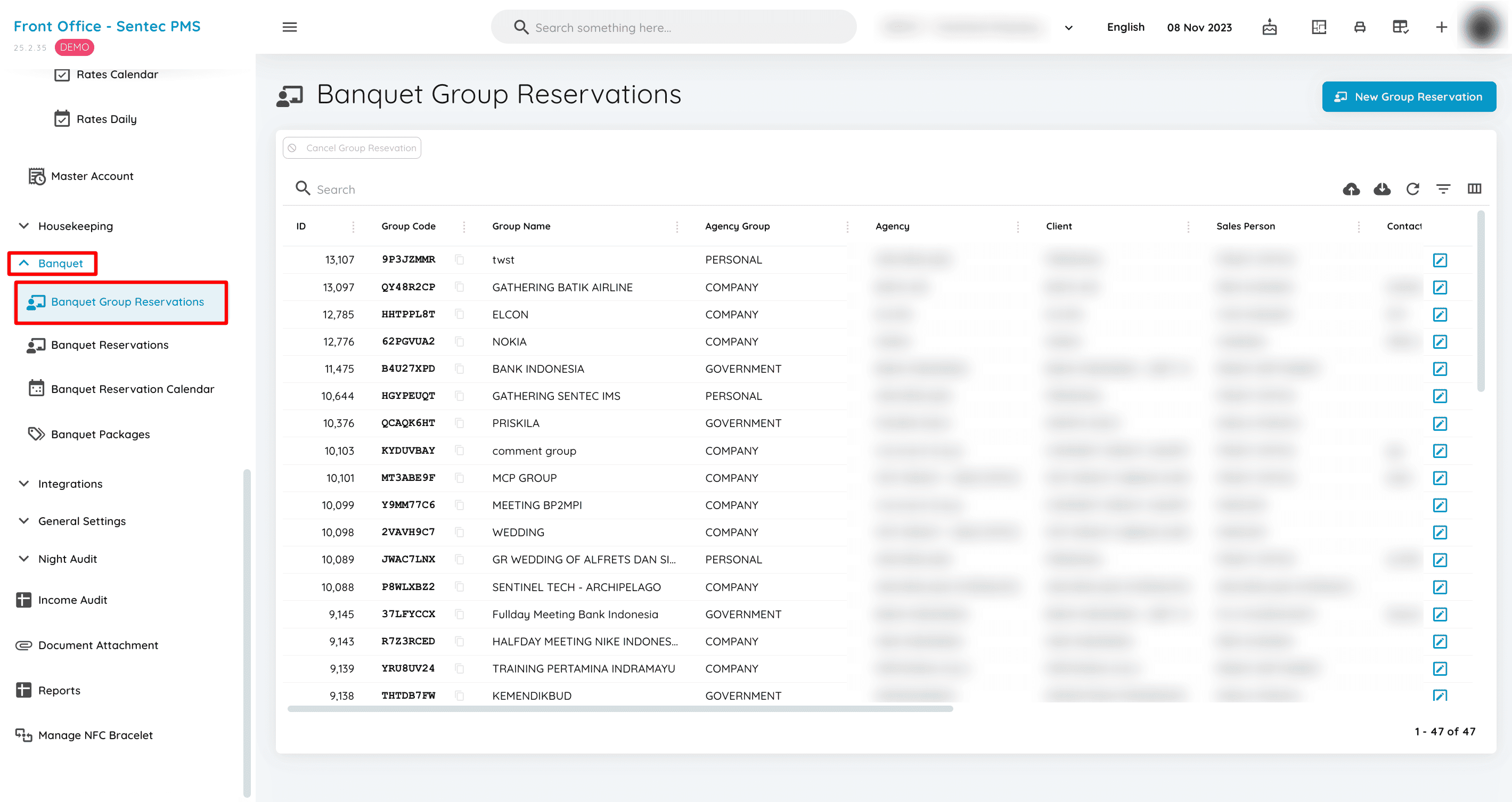
This menu displays a list of all Banquet Group reservations and includes a 'New Group Reservation' button for adding reservations directly.
Banquet Reservations
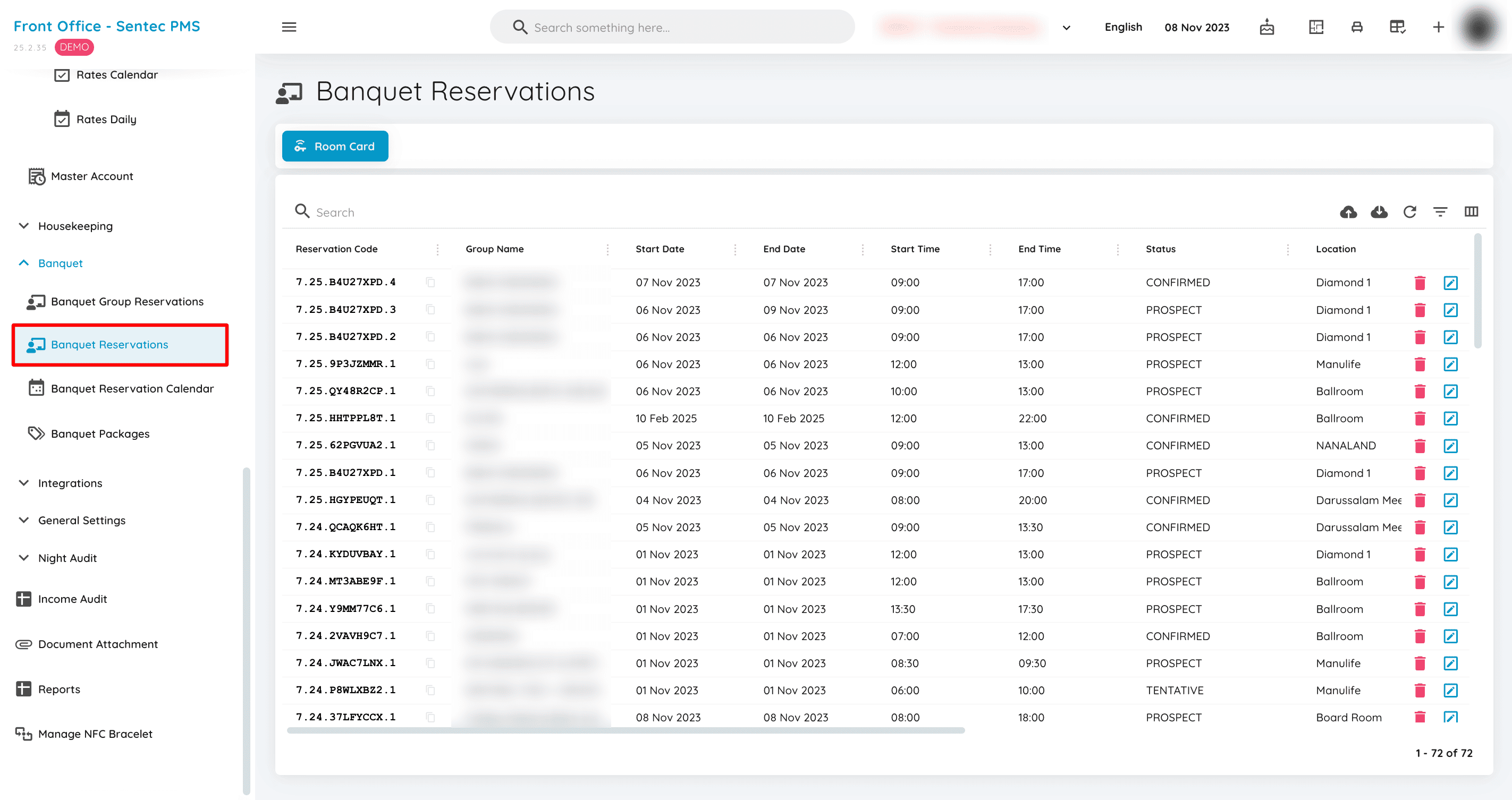
Displays all created Banquet Event reservations, including those with statuses PROSPECT, TENTATIVE, CONFIRMED, and CANCELLED.
Banquet Reservation Calendar
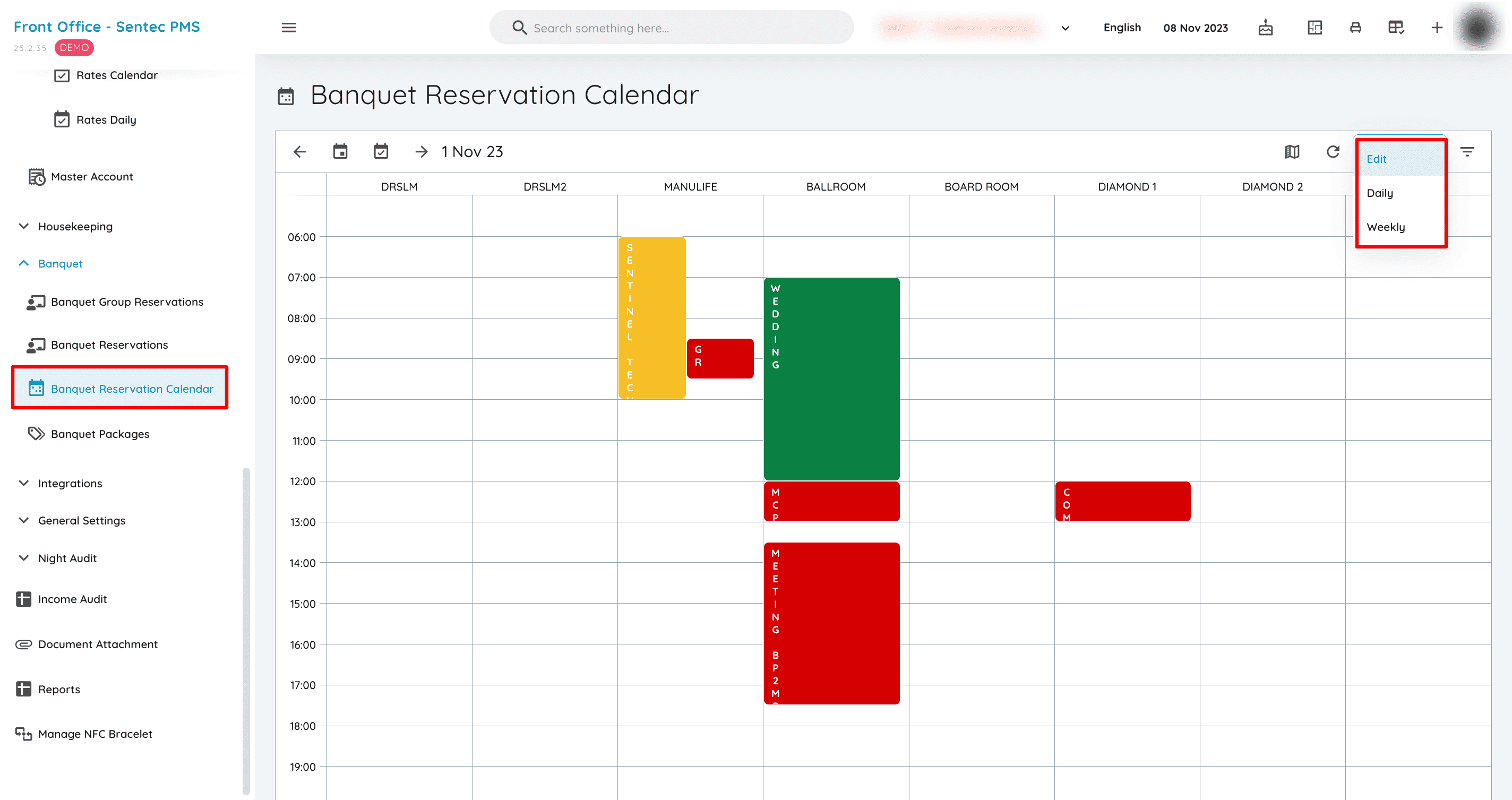
This menu displays a Calendar table showing daily events and also provides an option to view a weekly event list.
Banquet Packages
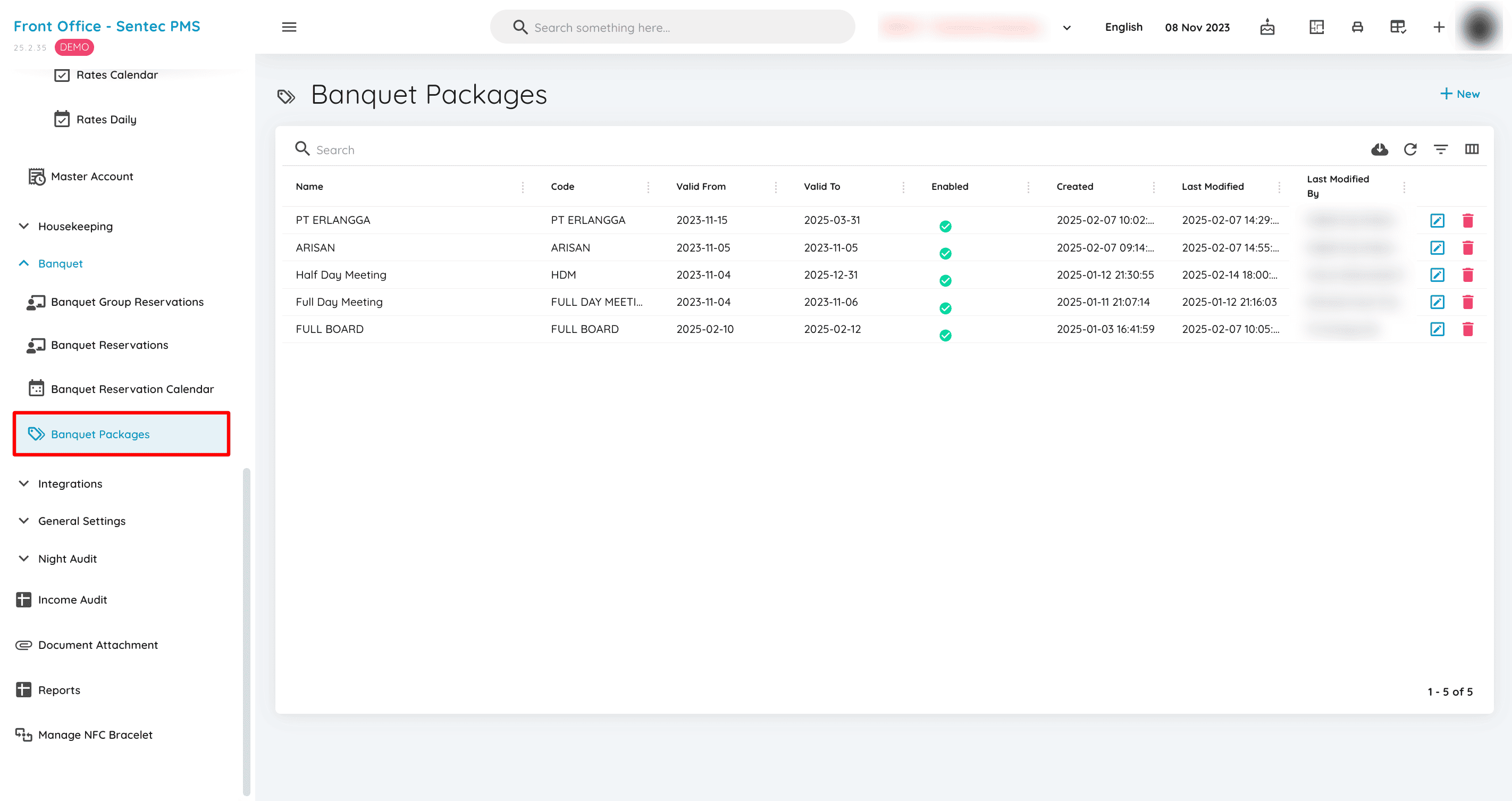
This menu displays all created package items.
10. Night Audit
Night Audit is used to perform the review and closure of the hotel's daily operations. This menu ensures that all financial transactions, reservations, and payments are accurately recorded before transitioning to the next business day. Additionally, it is used to verify revenue, register invoices and payments with the Finance team, and check daily financial reports. This process is crucial for maintaining the accuracy of the hotel's financial and operational data on a daily basis.
POS Outlet Status
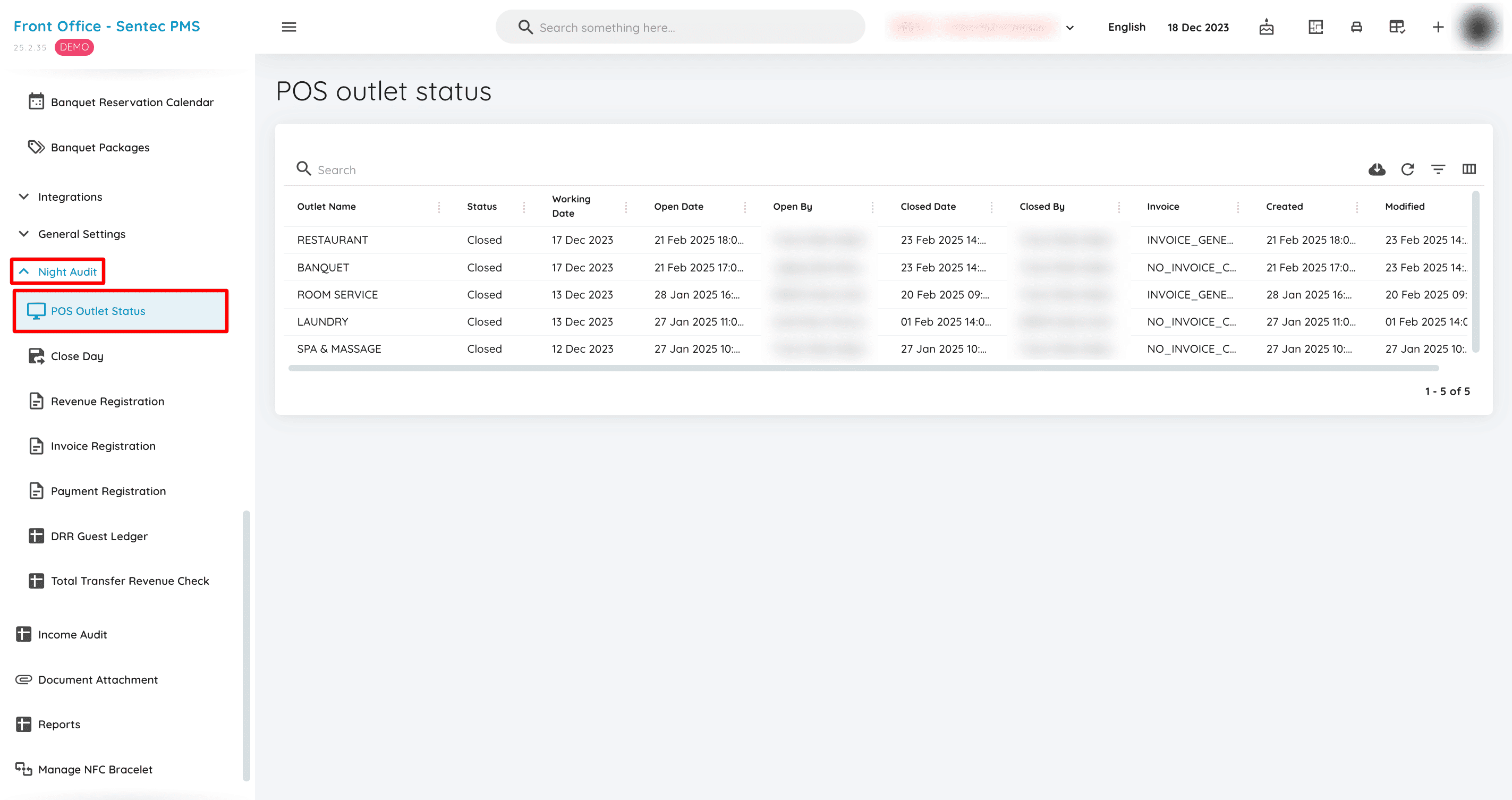
POS Outlet Status is intended for the Night Audit team when performing the closed-day process to check the status of each outlet in the POS system.
Close Day
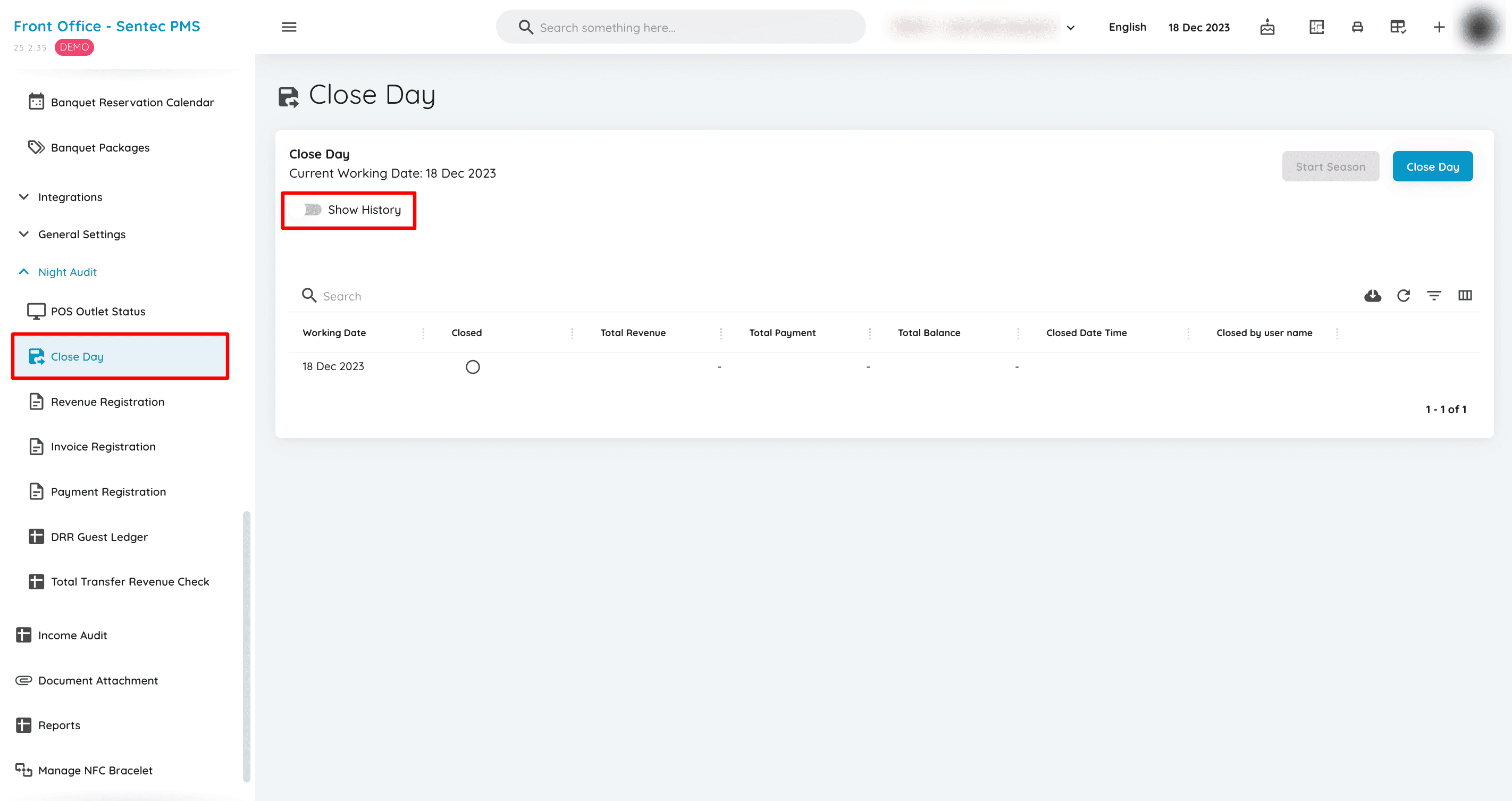
The close-day process can be performed on this page, with a 'Show History' toggle available to view previous dates' history.
Revenue Registration
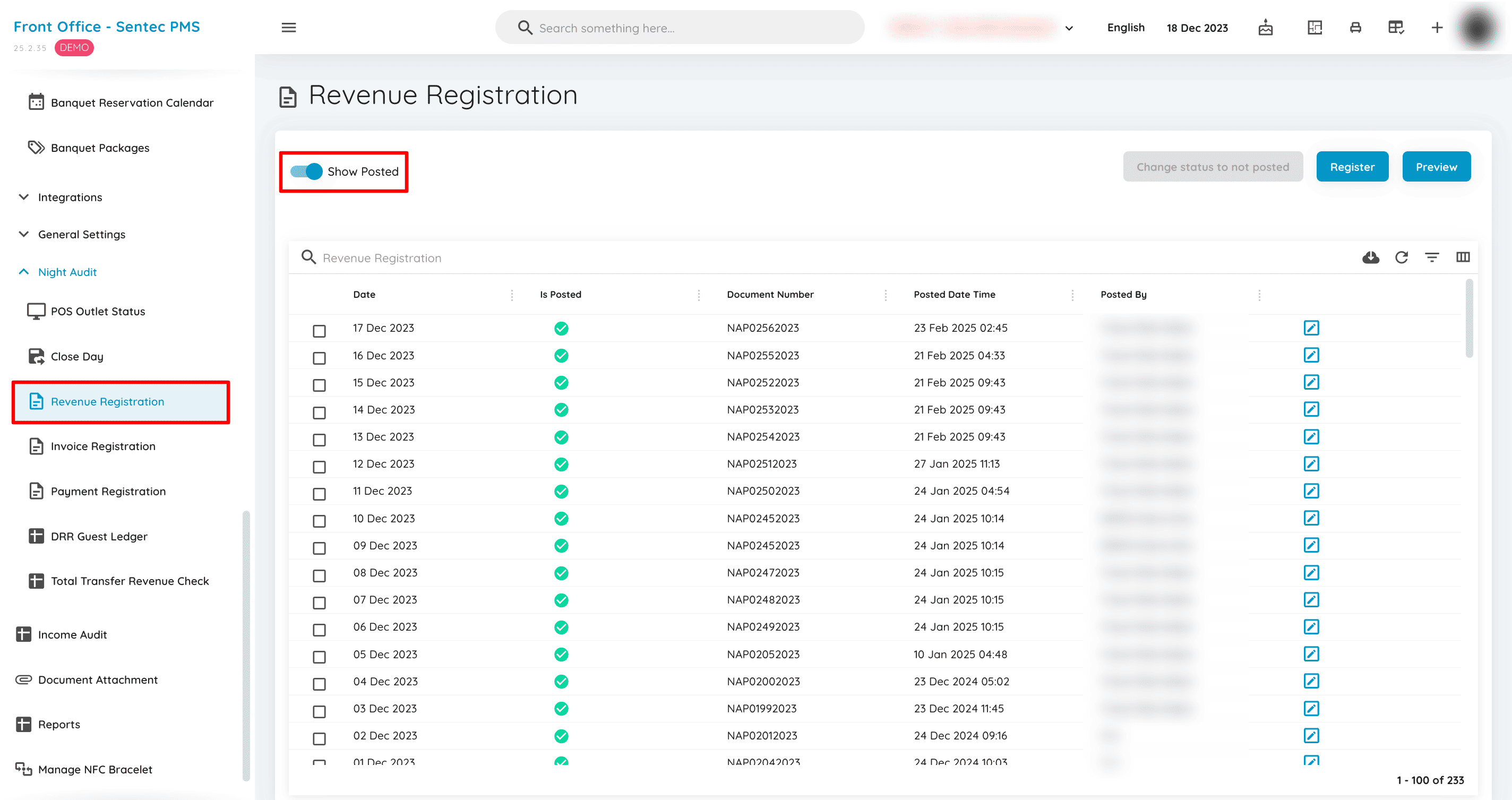
This page is used for revenue registration after the close-day process. The items registered in this menu are those found in the income audit menu and the revenue tab. By default, the 'Show Posted' toggle is set to off (FALSE), displaying only revenue that has not yet been registered.
Invoice Registration
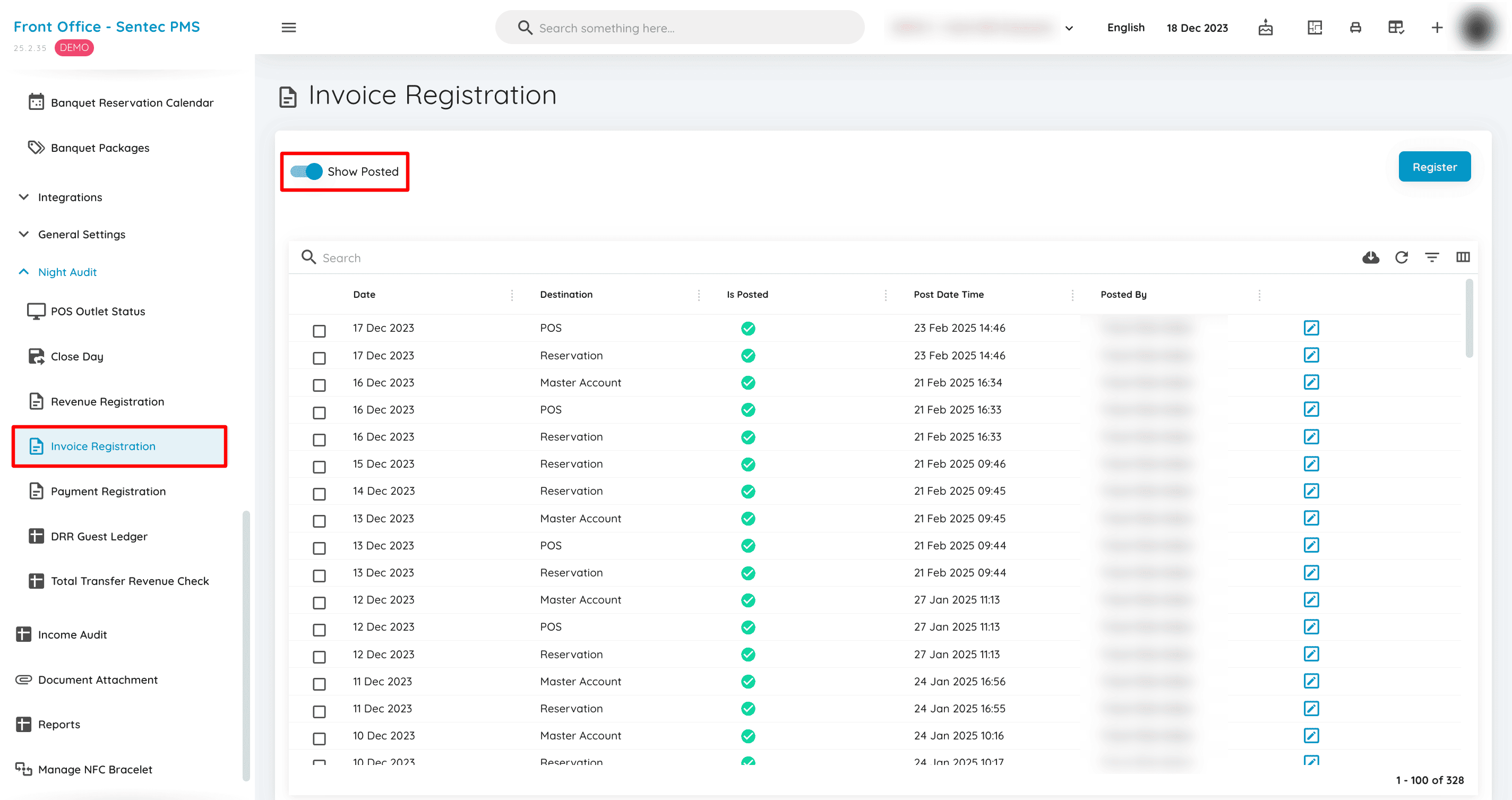
This page is used for invoice registration after the close-day process. The items registered in this menu are those found in the income audit menu and the invoice tab. By default, the 'Show Posted' toggle is set to off (FALSE), displaying only invoices that have not yet been registered.
Payment Registration
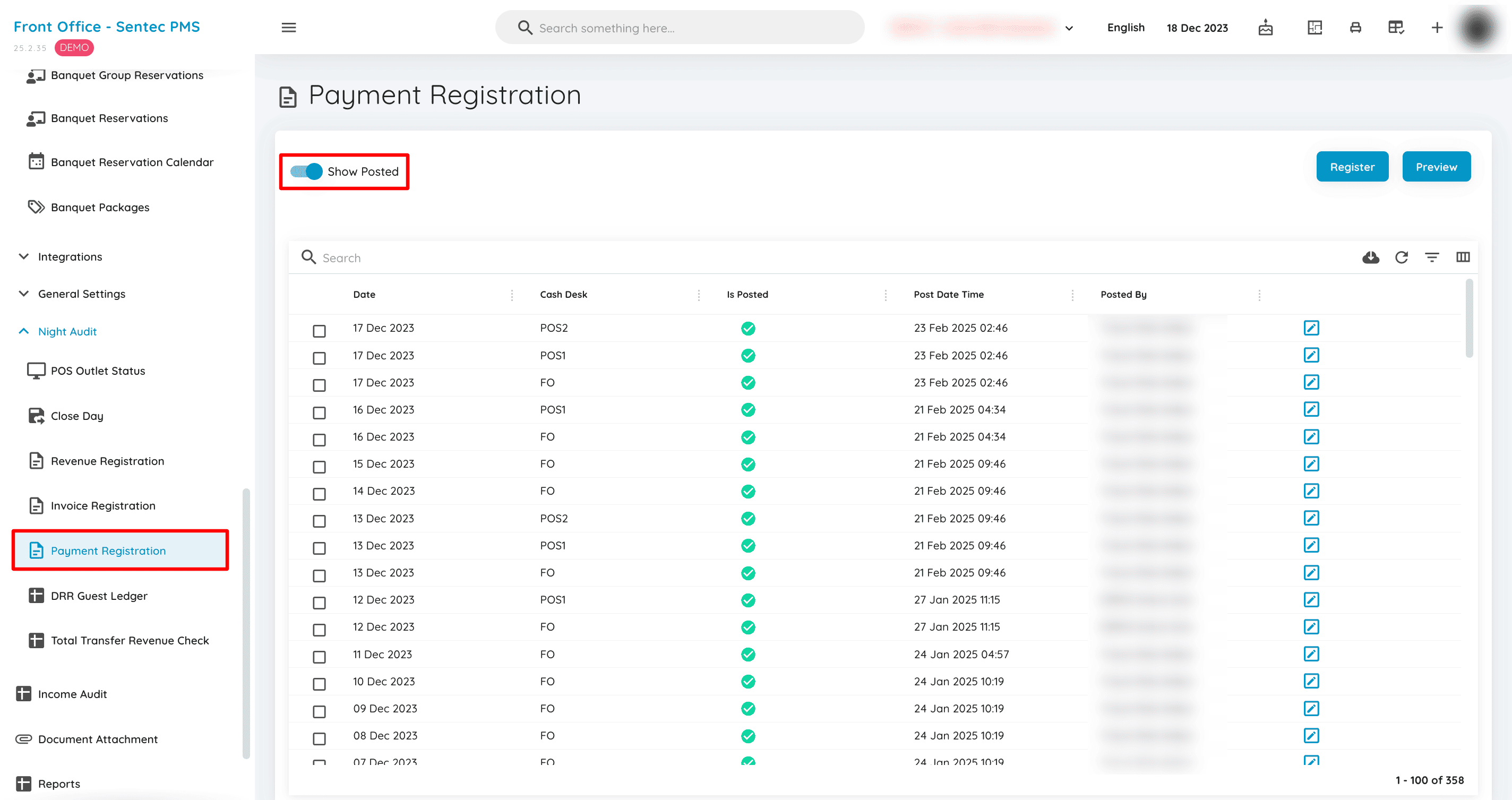
This page is used for payment registration after the close-day process. The items registered in this menu are those found in the income audit menu and the payment tab. By default, the 'Show Posted' toggle is set to off (FALSE), displaying only payments that have not yet been registered.
DRR Guest Ledger
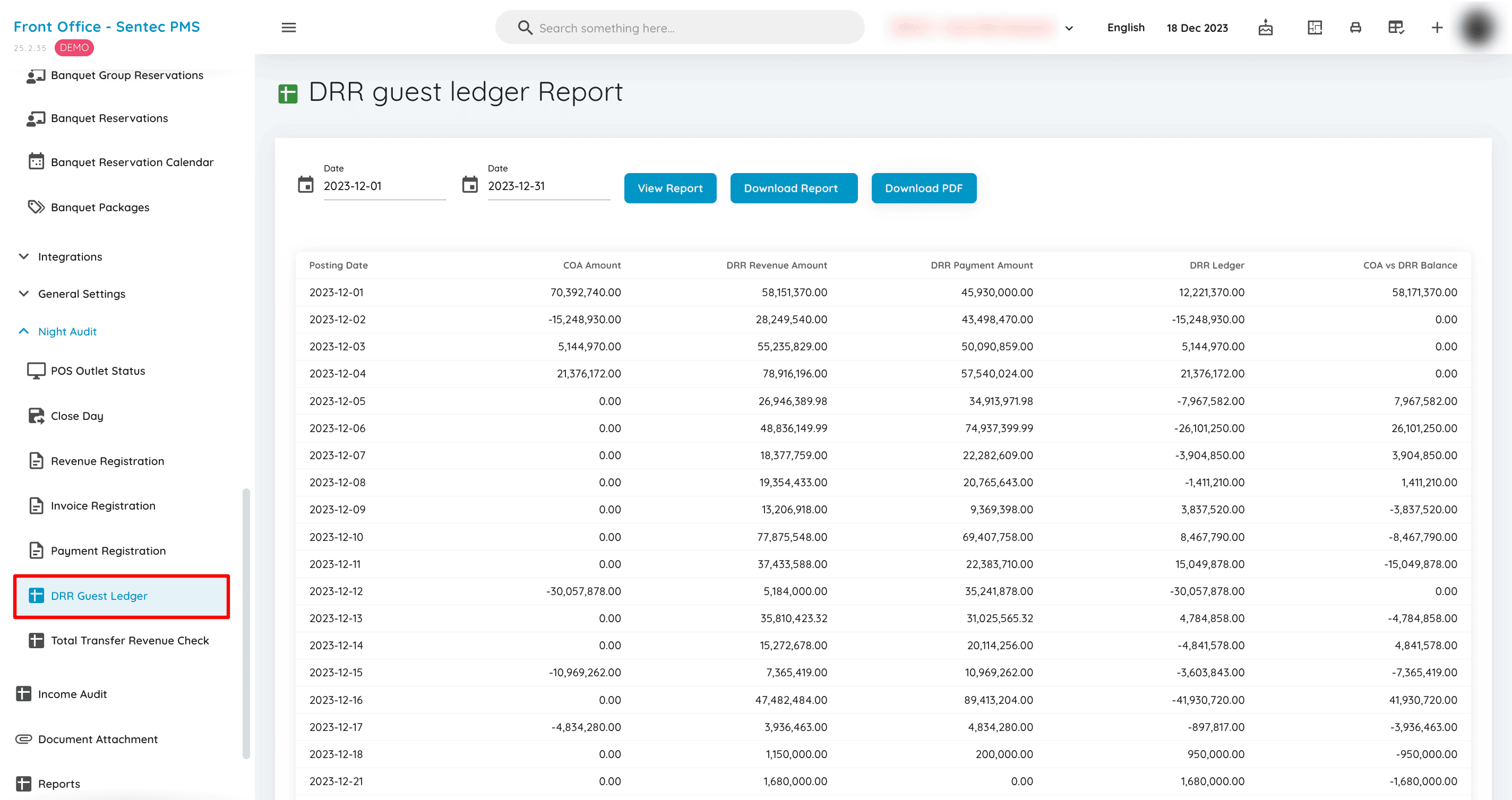
This menu displays financial transaction records of guests who are currently staying at the hotel.
Total Transfer Revenue Check
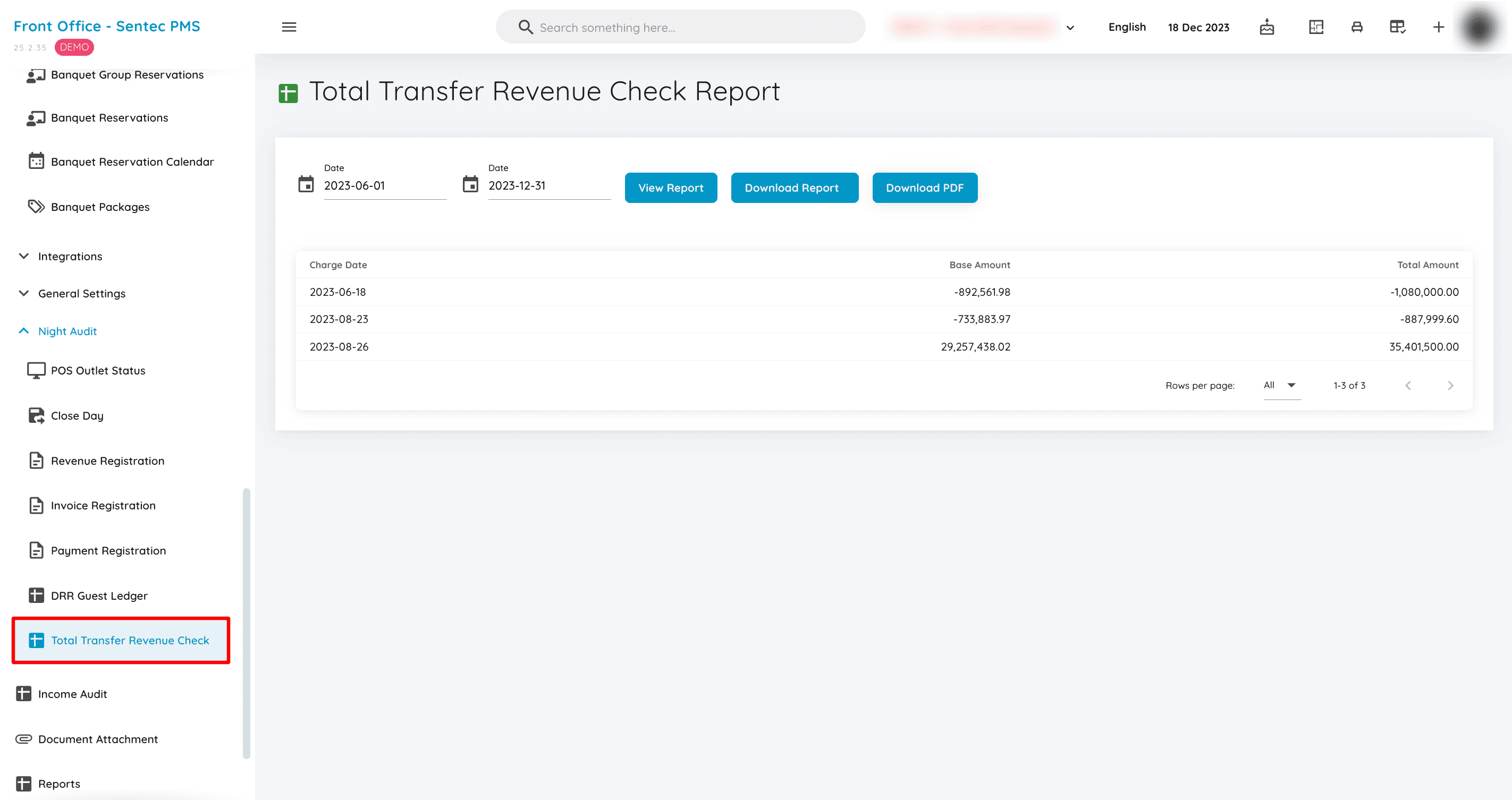
This menu displays a report that records the total revenue transferred from one account or department to another. It is also used to ensure that all revenue transfers have been accurately recorded and that there are no errors in revenue allocation between accounts or departments.
11. Income Audit
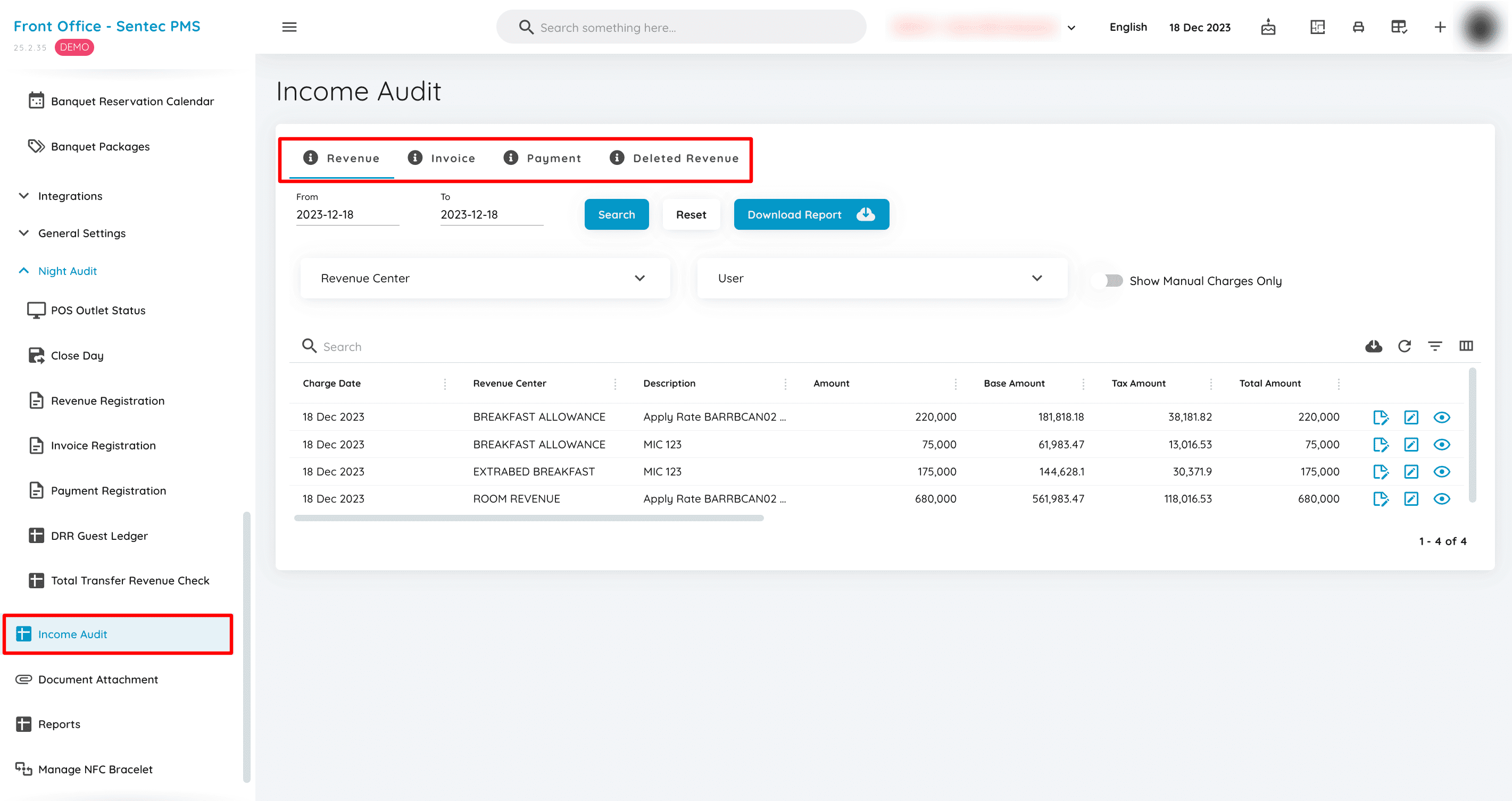
The Income Audit menu consists of Total Revenue, Total Invoice, and Total Payment as a whole. It also ensures that the desired date period is selected using the 'From' and 'To' fields.
12. Document Attachment
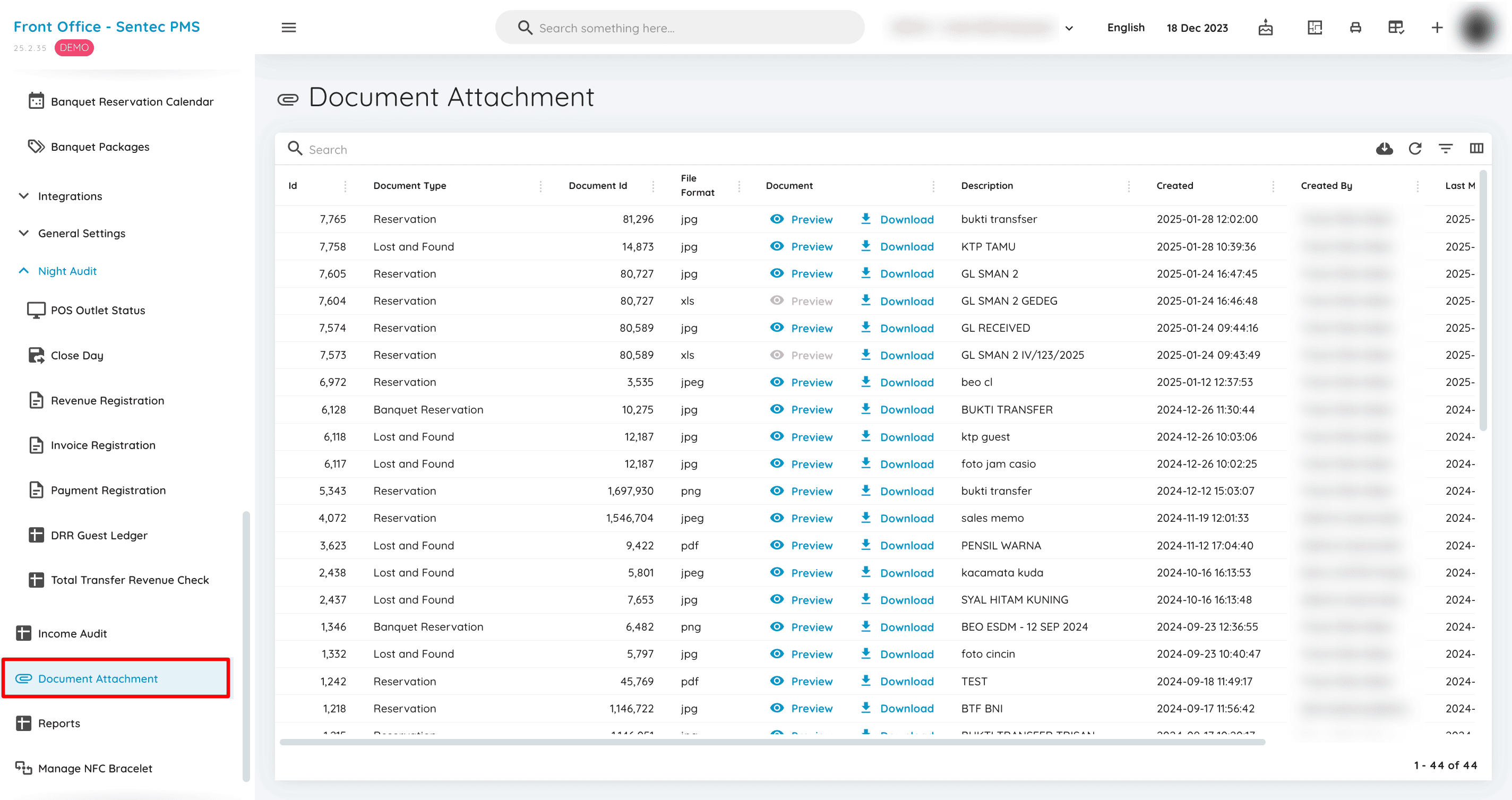
This menu displays all documents, including images and files, uploaded from various menus.
13. Reports
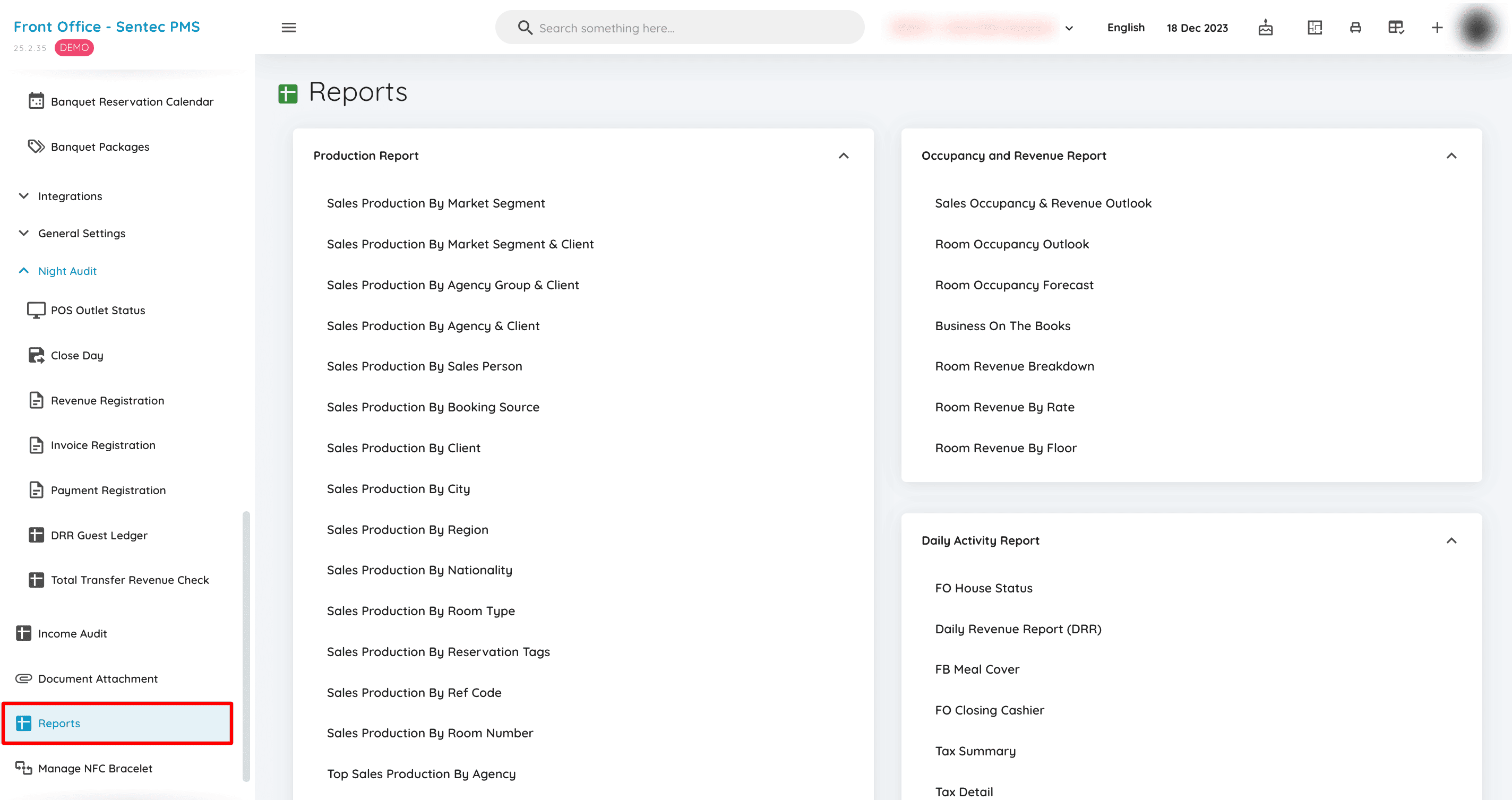
The Reports menu displays detailed summaries of hotel performance, including reports on Production, Reservation, Housekeeping, Occupancy Revenue, Daily Activity, and Guest Balance, tailored to each hotel's needs.