
Finance
The previous section provided an overview of the Finance Dashboard displays. This section covers the Finance module menus.
1. Chart of Account (COA)
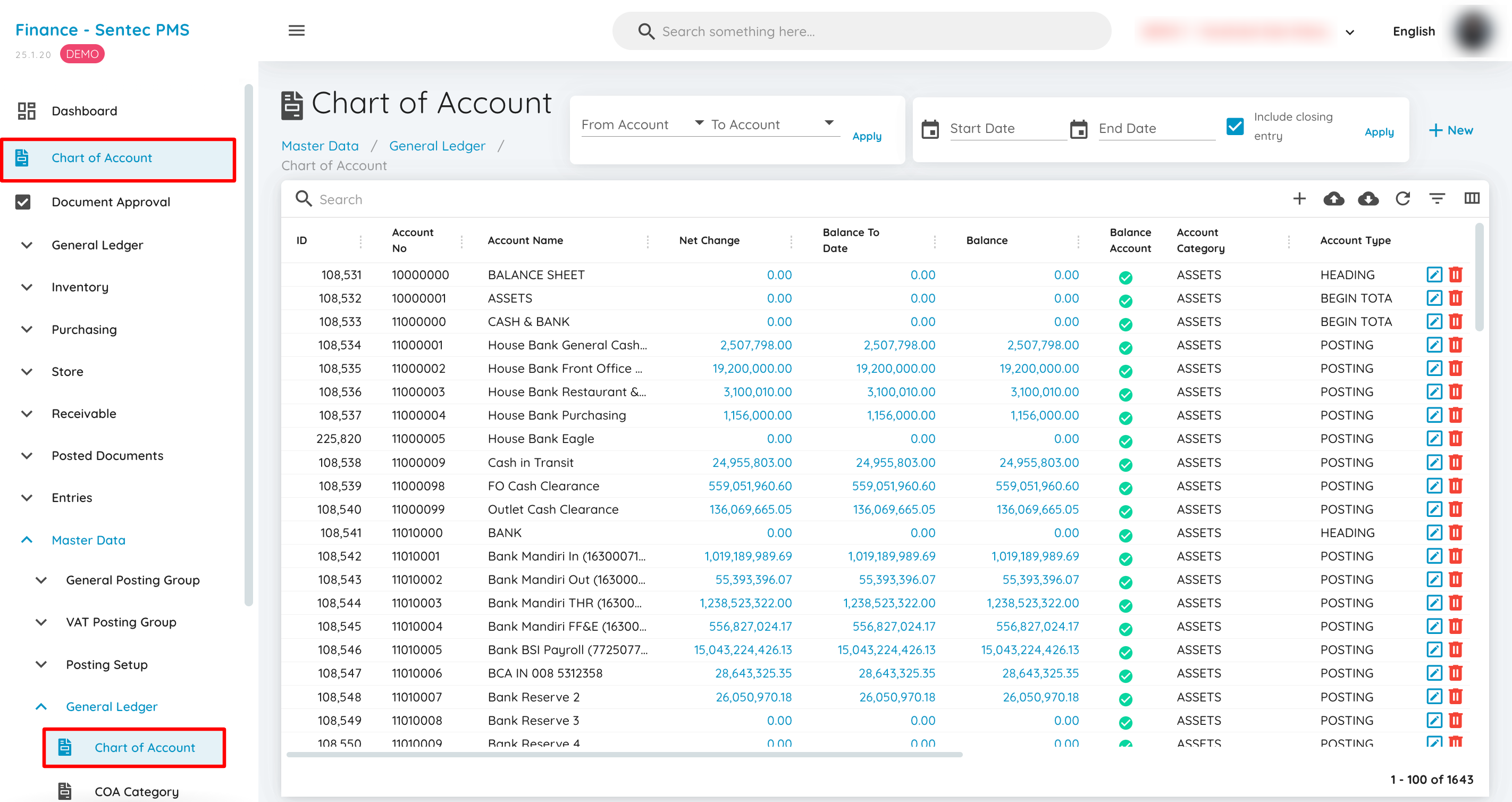
The Chart of Account is a collection of accounts used in the main financial reports, including: Balance Sheet, Profit and Loss, and Trial Balance. The Chart of Account can also be accessed from the menu under the Dashboard or by navigating to Master Data > General Ledger > Chart of Account.
2. Document Approval
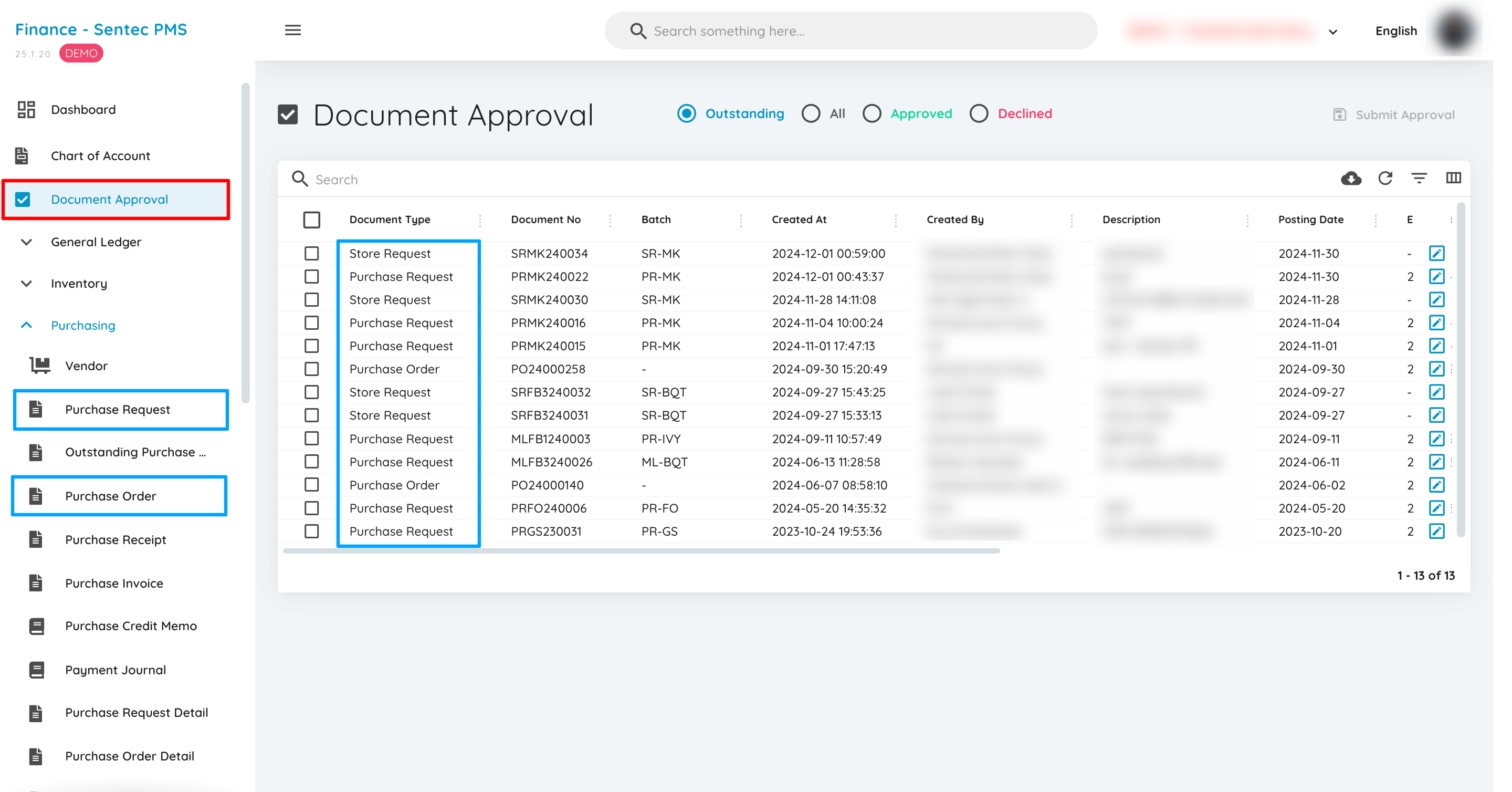
The Document Approval menu displays all requests that need to be reviewed by the user responsible for approving PR (Purchase Request), PO (Purchase Order), and SR (Store Request) in the Purchasing menu.
3. General Ledger
The General Ledger enables direct journal entries to Chart of Account ledgers, bypassing subsidiary ledgers for inventory, accounts receivable, and accounts payable.
Here are the features available to support bookkeeping operations:
General Journal
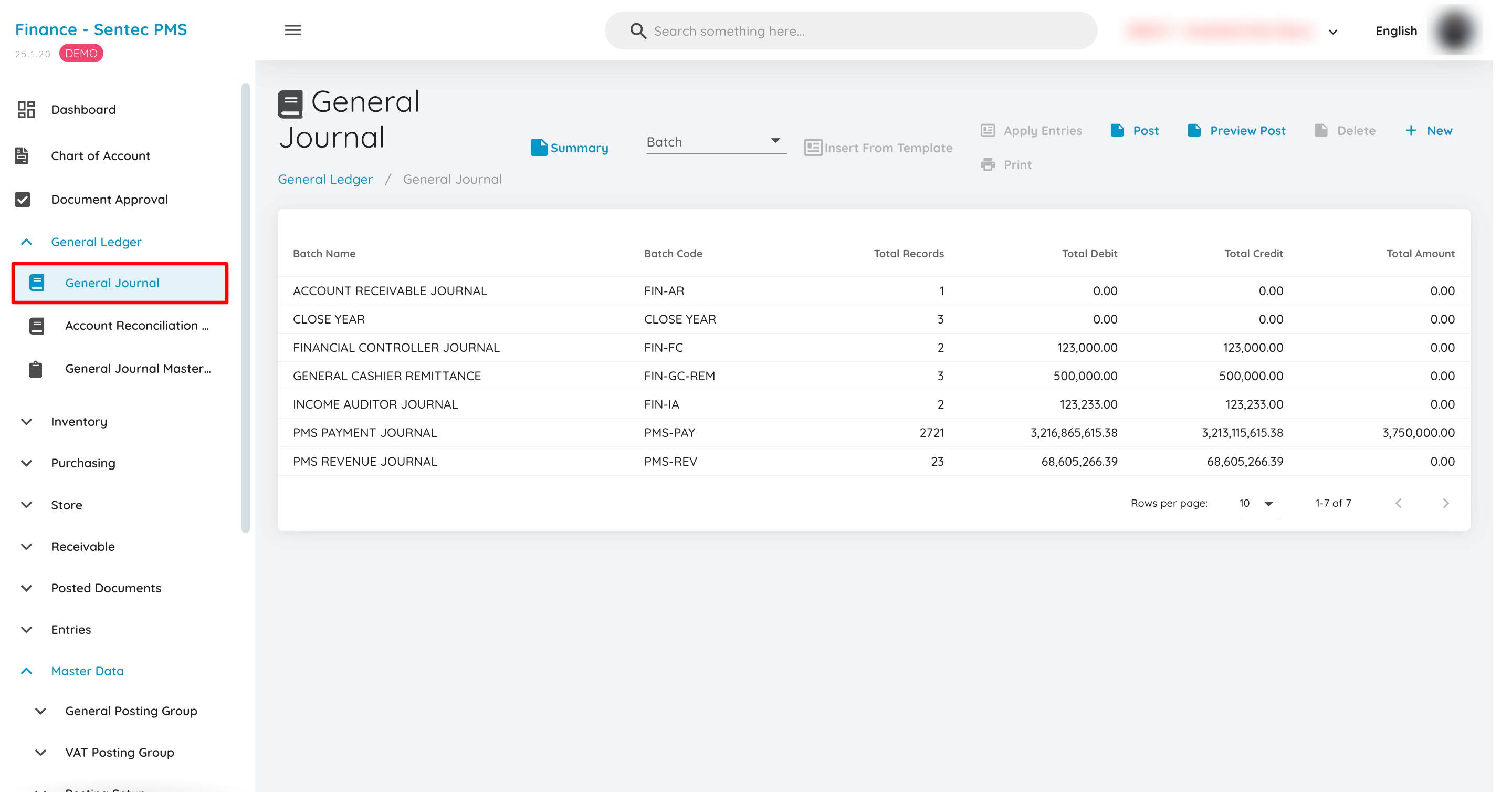
The General Journal is a module used to record journal entries to ledgers that are not linked to auxiliary books. The general journal can also be accessed from the General Ledger > General Journal menu.
Account Reconciliation Journal
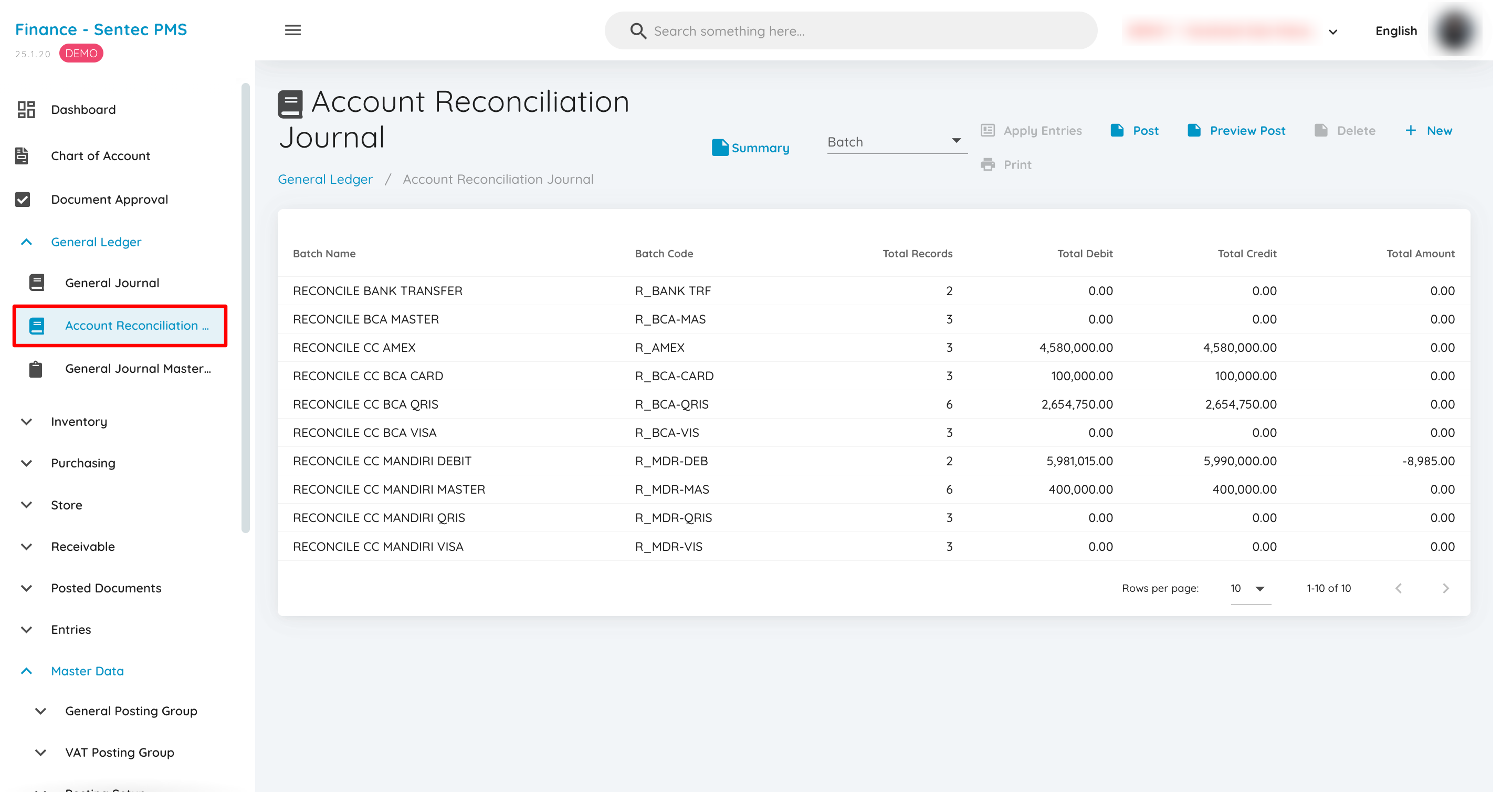
The Account Reconciliation Journal is a feature used for recording transactions from credit cards (commonly).
There are three conditions that must be met for a transaction to be processed through this menu:
- The collection type selection in PMS or POS does not select the cash desk Ledger.
- The Chart of Account's Is Reconciliation column must be set to True.
- A Bank Account must be mapped to the Chart of Account in condition two.
General Journal Master Template
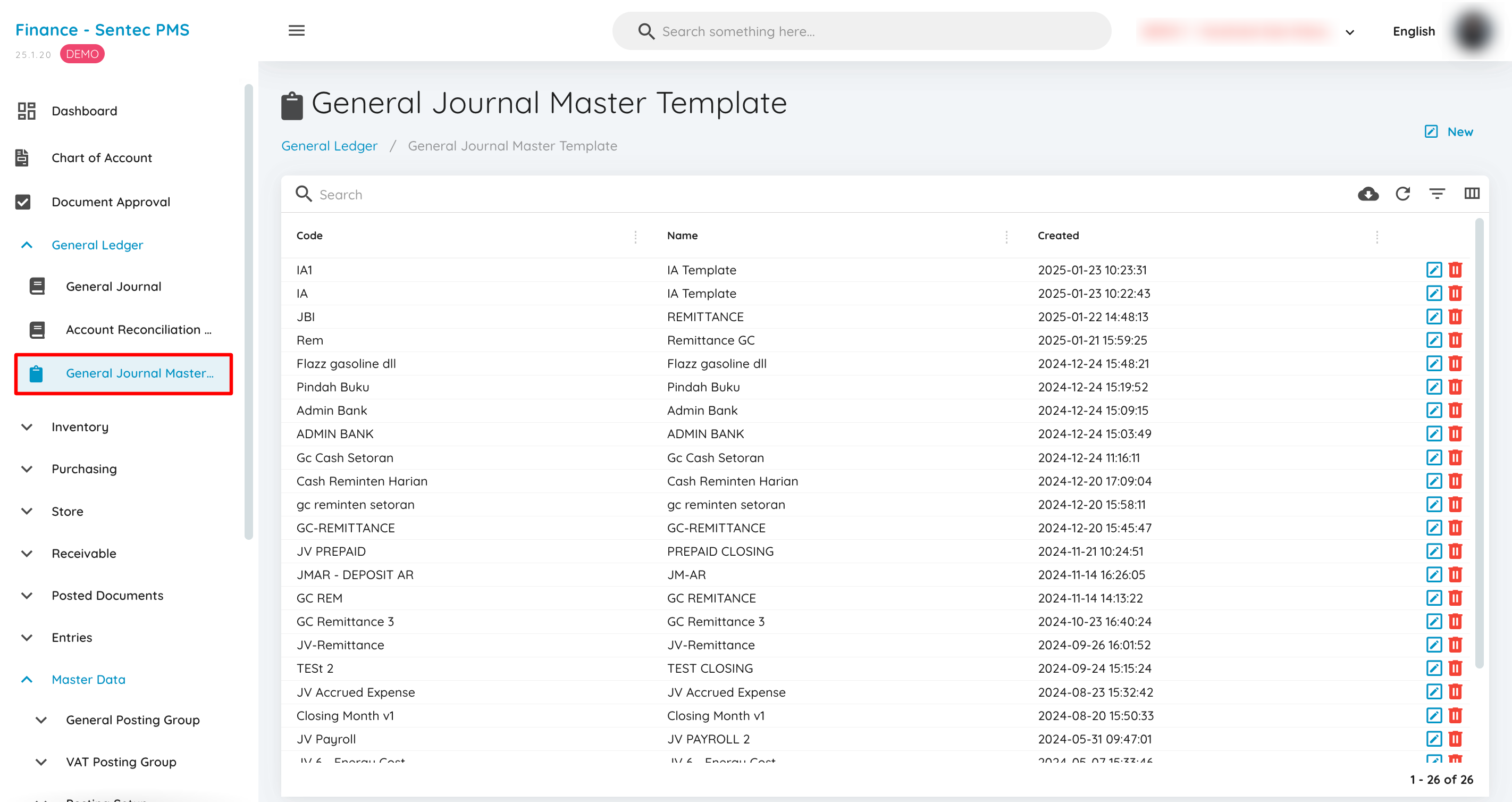
The General Journal Master Template is a feature used to create recurring journals for specific periods. This feature is part of the General Journal menu.
4. Inventory
The Inventory menu is used to record inventory adjustments and changes without going through the procurement process. Stock adjustments can also be done through this menu.
Available features include:
Item
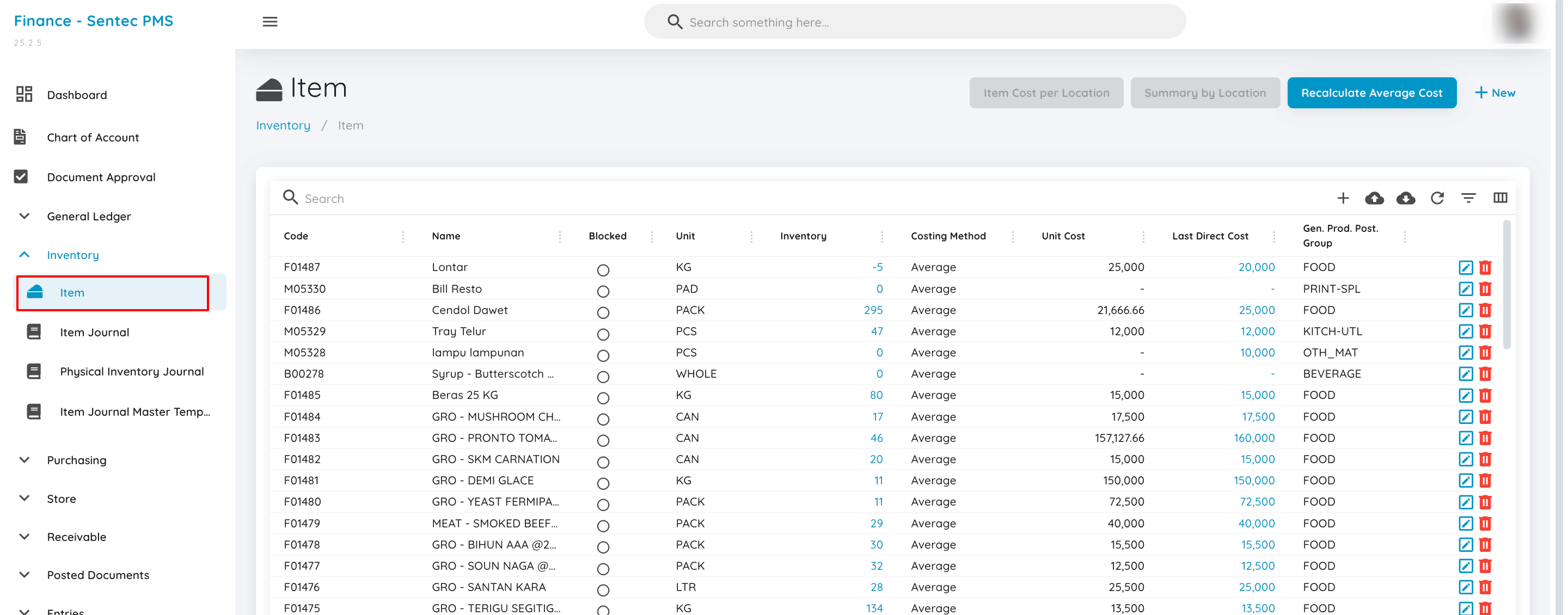
The Item is the master data for the name of goods used and available from vendors.
Item Journal
Physical Inventory Journal
Item Journal Master Template
5. Purchasing
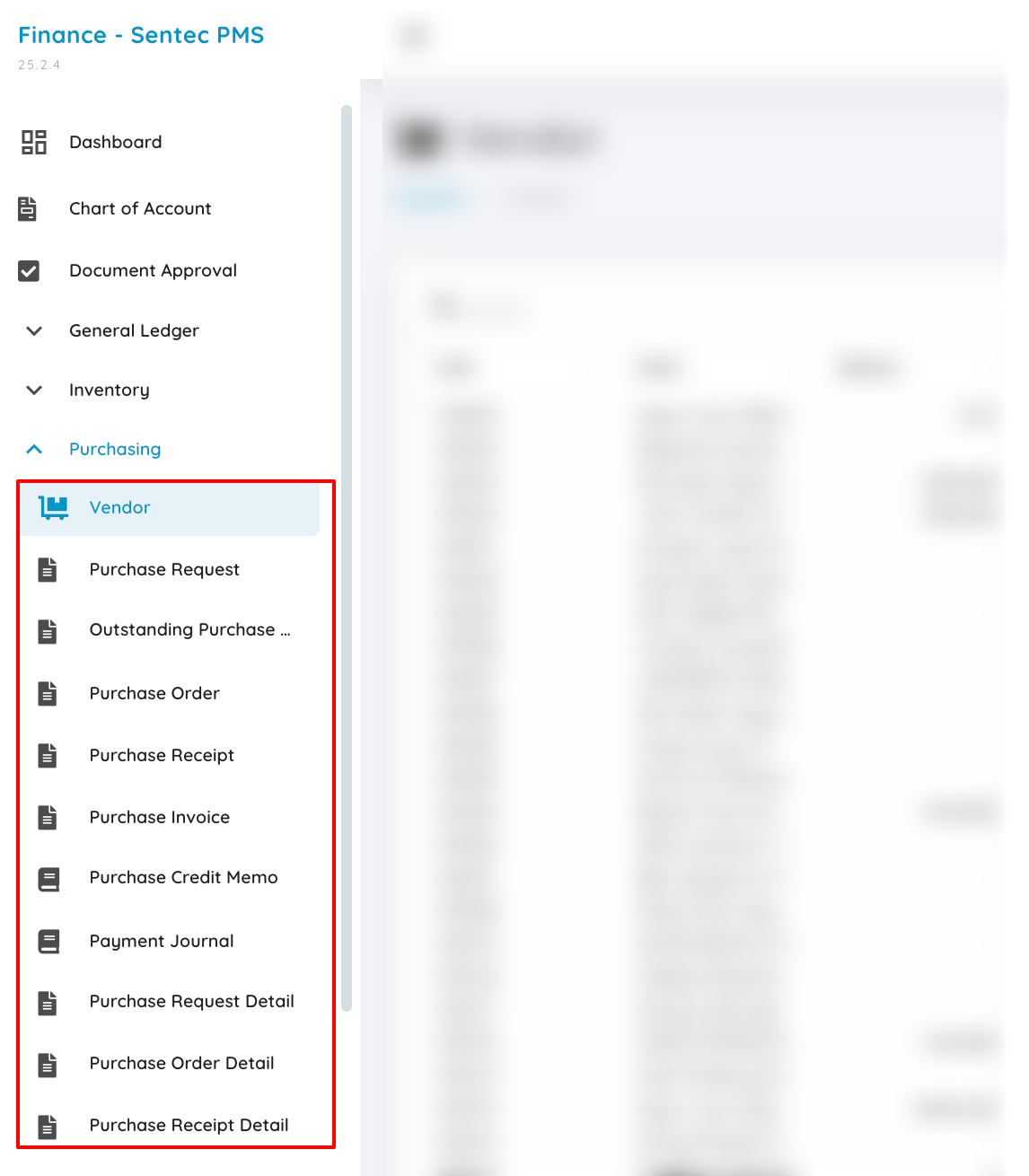
The Purchasing module manages the complete procurement cycle from initial request through final payment. This process involves vendor management, procurement setup, and related transactions to support property operations and financial management.
Vendor
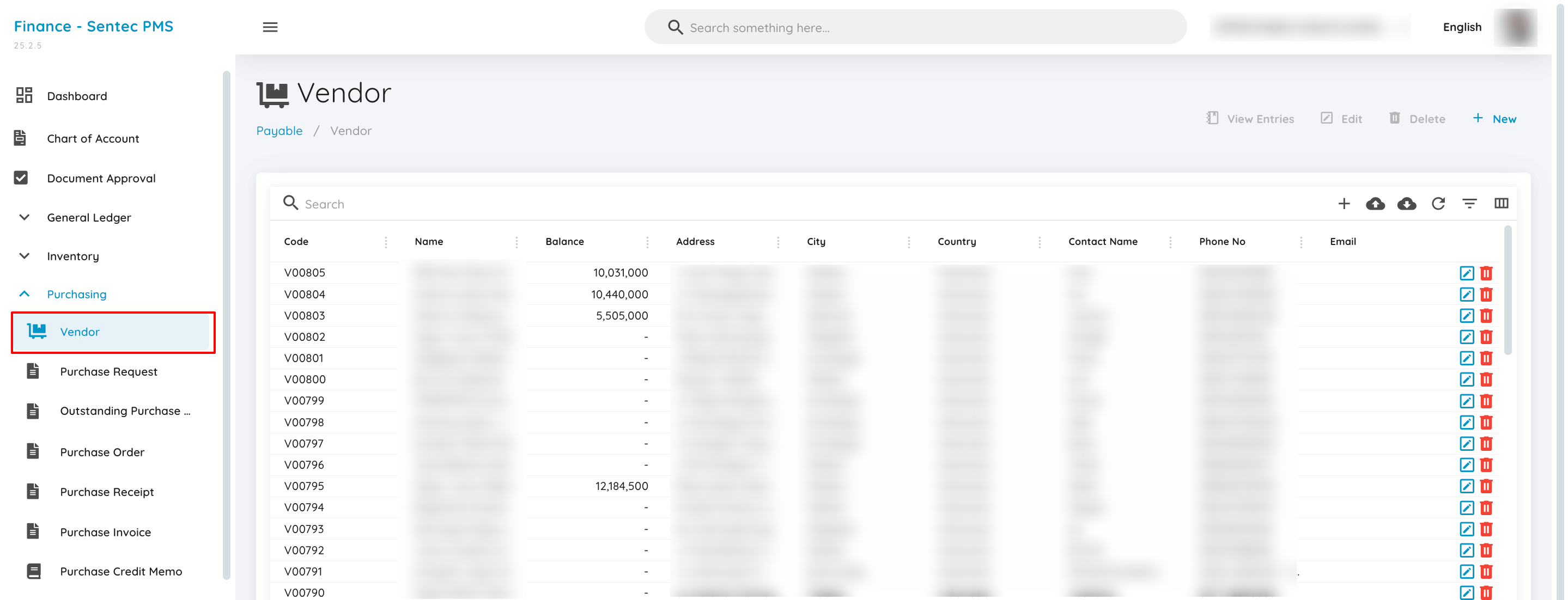
In the Vendor menu, users can view the list of vendors associated with the property. Users can add, edit, or delete vendor entries. Additionally, users can configure bank accounts affiliated with vendors.
Purchase Request
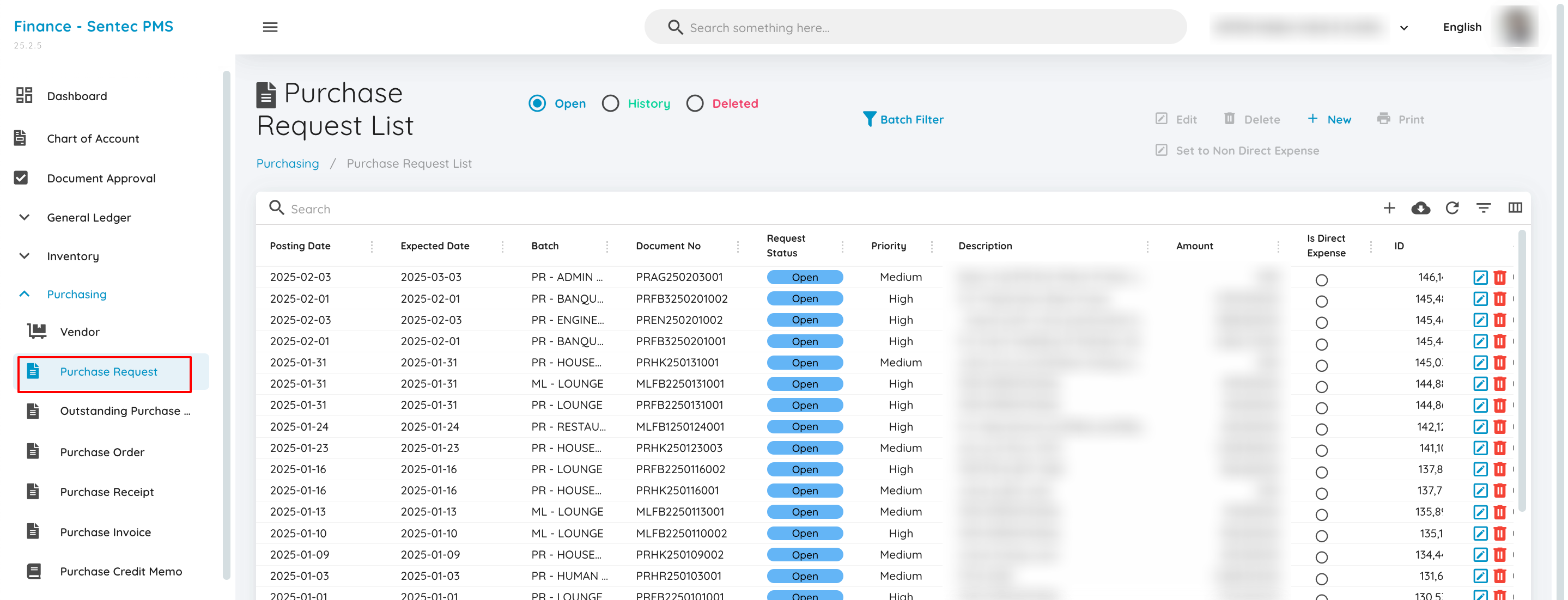
The Purchase Request menu allows users to submit requests for goods or services. Once a PR is submitted, approval can be made by the designated approver, either using Systematic Approval or manually. The approval settings can be controlled through Master Document Flow and Purchase Requisition Batch in Master Data.
Outstanding Purchase Request
Once the PR is approved, it will appear in the Outstanding PR menu. Here, users can choose vendors for each item listed in the PR. After the vendor is selected, these items can be processed further into a Purchase Order (PO).
Purchase Order
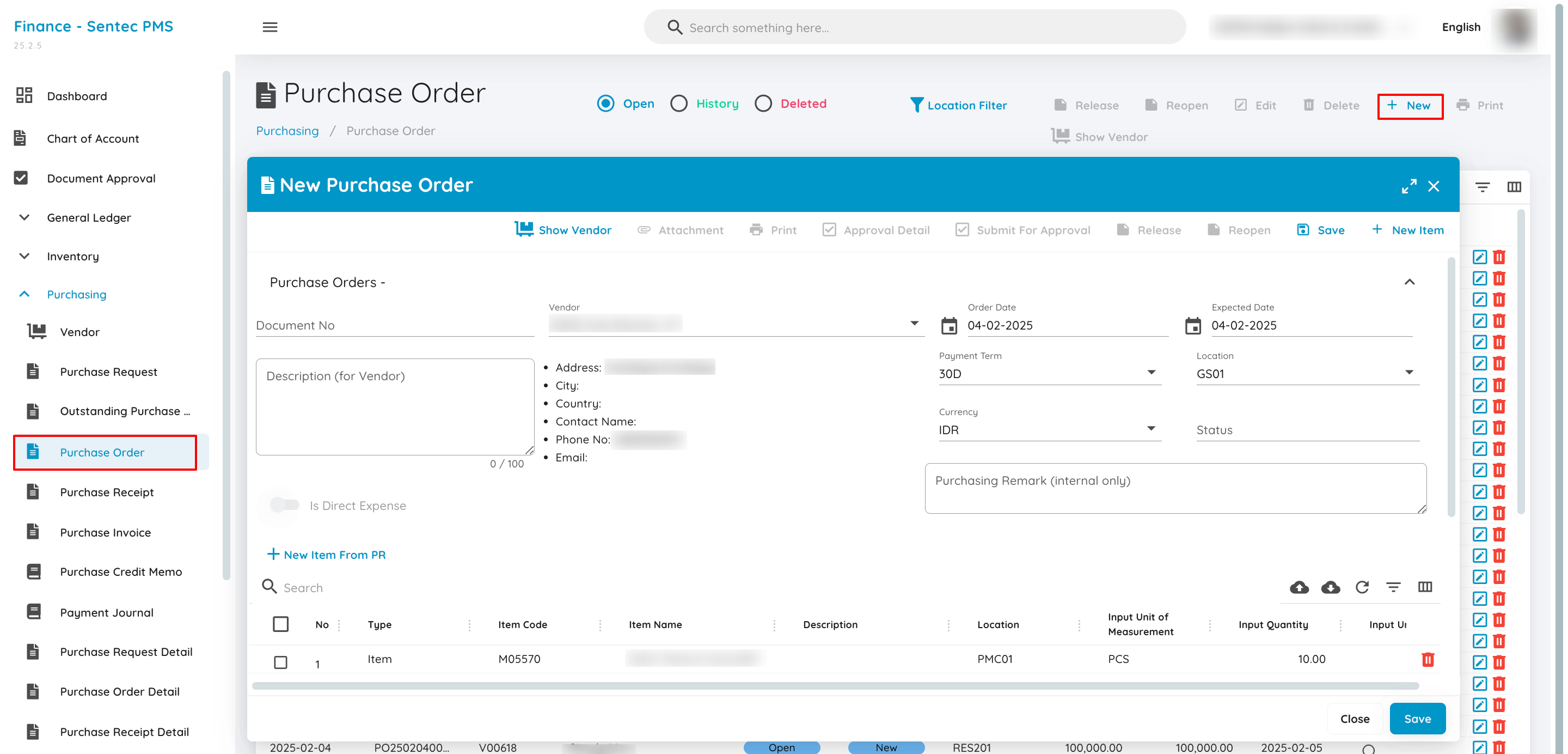
In the Purchase Order menu, users can create a new PO or select an approved PO from Outstanding PR. Once the PO is created, it will go through an approval process based on the previously set configurations.
Purchase Receipt
After the PO is approved, it will appear in the Purchase Receipt list. In this menu, users can receive goods either fully or partially. After the receipt is completed, users can post the transaction in the system.
Purchase Invoice
The Purchase Invoice menu allows users to create a new Purchase Invoice. Users can also create an invoice based on the previously posted Purchase Receipt. This invoice records the amount to be paid to the vendor for the received goods.
Purchase Credit Memo
Payment Journal
Purchase Requisition Template
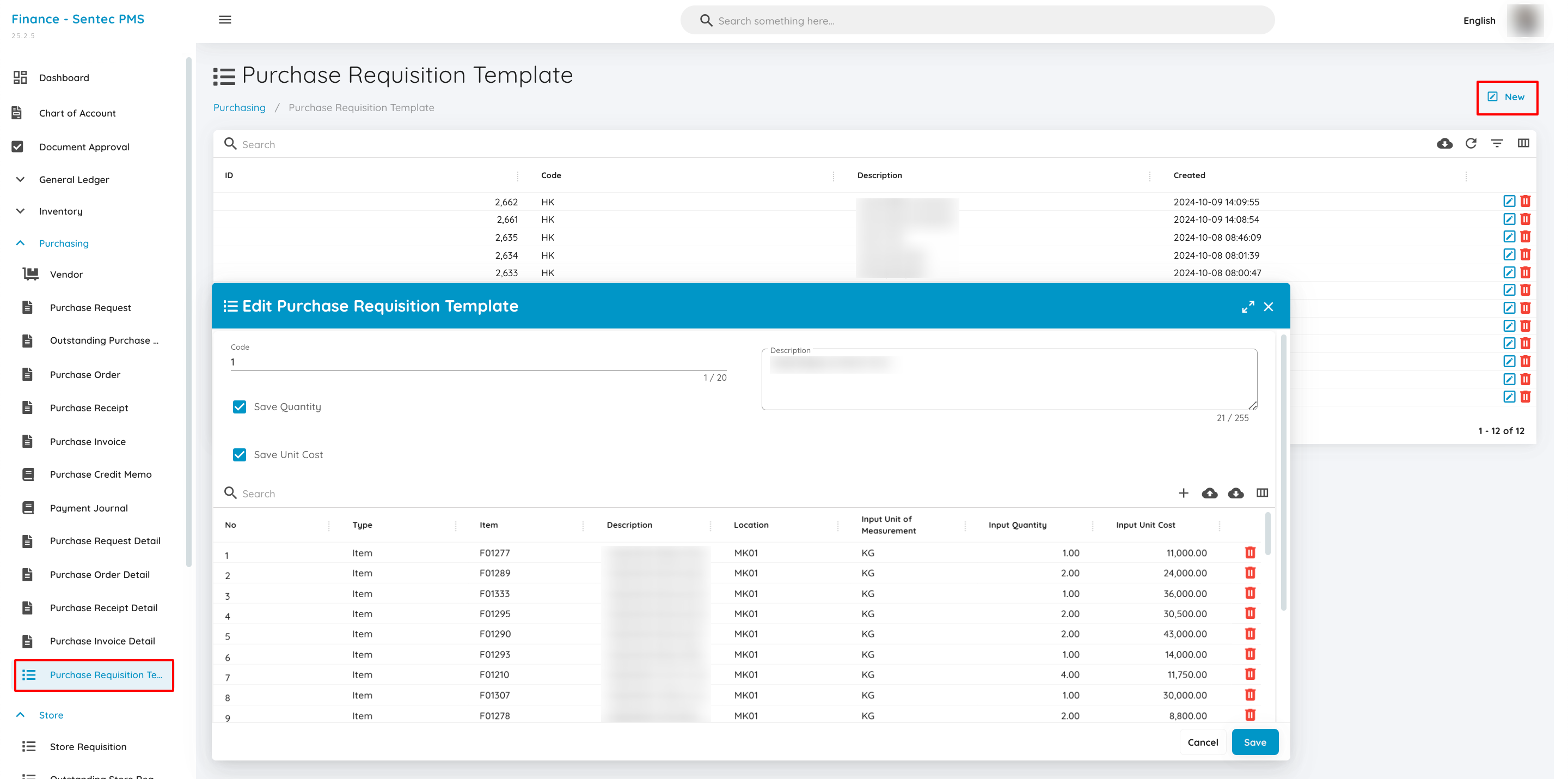
In this menu, users can create a PR template for routine procurement needs. This template allows users to save frequently requested items and their details. Users can choose to retain the quantity and/or unit cost for each item in the template, which streamlines the creation of future PRs without having to re-enter the same information. This template can be reused when creating PRs with similar items.
6. Store
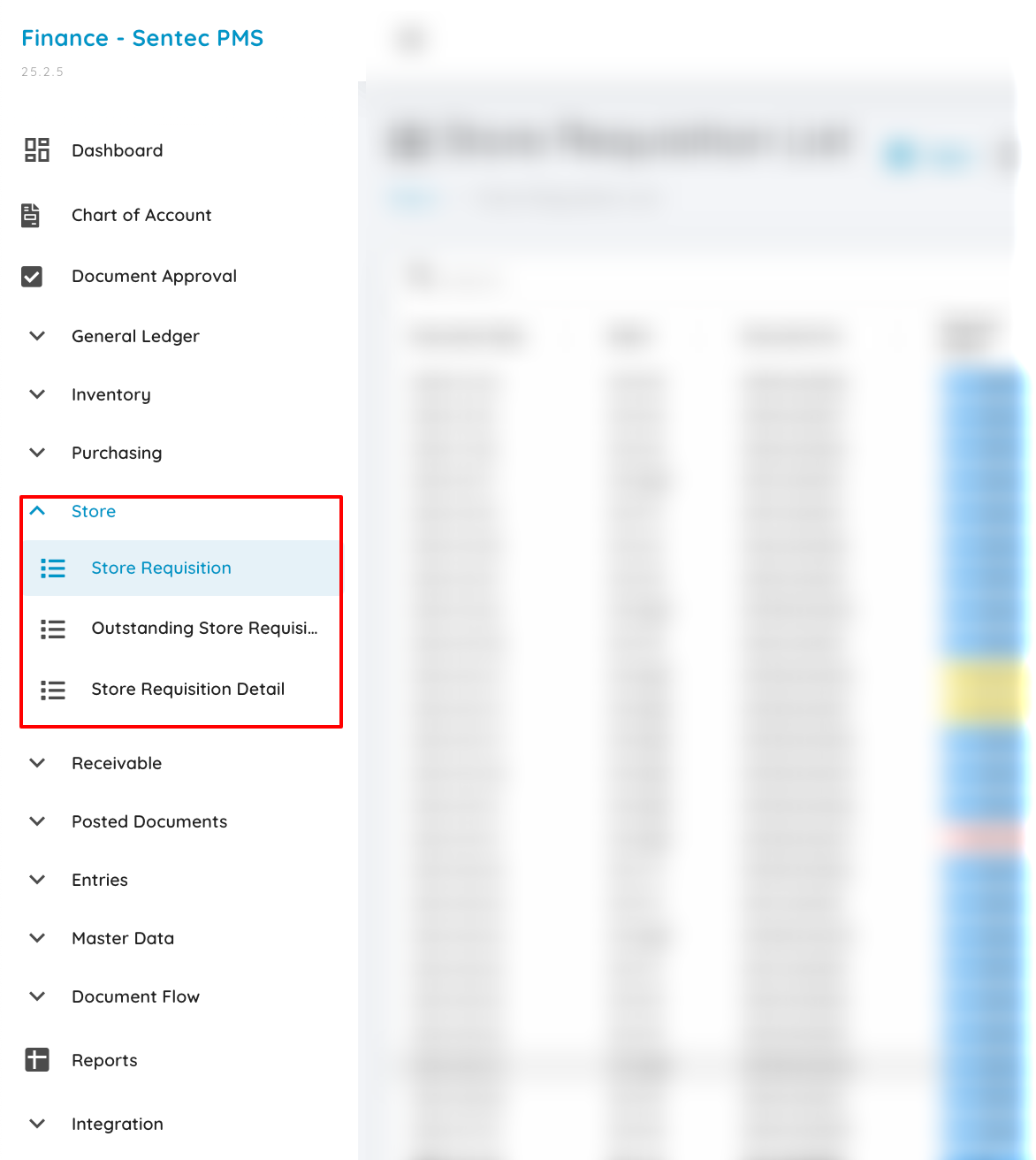
This menu is used for managing requests and procurement of goods in the system, organizing inventory, and ensuring that the distribution of goods follows the established needs and guidelines.
Store Requisition
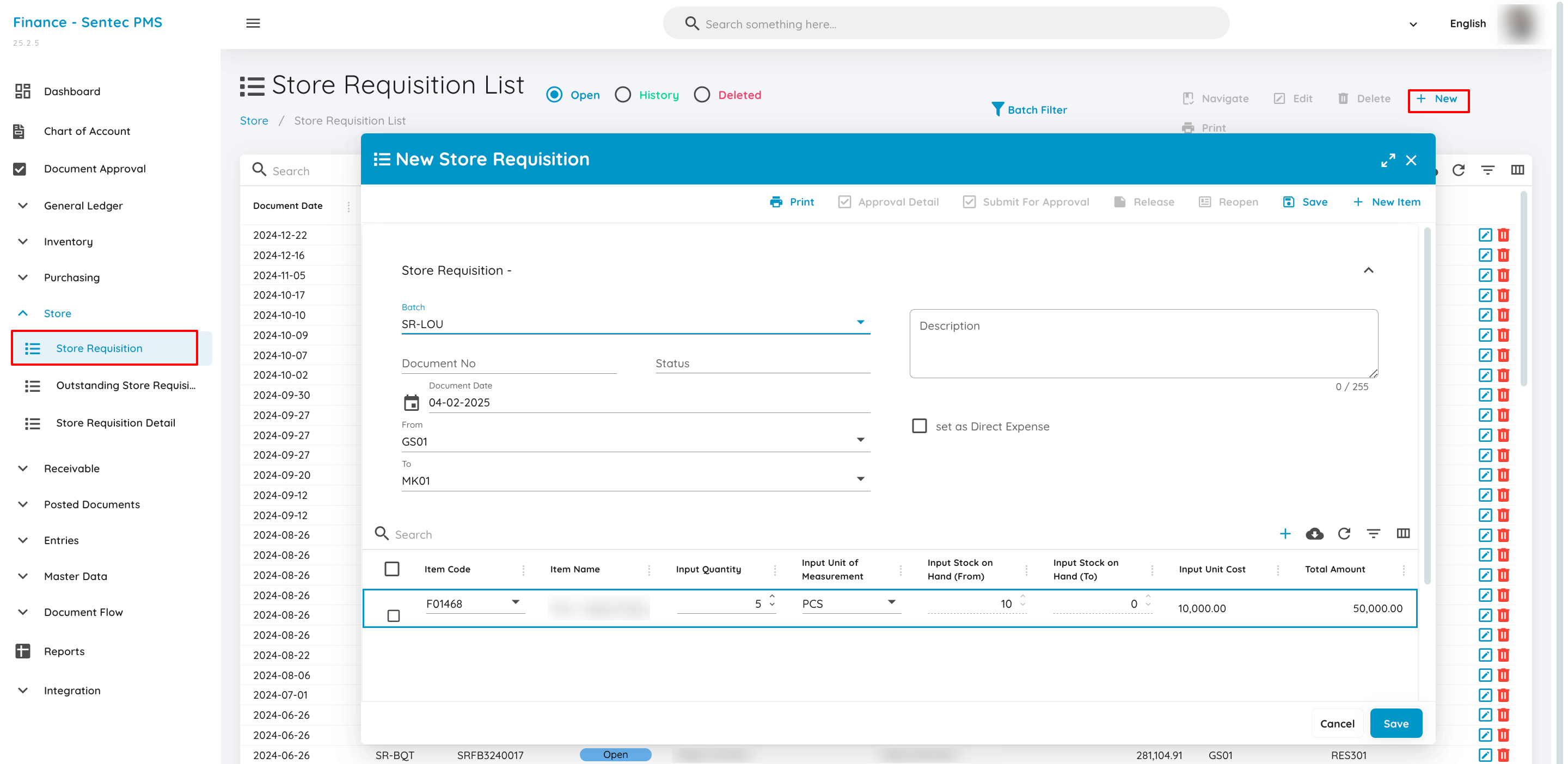
In the Store Requisition (SR) submenu, users can create procurement requests. Users fill out the SR batch, and the origin and destination locations will be automatically set according to the settings in Store Requisition Batch in Master Data. Users can also manually adjust the location if needed. Then, users can select the items to be included in the SR.
Outstanding Store Requisition
Once the SR is submitted, it needs to be approved by the approver. The approval process can use either Systematic Approval or manual approval, with the approvers defined in the Master Document Flow and Store Requisition Batch in Master Data. Once approved, the SR will appear in the Outstanding SR menu. Users can then release the SR in Outstanding SR. After release, the SR will automatically adjust the Stock On Hand (SOH) of the items listed in the SR.
7. Receivable
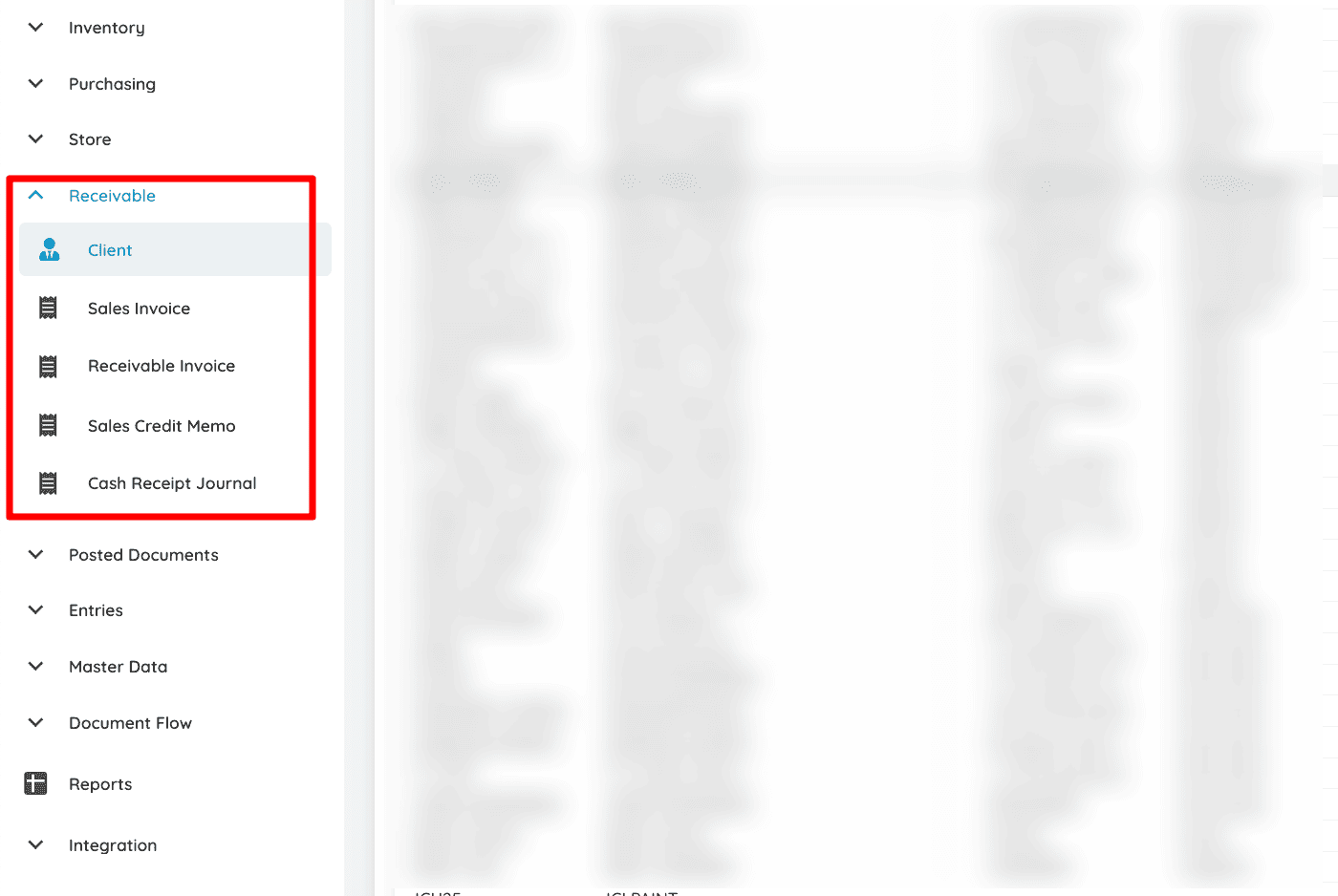
The Receivable module is used to record and manage receivables (unpaid invoices) from clients. This module includes the process from issuing sales invoices to recording received payments. Below is a list of the menus and their functions:
Client
Contains a list of all clients who have a business relationship with the property. Clients can be companies, travel agencies, or other organizations. This client data is used as a reference when creating invoices and tracking payments.
Sales Invoice
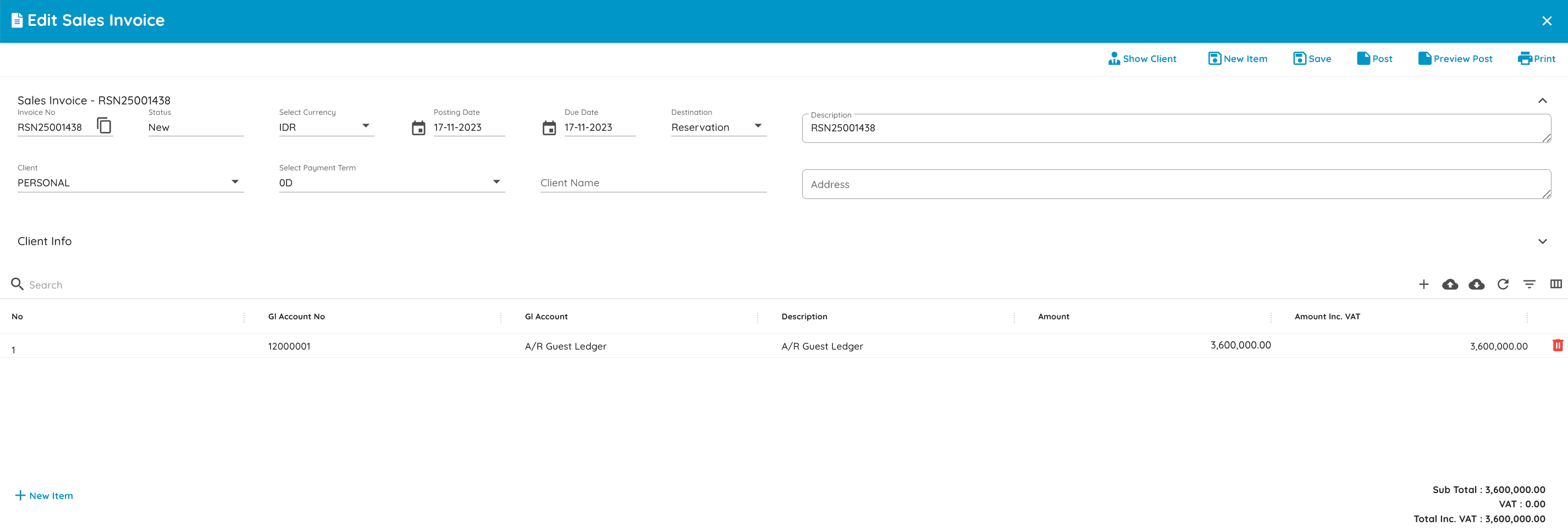
The Sales Invoice menu is used to create invoices for clients based on transactions such as room reservations, service usage, or product purchases. These invoices become the basis for recording receivables in the system. Users can select the client being billed, define the transaction source (such as reservation or POS), and fill in the details of the items being billed. Once completed, the invoice can be saved, posted, or printed.
Receivable Invoice
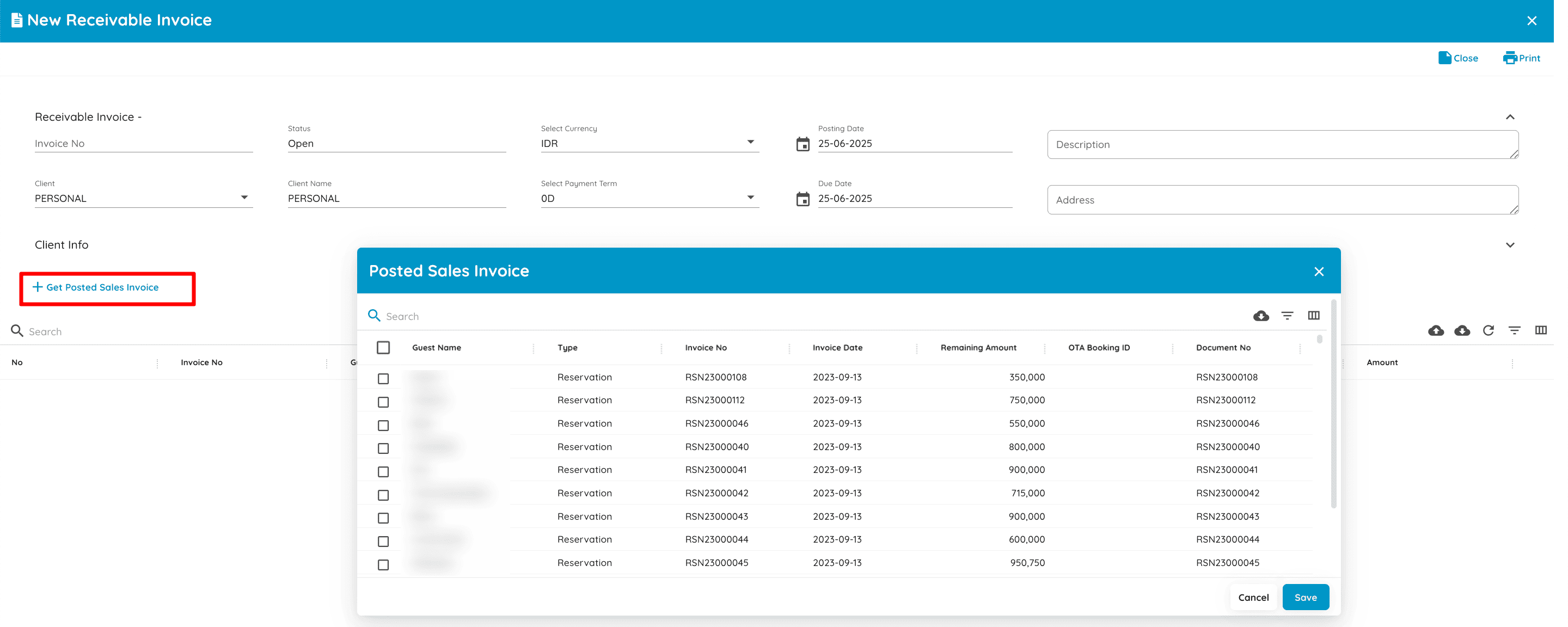
Used to create receivable invoices based on previously posted invoices.
Users simply select the client and retrieve the posted invoice data using the "Get Posted Sales Invoice" button. The system will display a list of invoices that can be compiled into a single receivable document.
Sales Credit Memo
Cash Receipt Journal
8. Entries
Adjustment Tools
9. Document Flow
Master Document Flow
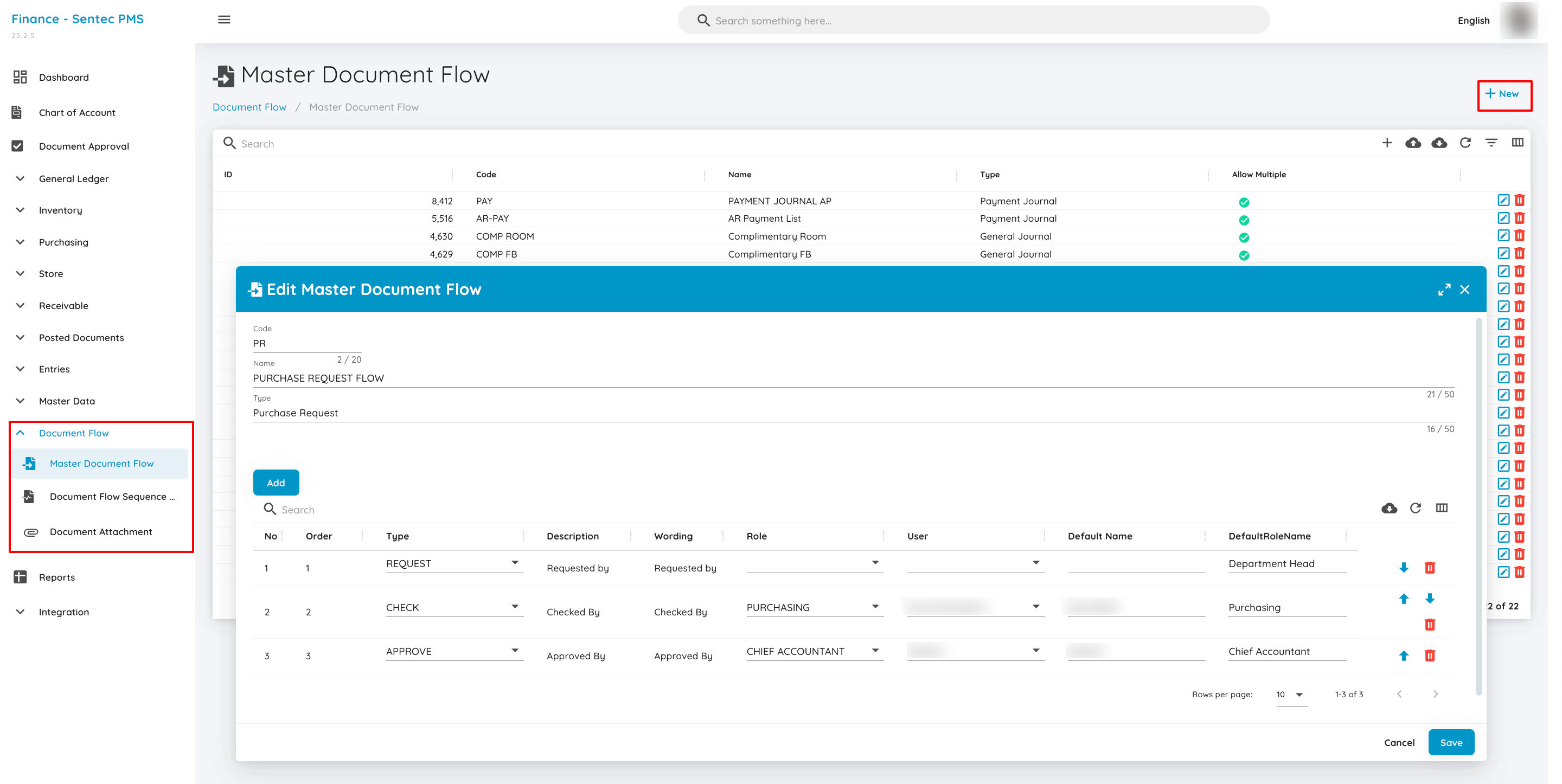
In the Master Document Flow submenu, users can set up approval workflows or signatures for documents like PR (Purchase Request), PO (Purchase Order), and SR (Store Request). Users can create new document flows by adding approval or signature sequences as needed. Each approval sequence can be customized by choosing sequence types like approver, checker, reviewer, etc. The list of sequence types can be managed in the Document Flow Sequence Type submenu. After creating the document flow, users can assign it to various batches in Purchase Requisition Batch and Store Requisition Batch.
Document Flow Sequence Type
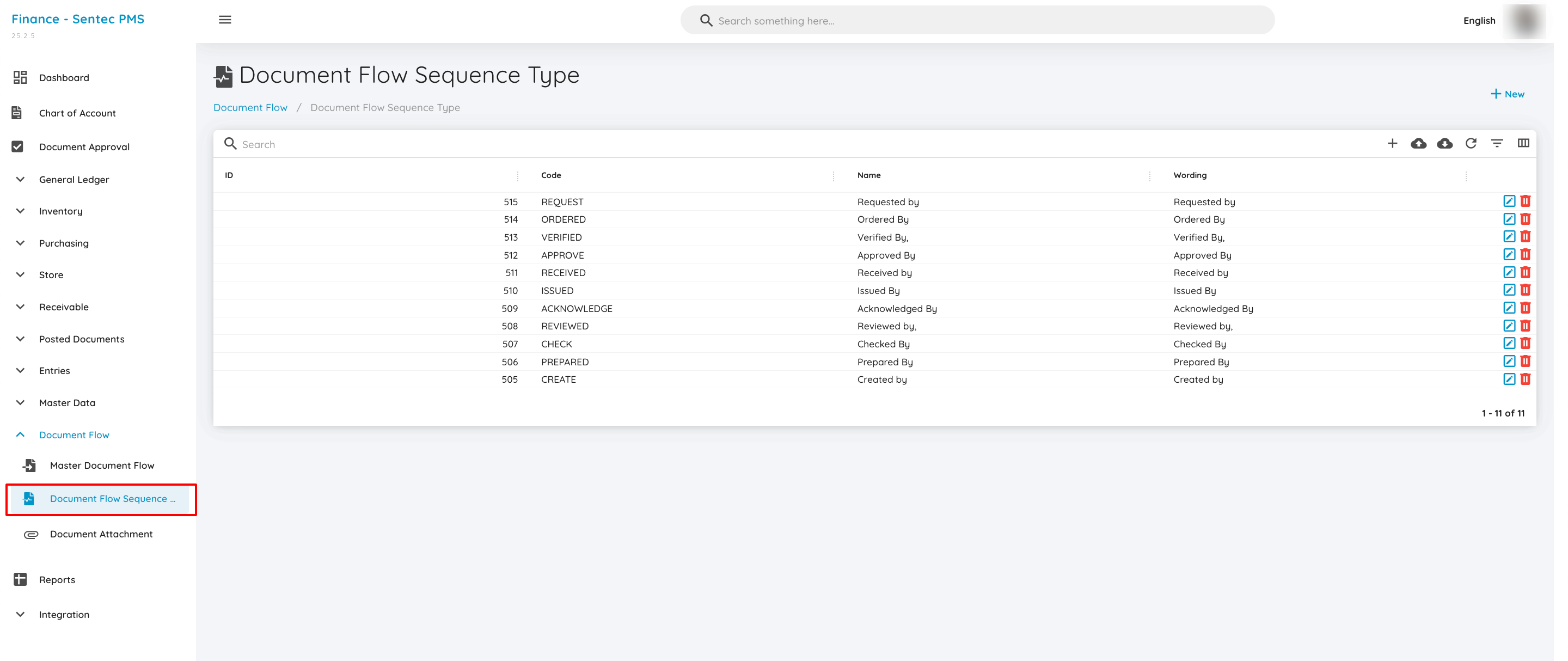
In the Document Flow Sequence Type submenu, users can add and manage sequence types. Here, users can define approval types like approver, checker, or reviewer, which will be used in the approval workflow in Master Document Flow.